In one sentence
Access control answers "who can see this specific record?" — separately from what their role lets them do, and separately from where the record belongs.
- Roles & permissions decide what kinds of things you can do (approve documents, close NCRs).
- Facility & department scope decides where a record belongs.
- Access control decides who can see this specific record.
- A user only sees a record when all three line up.
Where it applies
Per-record access control is available on every record module:
- Documents
- Meetings
- Non-conformances
- MOC
- Exemptions
- FMEA
- JHA
- Risk Register
- Gap Analysis
- Audits
The two access levels
Every record has one of two access levels:
| Level | Who can see it |
|---|---|
| Organization-wide (default) | Anyone in the org with the right role + scope |
| Restricted | Only listed principals — plus admins, who always retain visibility for audit purposes |
A principal is one of:
- A user (by individual)
- A role (Admin, Quality Manager, Standard User, etc.)
- An access group (a saved list of users — see below)
The Access summary card
Every record's Overview shows a small Access card so the level is visible at a glance:
- Organization-wide — green tint, no principal list.
- Restricted · N principals — amber tint, shows the count.
- An Edit → button opens the full Access panel.
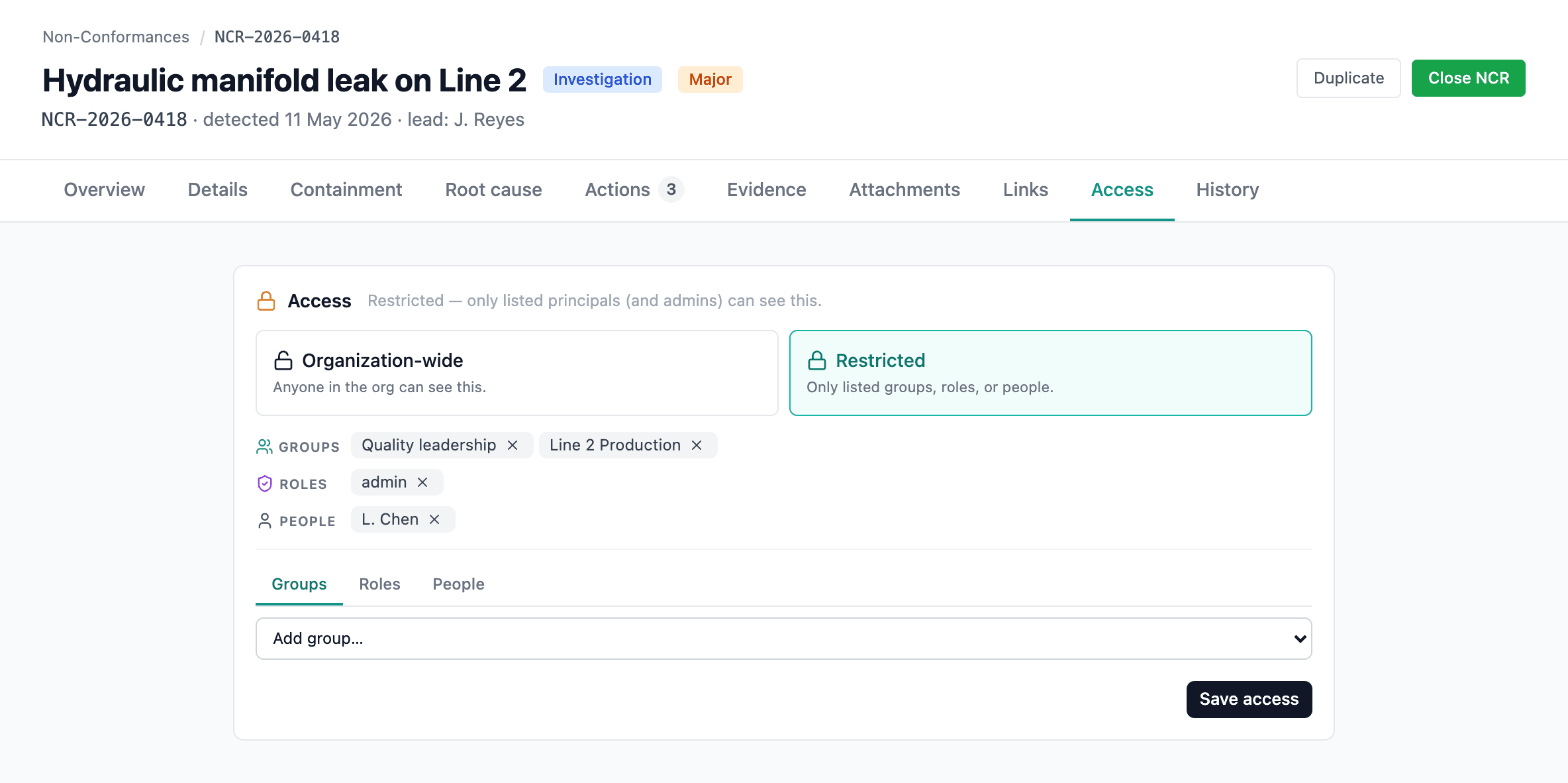
Editing access
Click Edit to open the Access panel:
- Toggle Restrict access to specific principals on or off.
- When restricted, add principals via the tabbed picker (Groups, Roles, People) — selecting an entry from the dropdown adds it immediately.
- Chips render below grouped by type — click the × to remove.
- Save commits the change.
If you flip a record from org-wide to restricted with no principals listed yet, the system automatically adds you as a principal so you don't immediately lose access to your own record.
Access changes work at any point in the record's life — approved, closed, obsolete, doesn't matter. You can adjust who sees a closed record without reopening it.
Dedicated Access tab
Some modules surface access as its own tab — Meetings, for example — when the sidebar is too narrow to host the editor comfortably. The tab shows the same panel plus a list view of every principal and their reason for access.
Access groups
Access groups are saved lists of users — managed at Admin → Organization → Groups. Use groups for stable populations:
- Quality Committee
- Site A Supervisors
- Regulatory Reviewers
Putting a group on a record's access list (rather than individual users) means updating the group in one place updates access everywhere it's referenced. When someone joins or leaves the Quality Committee, you change the group, not every record they touched.
To delete a group: the system warns if the group currently grants access anywhere, then proceeds. Records keep their other principals.
Admins always see everything — but it's recorded
The Admin role retains visibility of every record, regardless of who's on the access list. This is intentional: admins need full visibility for audit and compliance investigations, and it prevents accidental lock-outs.
What's changed is that using that reach now leaves a trace. When an admin opens a restricted document they're not named on, the content is replaced by an interstitial: opening it anyway takes a typed reason and a passkey confirmation, grants 15 minutes on that one record, writes an entry into the record's history, and emails the owner. Cancelling records nothing. Being on the access list skips all of it.
Metadata is never withheld — the record still appears in registers, exports and reports, because an admin has to be able to see that it exists. This applies to every module that carries restricted records, though what's withheld varies: a document keeps its detail page and hides the body, while modules whose record is its narrative — non-conformances, meetings, audits and the rest — put the whole detail page behind the override.
See Administrator overrides for what the admin sees, what the owner is told, and the org-wide override log.
How restriction is enforced
A user without access doesn't see a "permission denied" page — the record is filtered out everywhere:
- List and register pages
- Document and reference pickers
- Search results
- Cross-module link pickers
So if you can't see a record, the answer is usually "you're not on its access list", not "the system is broken".
Related
- Administrator overrides — what happens when an admin opens a restricted record they're not named on
- Roles & permissions — the layer above
- Facility & Department Scope — the layer beside
- Organization setup — where to manage groups