In one sentence
Two AI helpers live inside Documents — compliance mapping proposes clause mappings for headings that aren't tagged yet, and import cleanup restructures pasted or uploaded content into clean editor markup without changing the words.
- AI proposes — it doesn't apply changes silently. Every suggestion is reviewed before it's written to the document.
- For import cleanup, text is preserved verbatim. AI only restructures the markup (headings, lists, tables) — it doesn't rewrite or paraphrase.
- Both features respect the org-wide AI toggle and per-feature toggles. See AI Features & Settings.
AI compliance mapping
Click AI Suggest in the editor toolbar to run clause-tag analysis against the open document.
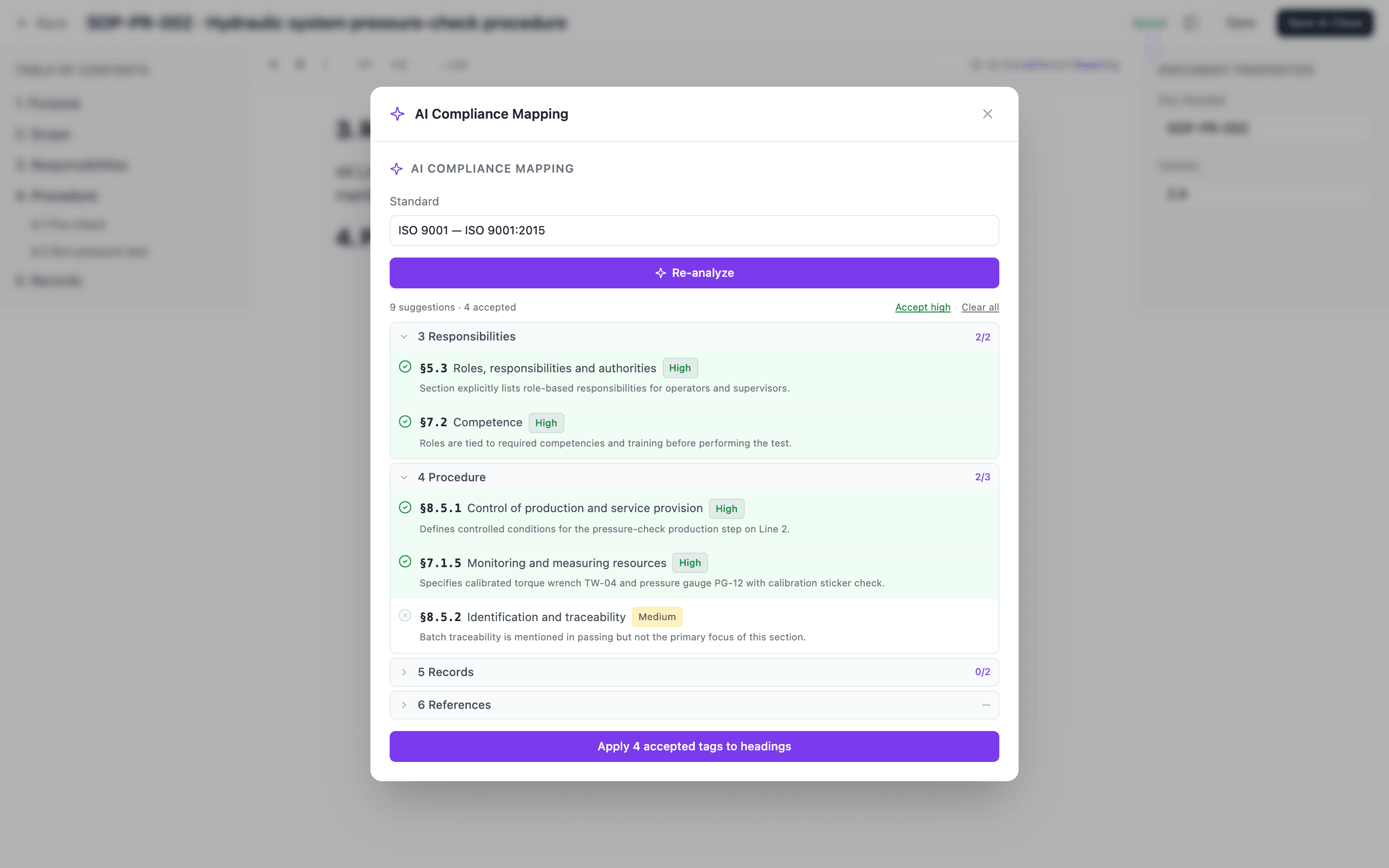
The flow:
- Pick a standard (optionally narrow to specific clauses).
- Click Analyze document.
- Review the suggested heading → clause mappings.
- Accept or reject individual suggestions.
- Click Apply to write the tags to the document.
The AI merges new tags with existing ones — it only touches clauses in the standards / scope you analyzed, leaving unrelated tags alone. The tags it writes are the same compliance map every audit, gap analysis, and AI assessment downstream reads from.
This feature requires AI to be enabled at Admin → Organization → AI Settings, and the Compliance mapping feature toggle to be on.
AI import cleanup
When importing documents via Documents → Import:
- Paste HTML or upload a file (Word, PDF, etc.). The importer extracts the raw HTML per document.
- If AI is enabled and the Document cleanup feature is on, a Clean up with AI button appears on each entry.
- Click it. The cleaned-up version replaces the raw HTML in the preview.
- A toggle lets you revert to the original if the cleaned version isn't right.
- Continue to create drafts from the cleaned output.
The cleanup pass:
- Re-applies a sensible heading hierarchy
- Normalizes lists, tables, and paragraphs
- Strips footers, page numbers, and other artifacts of the source format
- Leaves every word of the original text untouched
When AI is off
If AI is disabled at the org level — or the specific feature toggle is off — the button is hidden or shows AI is disabled for your organization. The import flow still works without it, you just lose the cleanup step.