In one sentence
The Products module is your organization's catalog of the things you make or handle — products, parts, SKUs — kept facility-scoped, revision-aware, and lifecycle-managed so the catalog stays an accurate picture of what's current without ever losing what came before.
- Components are shared, not owned. A product's components are a many-to-many bill of materials — a single part can appear under any number of assemblies. Removing a component from one assembly only cuts that BOM line; the component stays in the catalog and in any other assemblies it belongs to.
- Revisions chain by default, but you can keep both active. Creating a new revision normally supersedes the old one, but a checkbox on the form lets you keep the previous revision active alongside the new one — useful when older units are still in the field and need to remain on the catalog.
- Inactive and Deleted are different. Inactive is "retired but kept" — an end-of-life part that stays in the catalog. Deleted sends the part to Trash for 90 days. Use Inactive far more often than Delete.
Where it lives
Sidebar → Products, grouped with Suppliers and Clients — the three modules that describe who and what your quality system works with.
The list page shows the catalog for your active facility by default, as an expandable BOM tree — top-level assemblies are listed, each with a chevron that expands to reveal its components, recursively. Per-column filters live in the table header and a count of matching records sits in the footer. When the tree shows more rows than there are products — because a shared component renders under each assembly that uses it — the footer spells that out (shared components appear under each assembly), so seeing the same part in more than one place reads as expected, not a duplicated record. Switch your facility scope, or filter to All facilities, to widen the view.
Creating a product
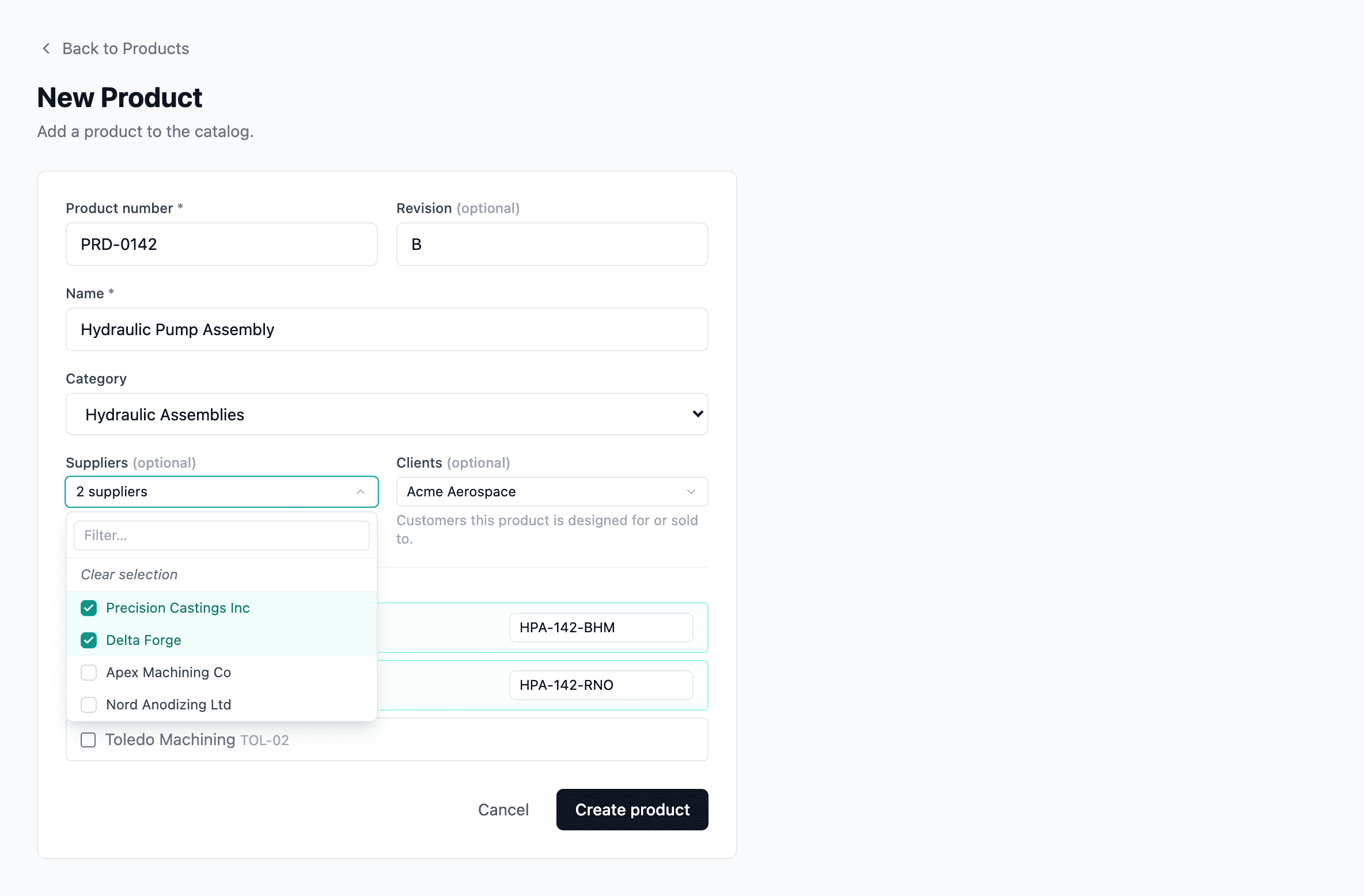
Click New product (the button reflects your org's chosen label). The form takes:
- Product number — your catalog identifier. A numbering prefix is configured by an admin (see Admin below); the number itself is yours to set.
- Revision — optional revision label (A, B, Rev 2…). Leave it blank for parts that don't carry one.
- Name and Description.
- Category — from the org's product category list.
- Suppliers and Clients — optional, searchable multi-selects. A part can be sourced from many suppliers (multi-sourcing) and built for many customers; the old single-dropdown model is gone.
- Facilities — which sites this part belongs to (required, at least one). Per-facility fields like SKU and notes appear inline as you tick each site.
- Department scope — optional; leave empty for no restriction, or tick the business lines this part belongs to (e.g. Aerospace vs. Automotive).
- Components — optional. Add the parts that make up this assembly inline; they're created in the same batch, attached as BOM components, and inherit the facility scope above. Edit each one individually afterwards, or add components later from the Components tab.
Number plus revision is unique within your organization — you can't create the same number-and-revision twice, and both fields are fixed at creation. If a deleted product is occupying that number-and-revision, the form tells you to restore it from Trash rather than recreate it.
Legible URLs
Product detail pages have readable URLs derived from the number and name — e.g. /products/prd-001-hydraulic-pump rather than a long ID. The slug refreshes automatically if the product is renamed. Older ID-based links still resolve, so any bookmark or external reference keeps working.
Revisions
When a part changes enough to warrant a new revision, open the current revision and choose Create a new revision. The form asks for:
- The new revision label.
- An optional Supersede current revision checkbox — default on. With it on, the new revision chains the old one and marks it inactive (the standard "this replaces that" pattern). Uncheck it to keep the previous revision active alongside the new one — typical when older units are still in the field and the older revision needs to remain in the catalog as a current entry.
Either way the system:
- Creates a fresh catalog entry carrying the new revision label, copying the name, description, category, supplier/client links, and facility scope from the source.
- Either supersedes the predecessor (checkbox on) or leaves it active (checkbox off).
- Records the predecessor / successor chain.
Any records that referenced the old revision keep pointing at the revision they were created against — history doesn't get rewritten when a part is revised. The new revision is what new work picks up going forward.
A revision that's already been superseded can't itself be revised again — you revise the current revision, and the chain stays linear.
Components (Bill of Materials)
Products use a many-to-many BOM: a single product can have any number of components, and any of those components can also be components of other products. Components are shared, not owned — linking is membership, not parenthood.
The Components tab
The detail page's Components tab is where you build out the bill of materials. You can:
- Add new — create a brand-new product inline and attach it as a component in one step.
- Link existing — pick a product already in the catalog and attach it, with a direction choice: attach it as a component of this product, or attach this product as a component of a parent assembly. That second direction is handy right after you create a revision — you can slot the new revision straight into the assemblies that should use it, without navigating to each parent in turn.
- Edit a line — change the per-line quantity and the per-line approved suppliers for that component (multi-sourcing — the same physical component can list more than one supplier where it can be sourced from).
- Reorder — drag rows to set the order components appear on the BOM.
- Remove — cut just that BOM line. The component stays in the catalog and in every other assembly it belongs to.
The Used In tab
The mirror of Components. The Used In tab on a product shows every assembly that includes this part as a component — a reverse lookup, no separate query needed. Useful for change-impact analysis ("if I revise this washer, what assemblies are affected?").
The BOM navigator (left rail)
The detail page carries a left-rail BOM navigator showing the whole assembly tree the current product sits in — climbing up through every parent assembly to the top-level products, and down through every component to the lowest children. Click any node to jump to that product. Useful for orienting yourself when you're three levels deep in a complex assembly.
The navigator always seeds with every revision of the product you're viewing, so the whole revision family is navigable side by side — not just the single revision you opened.
Active vs Inactive — retire without deleting
Most parts that leave service shouldn't be deleted — they should be retired. Marking a product Inactive:
- Hides it from the default catalog lists (switch the status filter to see inactive parts).
- Keeps it fully in the catalog, so any historical records that reference it still resolve.
- Is captured in the audit trail with a required reason — retiring or reactivating a part is a tracked state change.
Reactivating works the same way, with its own reason. Reactivating a revision that had been superseded also clears its supersession — the revision comes back as a fully active entry alongside the one that replaced it, so both can be current at once (the same state you'd get by creating a revision without ticking Supersede). Reach for Inactive whenever a part is end-of-life but its history still matters — which is almost always.
Deleting a product
Deleting is the heavier action. It sends the product to Trash, recoverable for 90 days, then permanently purged. Use it for genuine mistakes — a part created in error — not for end-of-life parts. You can delete a single revision or the entire product line (every revision sharing the same number).
Because components are shared, deleting an assembly never cascades to its components — only the assembly's own BOM-membership rows are removed, and the components stay in the catalog and in every other assembly they belong to.
If you're tempted to delete a part just because it's no longer made, use Mark inactive instead — that's what it's for.
See Soft-delete — how it works for the broader recoverable-delete model.
Linking products to the rest of the QMS
A product doesn't sit on its own — it connects to the work and the relationships around it.
- Records link to the products they concern. An NCR, MOC, FMEA, exemption, risk, JHA, meeting, or audit can be linked to the specific products it's about — so a non-conformance against a particular part, a change affecting a known set of SKUs, or rental equipment moving between sites carries that context with it. Each of those modules has a Linked Products card on its Links tab with a searchable add + unlink control.
- A product links to many suppliers and many clients. Point a part at every supplier it's sourced from and every customer it's designed for — both are searchable multi-selects on the create form and the Details tab, and the product Overview surfaces them as Sourced from and Designed for link lists. Components can each carry their own approved suppliers too — set on the Components tab — which gives you supply-chain traceability all the way down the BOM (not just the top-level part). New revisions copy these supplier and client links forward, the same rule the BOM follows.
- Picker narrowing on every create form. When you're creating an NCR, MOC, FMEA, exemption, risk, or meeting and you pick a product, the supplier picker on the same form narrows to that product's suppliers — the union of the suppliers linked directly to the product and the approved suppliers on every component in its BOM subtree, full depth. Picking a supplier first narrows the product list. When the narrowed list collapses to a single supplier, the form auto-selects it. Each picker carries a Show all escape if you need to step outside the narrowed set.
- Documents link to products (many-to-many). A single SOP can govern several parts; a single part can be governed by several SOPs. The product detail page has a Documents tab listing every linked controlled document — internal and external — with a searchable add + unlink control. An Overview card surfaces the same controls without leaving the tab. Linking is locked while a document is in Obsolete state, but historical links to obsolete docs remain visible. Useful for tying work instructions, inspection plans, and external standards to the specific parts or equipment types they govern.
Links stay attached to the specific revision they were made against. When you revise a part, the records linked to the old revision keep pointing at it; new work links to the new revision. Retiring or deleting a product doesn't break those links — the history stays intact.
The detail page
A product's detail page carries:
| Tab | What's there |
|---|---|
| Overview | Core details — number, revision, name, description, category, status — plus Sourced from (suppliers) and Designed for (clients) link lists, and a Linked Documents card with the same searchable add + unlink control as the Documents tab |
| Details | Editable core fields — name, description, category, and the Suppliers and Clients multi-selects — plus the Facilities and Department scope editors (one Save button for the whole tab; these used to live as separate tabs) |
| Components | The bill of materials — add new, link existing, edit per-line quantity and approved suppliers, reorder, remove. See Components above |
| Used In | The reverse view — every assembly that includes this product as a component |
| Revisions | The revision chain — predecessors and the current revision |
| Documents | Every controlled document linked to this product — internal and external — with a searchable picker to add more and an unlink control on each row |
| MOCs / NCRs / FMEAs / Exemptions / Risks / JHAs / Meetings / Audits | The cross-module records linked to this product, now split into one tab per module instead of a single consolidated Linked Records list. Each tab lists its records with a status badge and a one-click jump, and appears only when at least one link exists — so an unlinked product shows none of them |
| History | The full audit trail — see Record history |
The old single Linked Records tab is gone — those records now split across the per-module tabs above, each surfacing only when it has content.
Across the app, module Overview summary cards now stack full-width (no more cramped two-column grids), list their entries as • NUMBER — Title rows, and hide entirely when empty — so an Overview only ever shows the cards that actually have something in them.
Admin
Admin → Organization → Products — admin-only, gated on the Edit org settings permission.
- Categories — the category list products are filed under: add, rename, reorder.
- Numbering prefix — the prefix on the product-number scheme (default PRD).
- Module label — choose whether your org calls them Products, Parts, or Items. The label flows through the sidebar, page titles, and buttons everywhere.
Permissions
Four permissions govern the module — grant them on roles at Admin → Roles & Permissions:
| Permission | What it allows |
|---|---|
| Create products | Add new products and new revisions |
| Edit products | Edit name, category, description, and facility membership |
| Activate / deactivate products | Toggle a product between active and inactive |
| Delete products | Send a product to Trash |
All four default to the Admin role.
Related
- Suppliers and Clients — the sister directories
- Facility & Department Scope — how facility scoping works
- Trash and Soft-delete — the recoverable-delete model
- Roles & permissions