In one sentence
The document editor handles formatting, structure, references, and compliance mapping in one place — and quietly maintains the formal header, table of contents, and revision history so authors only touch content, never the chrome around it.
- The document header (logo, owner / reviewer / approver, revision history) renders automatically and stays accurate. You never maintain it by hand.
- Live Definitions and Reusable Components mean a phrase, table, or clause that's in many documents stays in sync everywhere from one source.
- Compliance mapping lives on each heading. Map as you write and the rest of the QMS — audits, gap analysis, AI — uses that map automatically.
This article focuses on editor features. For lifecycle and approvals see Documents and Document approvals & versions.
Things the editor maintains for you
The document header
Every document renders a formal header automatically — in the editor, in print, and in PDF exports. You never edit it.
It contains:
- Organization logo (uploaded in Admin → Organization) or org name fallback
- Document number, title, status badge
- Version, category
- Owner / Reviewer / Approver in a three-column grid
- Revision History table — Rev · Date · Author · Description
The revision history updates on every approval. Authors can write Revision notes on the submit panel; if they don't, the system fills a default based on revision type (Major revision, Minor revision, Spelling / grammar correction).
Automatic revision history
Every approval writes a permanent snapshot — content, metadata, author, approver, revision type, and notes. That history feeds:
- The header table on every view and export
- The Version History sidebar (full list, newest first)
- The Diff view — compare any draft against the last approved version
- Evidence links — freeze a link to a specific version for audit evidence
Live Definitions
If your organization maintains a shared definitions library (Admin → Definitions), any document can include an always-current definitions table.
- Click Sync definitions in the toolbar.
- Choose which heading to insert the table under (defaults to end of document).
- The table is generated from the library and inserted.
Re-sync at any time — the existing table is replaced with the current library contents. One authoritative list, every document agrees.
Reusable components
Components are content blocks authored once at Admin → Documents → Components and inserted into any document. When a block is updated in admin, every document that embeds it reflects the new content immediately — no find-and-replace, no re-publishing.
Insert a component via the toolbar Components button or the slash menu. The block renders inline and is clearly marked as shared so authors don't try to edit it locally.
Use components for:
- Scope statements that must be identical across procedures
- Approved role definitions (Quality Manager responsibilities)
- Legal or regulatory boilerplate that must stay verbatim
- Safety notices or PPE requirements that apply across many work instructions
When a regulatory phrase changes — update the component once and every document is current on next render.
Writing & formatting
Toolbar & formatting
Standard rich-text controls along the top:
- Headings (H1–H5), paragraph, bold, italic, underline, strikethrough, highlight
- Subscript, superscript, inline code, text color
- Alignment (left / center / right / justify)
- Bullet, numbered, and task (checkbox) lists
- Quote blocks, code blocks, horizontal rules
- Tables with header rows
Slash commands
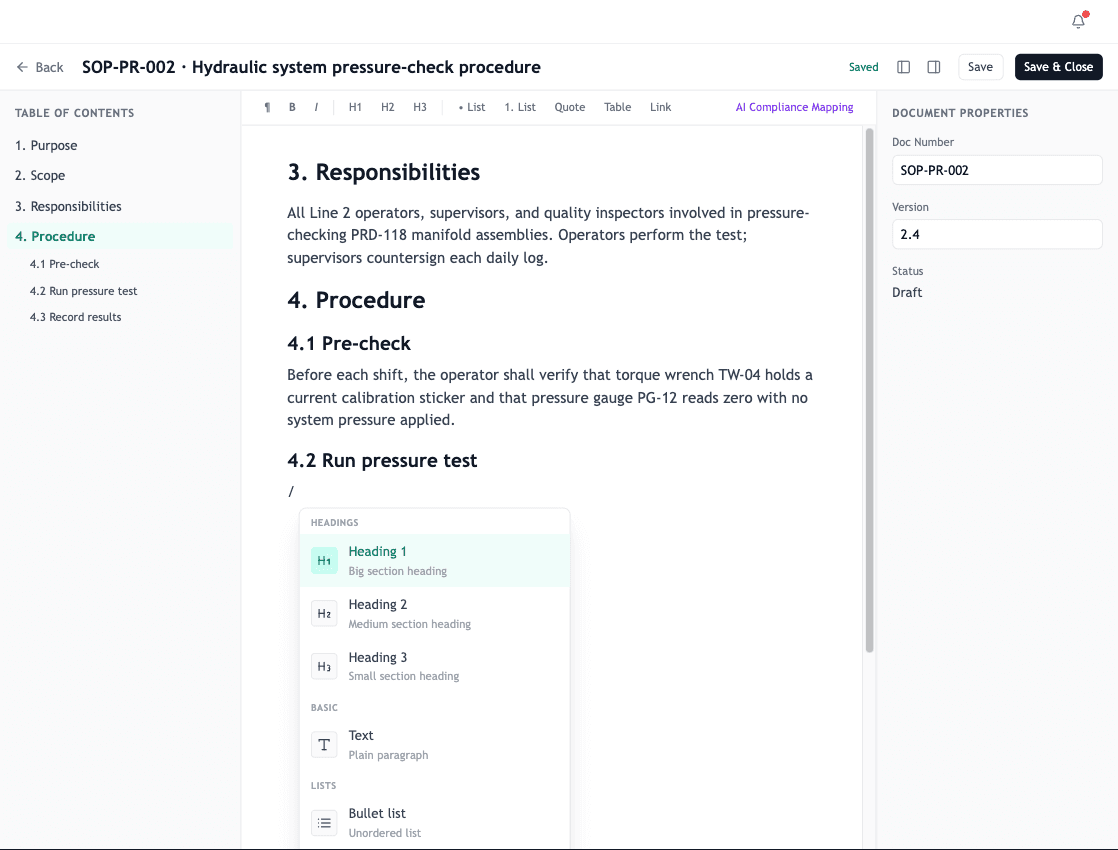
Type / at the start of a new line to open the slash-command menu. It filters as you type and groups commands by purpose:
- Headings — H1 through H5
- Basic — Text, Bold text
- Lists — Bullet, Numbered, Task
- Blocks — Quote, Code block, Divider, Table (3×3), Image
- Callouts — Info, Warning, Tip, Important (colored boxes)
Arrow keys navigate, Enter inserts, Escape closes.
Heading auto-numbering
Heading numbering (1.1, 1.2, 2.1, etc.) is computed from the document structure. You don't type the numbers — they're applied based on each heading's level. Move a heading and the numbers update automatically.
Live table of contents
A live TOC sidebar mirrors the document's headings. Click to jump.
Anchors and internal links
Every heading is automatically given a stable anchor based on its text. Internal-link suggestions in the slash menu let you cross-reference within the document or to other documents in the library.
Compliance mapping
Compliance mapping lives in this editor. Click a heading, click Compliance Map in the toolbar, pick the standard, tick the clauses. Mapped headings show colored badges inline.
See Compliance mapping for the full picture and how the map drives audits, gap analysis, and AI suggestions.
Inserting elements
Tables
Insert via slash or toolbar. Click any cell to add or remove rows / columns from the contextual menu.
Images and attachments
Drop image files directly onto the canvas. Other attachments (PDFs, Office files) attach via the toolbar — they're listed in a per-document attachments panel and can be downloaded by readers.
Callouts
Four flavors via the slash menu — Info (blue), Warning (amber), Tip (green), Important (red). Drop a callout where the reader needs to pause.
Working efficiently
Search & replace
Cmd/Ctrl + F opens find. Find-and-replace covers the whole document including nested content. Matches are highlighted; the current match is highlighted more strongly.
Word & character count
Visible at the bottom of the editor. Updates live as you type.
Autosave
Drafts autosave as you go — there's no Save button. The status indicator next to the title shows Saved / Saving… / Failed to save (the last one prompts a reload).