In one sentence
An FMEA is a structured analysis of how a process or design could fail — each row scores a failure mode by Severity × Occurrence × Detection (RPN), lists controls and actions, and the whole document is versioned through an approval workflow so the FMEA you reference is always the one that was actually signed off.
- RPN adds a Detection axis to the standard matrix. Lower-detection rows have higher RPN even at the same Severity × Occurrence.
- Revised RPN after actions tells you whether the action moved the needle — same logic as the residual score everywhere else.
- An FMEA is a versioned record. New version is created when the FMEA is approved, not on every save — so the audit trail is meaningful.
For the matrix, the controls component, and the import-fork rules every risk-scoring module shares, see Risk fundamentals.
FMEA types
Configurable at Admin → FMEA Settings:
| Type | What it analyzes |
|---|---|
| PFMEA | Process |
| DFMEA | Design |
| MFMEA | Machinery |
| SFMEA | System |
| HFMEA | Healthcare |
| FMECA | Failure Modes, Effects, and Criticality |
Enable the ones your org uses; disable the rest to keep the picker tidy.
The detail tabs
| Tab | What lives here |
|---|---|
| Items | The analysis table — process steps, failure modes, RPN |
| Versions | Version history + Approve & Create Version |
| Approvals | Shared approval workflow |
| Links | Connections to NCRs, MOCs, documents, and products |
| Actions | Action items raised from this FMEA |
| Attachments | Supporting files |
| Access | Per-record access control (if you have the capability) |
| History | The unified record-history feed — see Record history |
The Items table
Each row in an FMEA captures one failure mode.
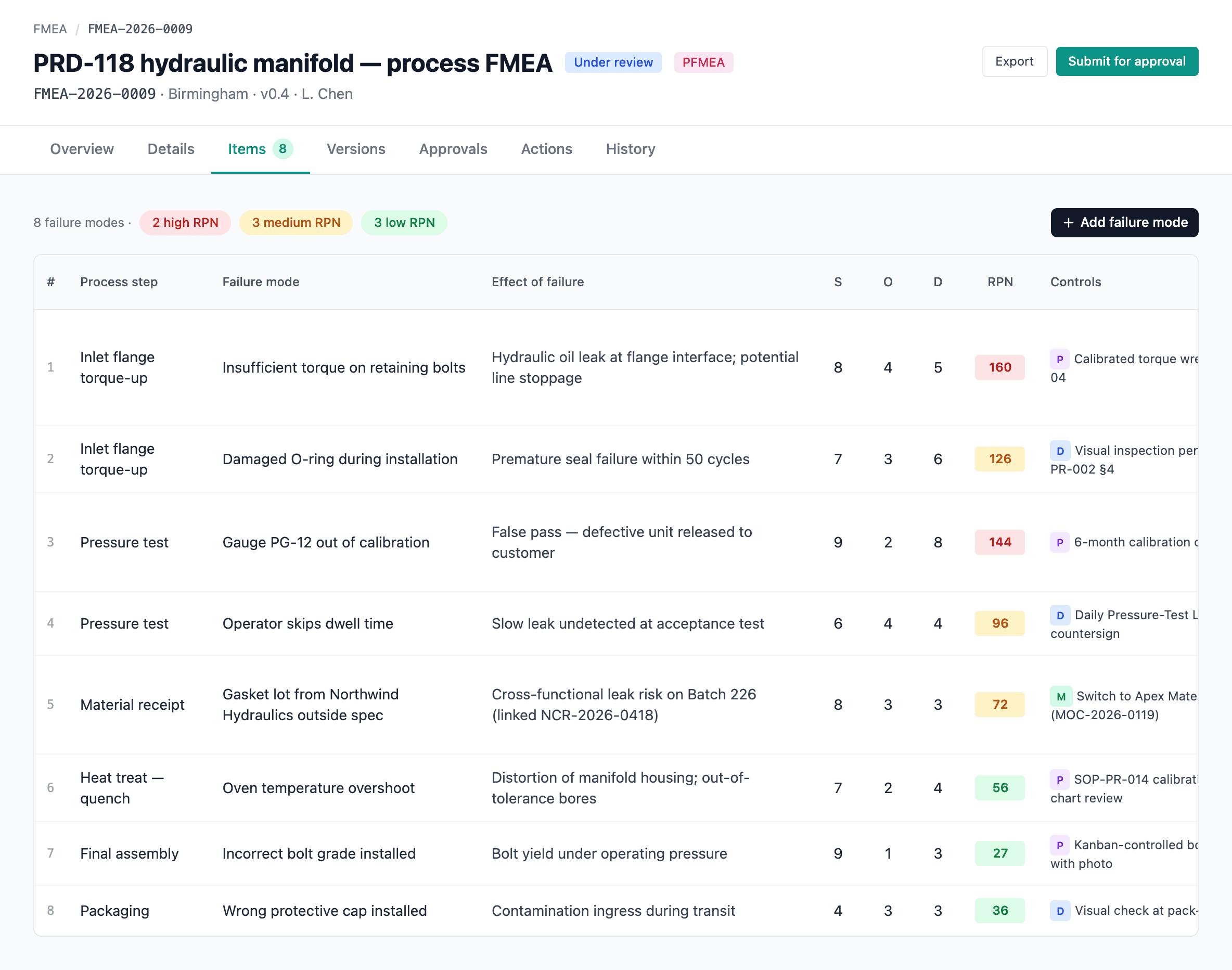
Per row:
- Process step / Function / Failure mode / Potential effect
- Severity / Occurrence / Detection ratings (1–10)
- RPN — Risk Priority Number (S × O × D), color-coded against configurable thresholds
- Classification — configurable labels (CC, SC, HI, S, R, F) with descriptions
- Controls — preventive and detective by default. The controls component is shared with Risk Register and JHA — see Risk fundamentals → Controls.
- Actions — multiple per step, managed inline
- Revised ratings — after actions, set revised S / O / D to calculate revised RPN
Why Detection matters
Severity and Occurrence are the same axes the rest of the QMS uses (Impact and Likelihood). Detection is FMEA's third axis — a rating of how likely the failure is to be caught before it reaches the customer.
A high-Severity, high-Occurrence row that's easily detected is genuinely lower priority than the same row with poor detection — RPN captures that. Bring the Detection score down (better inspection, better tooling) and you bring RPN down even if you can't reduce Severity or Occurrence.
Versions and approvals
FMEAs use versioned approvals. A version snapshot is created when the FMEA is approved — not on every save. The Versions tab shows:
- Version history with author and approver.
- An Approve & Create Version button when an approval workflow is ready.
The approval workflow itself is the shared one — up to three serial steps, delegations supported, routing per FMEA type. See Approvals.
If your organization has Require passkey for approvals turned on, approving an FMEA prompts for a fresh passkey confirmation. The confirmation lasts 5 minutes; the approver must have at least one passkey enrolled — see Auth policy and Passkeys.
Revising an approved FMEA
An approved FMEA isn't frozen forever — when the process changes, click New Revision to open it up again. This returns the FMEA to Draft so you can edit the items and route it back through the approval chain; the previously approved snapshot stays intact in the Versions tab as its own signed-off record. Re-approving the revision bumps the major version (1.0 → 2.0 → 3.0) and marks the prior version superseded. New Revision works on an approved or obsolete FMEA and requires FMEA edit permission, a reason, and — when your org requires passkeys for approvals — a passkey confirmation.
A working FMEA gets edited dozens of times before it's ready to reference. If every save was a version, the audit trail would be noise. Snapshotting only on approval means each version represents a real decision, not a keystroke.
Admin: FMEA settings
Admin → FMEA Settings:
- Enable / disable FMEA types (PFMEA, DFMEA, etc.).
- RPN alert thresholds (amber / red).
- Classifications (code + description).
- Allowed control types.
- Approval routing per FMEA type.
Removing a setting that's already in use
Before you delete an FMEA type, classification, or control type that real FMEAs already reference, the settings page warns you with usage counts — "3 active FMEAs use this classification; 12 items reference it" — and asks you to confirm. You can still proceed; the existing records keep their values, but the option disappears from new pickers.
If you adjust RPN alert thresholds (the bands that mark a score as amber or red), the editor shows a live band-shift preview below the form — how many existing items would move into a new alert band if the new thresholds were active. Use it to gauge the blast radius before saving.
If you delete an FMEA
A pre-approval FMEA — Draft, Under review, or Rejected — can be deleted from its detail page; it lands in Trash for 90 days and can be restored in full. Versions, items, controls, RPN history, and cross-module links all come back together.
Approved and Obsolete FMEAs are permanent. They're the snapshots downstream MOCs and audits cite as evidence, so they can't be deleted. Revert an approved FMEA to Draft first (a logged action) if you genuinely need to remove one.
See Soft-delete — how it works.
Finding FMEAs in the list
The FMEA list page has a filter for every column right in the table header — narrow by type, status, scope, and so on, all at once. A count of matching FMEAs sits in a footer strip below the table, so you always know how big the set you're looking at is.