In one sentence
Roles & permissions in QFormance answer "what kinds of things can a user do?" — and the model is simple: two system roles out of the box, custom roles for everything else, and additional roles you grant on a per-user basis to give specific people specific capabilities.
- Two system roles, not four. Admin (everything) and Standard User (minimal). Anything in between is a custom role you create.
- A user has one base role and any number of additional roles. Permissions union together — there's no "deny" in the model.
- Permissions don't vary by facility. That's a different layer. Roles answer what can you do; Facility & Department Scope and Access Control answer on which records.
The two system roles
Every organization starts with two seeded system roles. They live at the top of Admin → Organization → Roles & Permissions and are tagged so they can't be renamed or deleted carelessly.
| Role | Who it's for | Default permissions |
|---|---|---|
| Admin | People who own the whole QMS | Every permission. Can't be restricted. Bypasses training gates. |
| Standard User | Everyone else by default | Minimal — moc.create and exemption.create only. Anything more comes from custom roles or additional roles. |
That's it. The old four-role pattern (Admin / Quality Manager / Auditor / Reader) was deliberately retired — it forced every organization into the same hierarchy. The two-role floor keeps the model simple and lets you build the structure your team actually has.
They become custom roles you create yourself — Quality Manager, Lead Auditor, Site Auditor — sized to your team's responsibilities. The custom-role flow takes 60 seconds and lets you pick the exact permissions, not a generic predefined set.
Customizing the Standard User role
The Admin role can't be customized — it always has every permission. The Standard User role can.
- Open Admin → Organization → Roles & Permissions.
- Click Standard User.
- The permission matrix groups every catalog permission by feature area — Documents, Non-Conformances, Meetings, Actions, Audits, Audit Admin, Gap Analysis, MOC, Exemptions, Risks, FMEA, JHA, Training, Suppliers, Clients, Products, Settings, and Account Recovery.
- Tick the permissions every Standard User should have, untick the ones they shouldn't.
- Click Save.
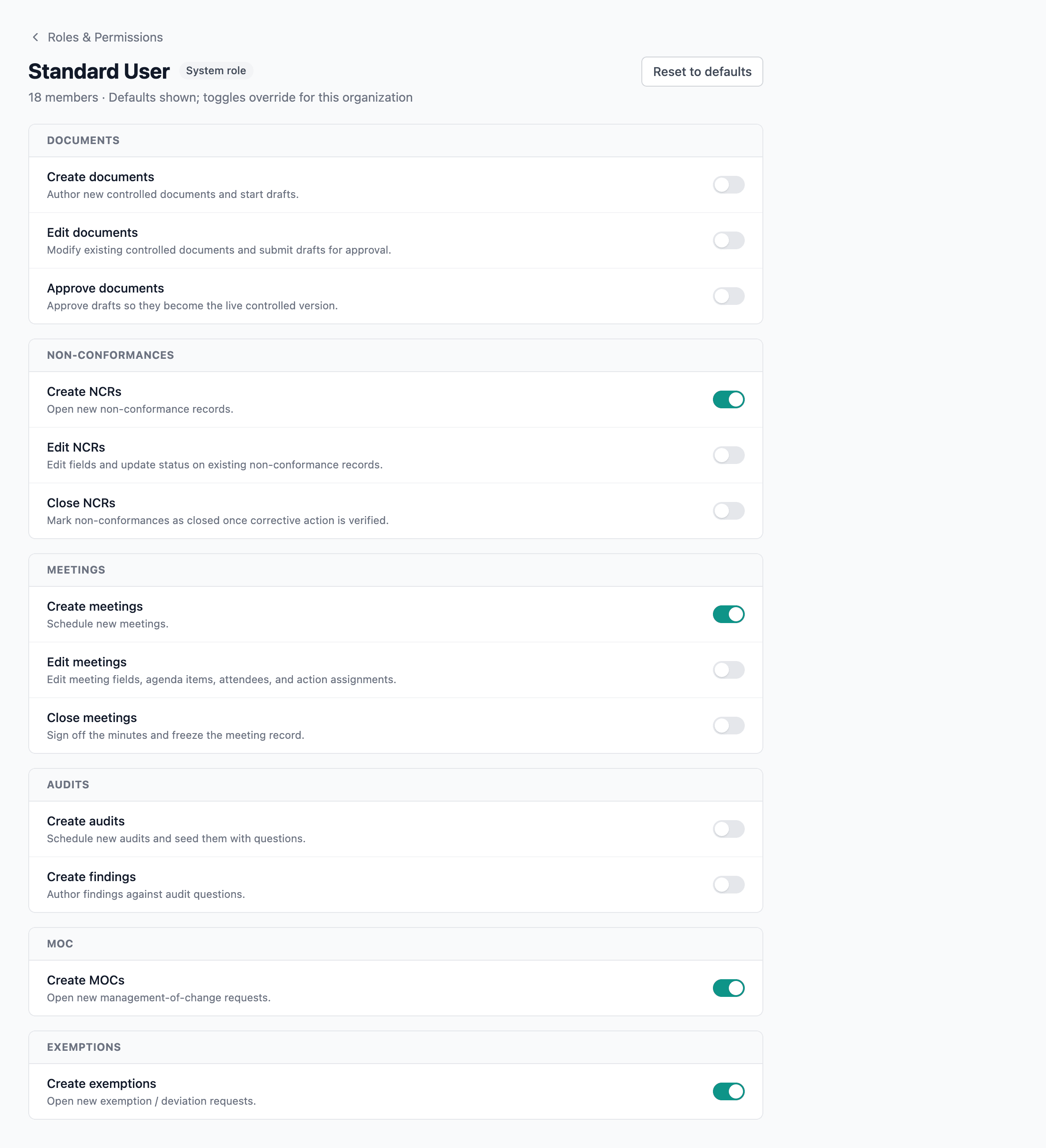
The moment you save changes, the role is marked Customized — your saved set replaces the code defaults from then on. (Adding new catalog permissions in future product releases won't auto-grant them to a customized role; you'll need to revisit the matrix.)
That said, baking permissions into the Standard User role is rarely the right move. You're granting the same capability to everyone who isn't an Admin. Most of the time you want a custom role you can apply selectively.
Creating a custom role
Custom roles are the primary mechanism for granting non-Admin capabilities. Examples:
- Quality Manager — approve documents, close NCRs, manage audits, manage routing rules, edit org settings.
- Lead Auditor —
audits.plan, create / manage audits, advance status, manage audit questions. - Document Reviewer —
documents.editanddocuments.approveonly. - Site Auditor — no audit permissions at all. Answering audit questions is controlled by assignment, not by a permission: whoever is set as the question's auditor, or the audit's lead auditor, can record answers. Assign someone to a section or a question and they can do the work without holding any audit permission.
To create one:
- From the Roles & Permissions page, click Create role.
- Give it a name and a one-line description.
- Save — the role appears with no permissions ticked.
- Click into the role and configure its permission matrix the same way as Standard User.
Custom role names must be unique within your organization. Custom roles can be renamed, edited, and deleted at any time.
The Manage routing rules permission used to exist in the catalog but wasn't actually wired to anything — granting it didn't open the Approval Routing admin page. That changed in a recent build: Manage routing rules now meaningfully gates the whole Approval Routing admin page end-to-end. The default Admin role keeps access automatically. If you had built a custom role that managed approval routing by granting Access audit admin instead, swap it to Manage routing rules — that's the correct permission now.
The Account Recovery group
Three permissions sit in their own Account Recovery group in the matrix, deliberately split out of Edit org settings:
| Permission | What it allows |
|---|---|
| Reset member passwords | Issue a one-time temporary password to another member, forcing a change at next sign-in. Doesn't sign out their existing sessions. |
| Reset member MFA | Clear another member's second factors when they're locked out, signing them out everywhere. They must confirm their email address before enrolling again, and every admin is emailed with a link to cancel. |
| Erase member personal data | Permanently replace a deactivated member's name, email, phone and avatar with an anonymous tombstone. Their audit-trail history is kept, as regulation requires. Cannot be undone. |
The split cuts both ways, which is the point:
- You can delegate recovery to a help-desk person without also handing them branding, facilities and roles.
- You can withhold it from someone who holds Edit org settings for unrelated reasons.
Erasure is the one to be most careful with. It's irreversible, so most orgs will want it held at director level even where routine user administration is delegated — which is exactly what a separate permission makes possible. It also requires the member to be deactivated first, and asks for a passkey confirmation and a typed name at the point of use.
Either permission on its own is enough to reach Admin → Users, and the page renders only the actions the holder actually has — no invite, no create, no access-tier change, no deactivate. See User management and Account recovery.
Deleting a role
The Admin role can never be deleted. Standard User can, but doing so reassigns every Standard User to a fallback (the system shows the impact count before you confirm) — practically, leave it in place.
Deleting a custom role automatically removes it from any users who had it assigned. Those users keep their base role and lose any permissions that came from the custom role alone.
Assigning roles to users
Every user has a base role — Admin or Standard User — set on their profile at Admin → Users. On top of that, you can grant any number of additional roles to layer extra capabilities onto specific people without changing their base role.
The additional-role grant is how most non-Admin permissions actually reach the people who need them.
To remove an additional role, click the × on its chip in the user row.
For example: keep your engineers as Standard Users, then grant a few of them the custom Document Reviewer role so they can approve drafts in their area. Grant one or two people the custom Lead Auditor role so they can plan audits. The base role stays simple; capability layers on a person at a time.
When someone changes job, an additional role they no longer need doesn't disappear automatically. Review and remove old grants when their responsibilities change.
Training requirements on roles
Some roles only make sense when the holder has the right training. A Lead Auditor who hasn't completed the audit-training course shouldn't have audit-planning permissions until they do. QFormance lets you attach optional training requirements to any role — system or custom — so the role's permissions only apply while the user has active, non-expired training records for every requirement.
The configuration lives on each role at Admin → Organization → Roles & Permissions. Add one or more training requirements:
- An internal course (see Internal courses).
- A document acknowledgement for documents that require it.
- An external completion logged via your LMS through xAPI (see Training reporting & external LMS).
If multiple are configured, all of them must pass — there's no OR mode.
What "active" means
The role contributes its permissions to a user's effective set only when every configured training requirement is satisfied:
- The user has a passing record for the requirement.
- The record hasn't expired (if the underlying course or document has a retrain interval).
If any requirement is missing or expired, the role goes dormant — the user keeps the assignment, but the role's permissions don't apply until they complete (or re-complete) the training. Their other roles are unaffected; only this role's contribution drops out.
QFormance has two levels at which training can gate access:
- Role level (this section). Training is required for the whole role. Miss it and every permission the role grants goes dormant together.
- Permission level. Training can also be configured per individual permission — useful when a single permission needs additional certification (e.g. "sign off on weld inspections") on top of the role's general training. See the Training requirements link in the page header.
Both layers run on the same training records. The role-level check runs first; if the role is dormant, none of its permissions apply, and the per-permission check is irrelevant.
The Admin role bypasses both layers — Admins always have every permission, training records or not.
How effective permissions are computed
When QFormance checks whether a user can do something, the resolution is:
- Admin shortcut. If the user's base role is Admin, the answer is "yes" without further work. Admin always has every permission and bypasses every training gate.
- Base role permissions. For Standard Users, QFormance looks for an org-level customization of the Standard User role.
- If customized, the saved permission set applies.
- If not, the minimal catalog defaults apply (
moc.create,exemption.create).
- Additional role union — gated by role-level training. For every additional role granted via Admin → Users, that role's permissions are unioned in only if the role's training requirements (if any) are all satisfied. A dormant role contributes nothing.
- Per-permission training. For specific permissions with per-permission training requirements, the user must hold a passing, non-expired record for each requirement. An expired or missing record dormants that single permission until the user re-trains.
Effective permissions are computed once per request and cached for that request, so repeated checks are cheap.
Permissions vs scope vs access
Roles & permissions are one of three layers. Each answers a different question:
| Layer | Question it answers |
|---|---|
| Roles & permissions | What kinds of things can this person do? |
| Facility & Department Scope | Where does this record belong? |
| Access Control | Who can see this specific record? |
A user can interact with a specific record only when role permissions, facility/department scope, and per-record access all line up. Role permissions alone don't make a record visible if scope or access excludes it — and a permission grant is org-wide, not per-facility.