In one sentence
Setting up audits in QFormance isn't "create an audit and pick questions" — it's a five-step flow that starts with an approved document, turns it into one or more audit topics, builds out the question bank under those topics (manually or with AI), scopes everything to your facilities and departments, and then lets you create or plan audits against the right topics automatically.
- Audits start at documents. Only approved documents can be turned into audit topics. The procedure has to exist before you can audit it.
- One document can become many topics. A single SOP often covers several distinct things you want to audit separately — receiving inspection, calibration, supplier qualification, etc.
- The compliance map flows through automatically. Questions inherit standards and clauses from the document section their topic points at — auditors and findings get the clause context for free.
The full flow
Each step lives in a different admin area. Once set up, the flow runs itself — every new approved document becomes auditable in minutes.
Step 1 — Start with an approved document
You can only build audit topics on top of approved documents. That's intentional: audit questions reference document sections, and a draft can change underneath them. Approved means stable.
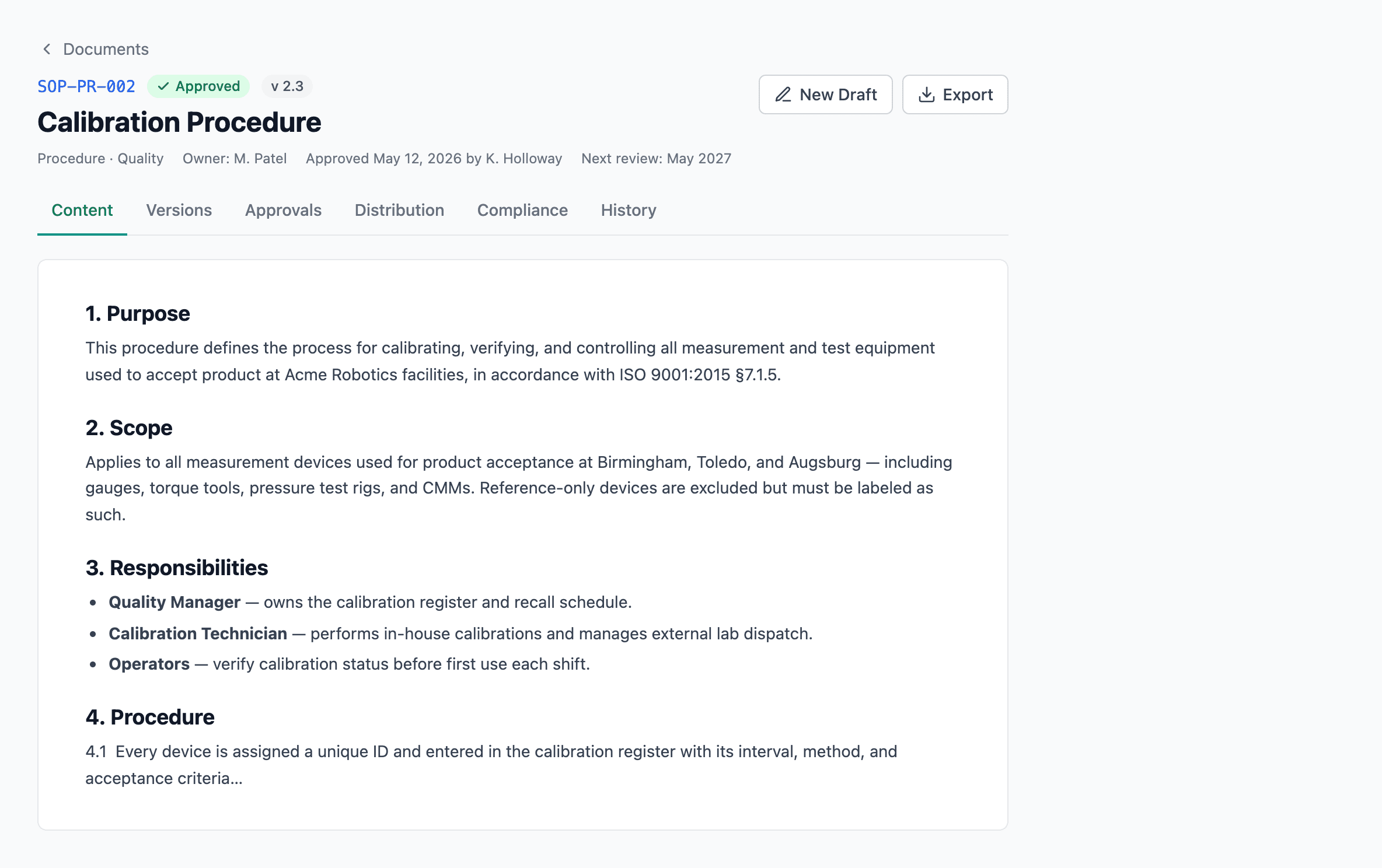
If the document isn't approved yet, finish the approval workflow first — see Document approvals & versions. Drafts and "Under Review" documents won't appear in the topic picker.
Step 2 — Create one or more audit topics
Go to Admin → Audit → Topics. The page lists your existing audit topics; click New topic to add one.
For each new topic, set:
| Field | What it does |
|---|---|
| Name | The label that appears in the audit checklist and reporting (e.g. "Calibration records" or "Supplier qualification"). |
| Parent topic | (Optional) Nests this topic under a broader one for grouping. The picker is searchable — type to filter — and lists only active topics, so a retired topic can't become a new topic's parent. |
| Linked document | The approved document this topic audits against. Only approved documents are listed, and the picker is searchable by document number or title. |
| Departments | The departments where this topic might apply. (The Scope Planner narrows it further per facility.) |
| Assessment type | Audit, Inspection, or Checklist. Filters the topic so it only appears in the right kind of program. |
| Plannable | Whether this topic should appear in the Audit Planner's calendar grid. Most topics are; one-off ad-hoc topics aren't. |
Picking the document fills in the rest
The parent-topic and linked-document pickers are both searchable — type-ahead comboboxes rather than long scrolling dropdowns, which matters once your library runs to hundreds of documents. And choosing the linked document does two things for you automatically:
- Departments auto-fill from the document's own department scope. They stay fully editable afterwards — the auto-fill is a starting point, not a lock — but you rarely have to set them by hand.
- The document type back-fills from the chosen document's category, so picking the document first also sets the topic's type filter. Pick the document, and the type sorts itself out.
Both fills only fire when the document actually changes, so re-opening an existing topic to tweak its name won't clobber departments you'd since customized.
A 60-page Quality Manual likely covers half a dozen distinct things you'd audit separately — internal communication, document control, training, calibration, inspection. Each of those becomes its own topic, all linked to the same underlying document. You can optionally nest topics under a parent topic to group them, but the parent is just organization, not ranking — every topic still stands on its own as a different lens on the same source.
This is the most-missed step. People assume "one SOP = one topic" and end up with a single bloated audit. Splitting topics is what makes scope-driven audits work.
What you DON'T do here
You don't write audit questions on the topic itself — that's the next step. Topics are bridges from the document to the audit program; questions hang off them.
Step 3 — Build the question bank
Questions live at Admin → Audit → Questions (the Question Bank). Each question is linked to a topic, which is what connects it to the underlying document, the facility / department scope, and — automatically — the compliance map.
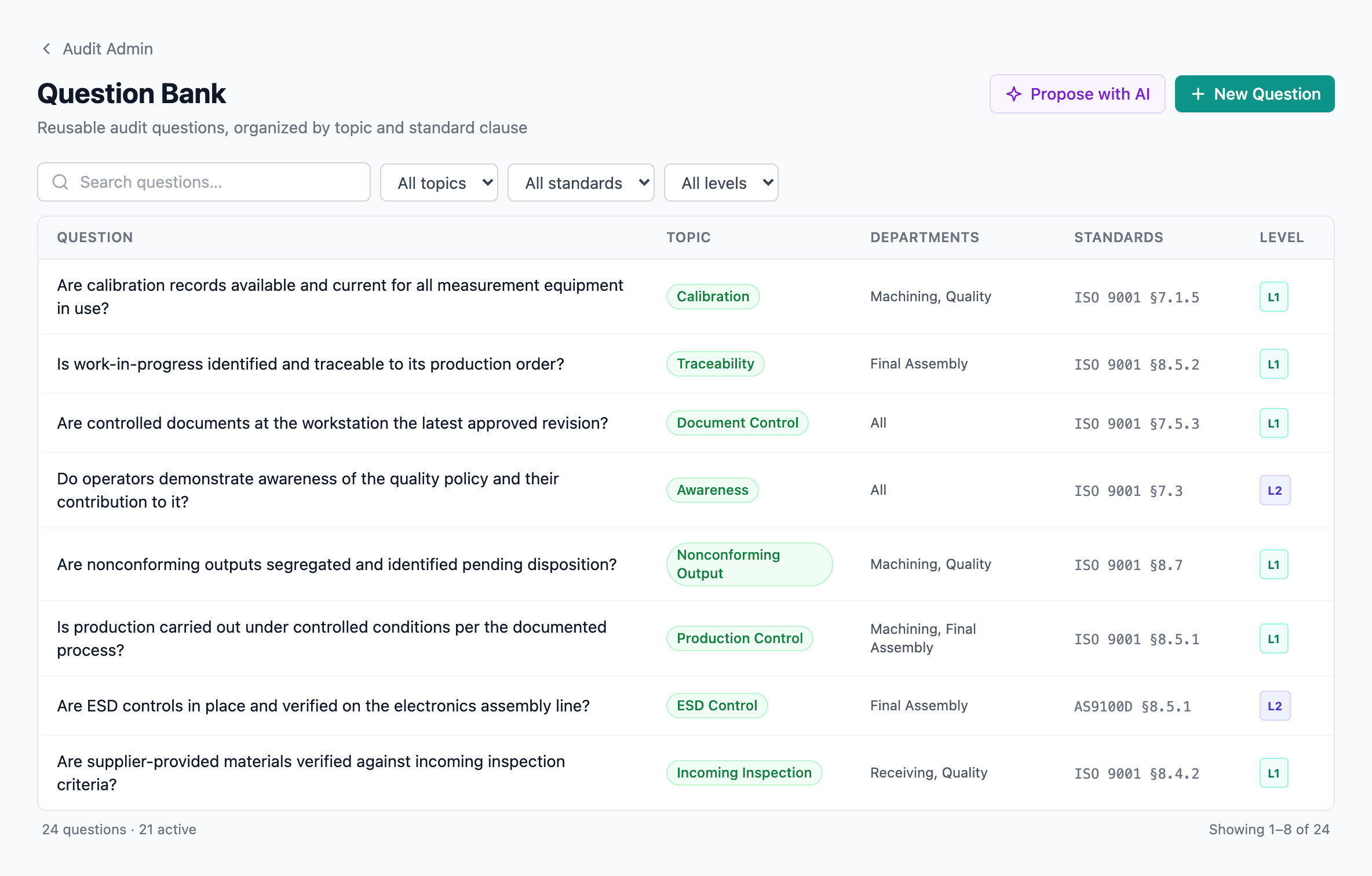
Each question carries:
| Field | What it does |
|---|---|
| Question text | The auditor-facing prompt. Plain language, action-focused (e.g. "Show me the most recent calibration record for gauge 4-7."). |
| Guidance notes | Optional internal notes — what to look for, what good looks like, what counts as a finding. |
| Topic | Links to a section of the underlying controlled document. Drives clause inheritance, departments, and assessment type. |
| Departments | Which departments this question applies to (defaults from the topic). |
| Standards & clauses | Filled in automatically from the linked document section's compliance map. You don't tag clauses on the question — the document already knows. |
| Level | L1 (Critical) or L2 (Standard), per AS9101. Surveillance audits run L1 only; full system audits run both. Same bank, different scopes — no duplicated maintenance. |
| Geography | Optional country / state filter for region-specific questions. |
Every save snapshots the question — so audits run before and after a change keep their original wording. The audit trail is preserved automatically.
How the compliance map flows in
This is the part that surprises people: you never tag clauses on a question. Clauses live on the document, the topic links to a document section, and the question inherits both.
Document section is mapped to clauses in Compliance mapping. → Topic links to that document section. → Question inherits the section's clauses through its topic. → Audit finding carries the clause forward into the NCR if you raise one.
If you keep the compliance map current on your documents, every audit question and every finding is automatically tagged to the right standards and clauses — no manual re-tagging anywhere downstream.
This is also why document approval matters: when you approve a revised document, the system runs a question health check — flagging questions whose linked heading was removed (Broken) or whose section content changed materially (Needs review). See Document approvals & versions.
AI question proposer
You don't have to hand-write every question. The AI proposer drafts questions from any approved document — citing specific section anchors, inheriting standards, and ready for review.
Two ways to invoke it:
From a document or topic — propose questions
In Audit Admin, choose a document (or one of its topics) and click Propose questions with AI. The proposer:
- Reads the document section(s) the topic points at — or, if you're scoping to a subset, the selected sections plus any one-hop hyperlink targets.
- Drafts a list of suggested questions, each citing a real section anchor that resolves in the document. No fabricated references.
- Inherits the standards & clauses from those sections' compliance map.
- Inherits the facility and department scope from the document.
Every proposal lands in a review modal where you edit, accept, or reject each one. Nothing writes to the bank without your sign-off.
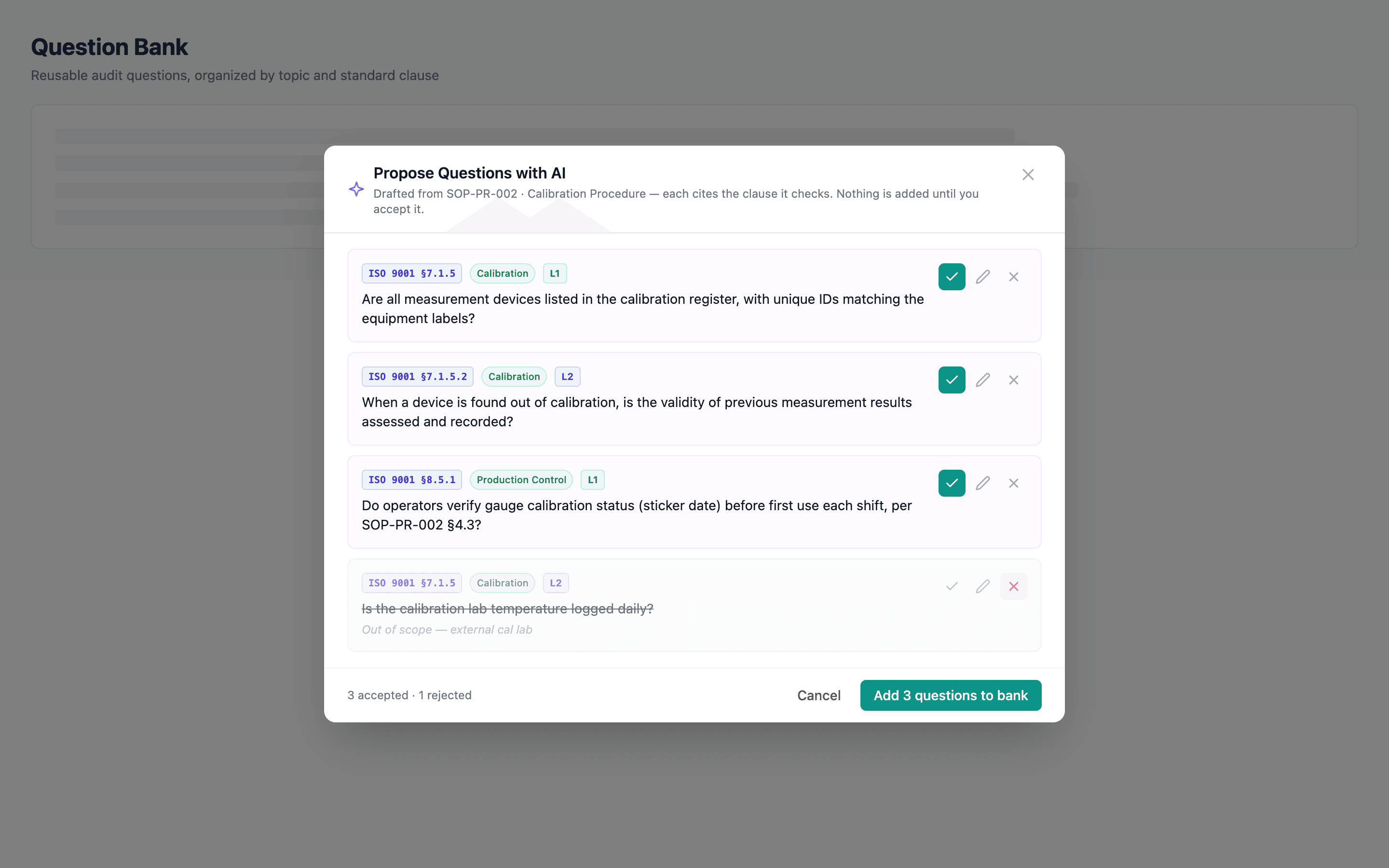
Section citation — every proposed question shows which heading in the document it draws from. Click to open the section in a new tab.
Edit each row — the question text, departments, level, and standards are all editable before commit.
Bulk accept / individual reject — pick the ones that actually belong in your bank; discard the rest.
From the Audit Coverage tab — fill audit gap
The same proposer is invoked from the Gap Analysis → Audit Coverage matrix. Amber cells mean "we describe this clause in a document but don't audit it" — click Fill audit gap on any amber cell (or bulk across many) and the proposer drafts questions for the underserved clauses.
This is the right entry point when you're building the bank by working backwards from your compliance gaps rather than forwards from a single document.
What you DON'T have to do
- Re-tag clauses on every question. They flow from the document's compliance map.
- Re-enter departments. They flow from the topic.
- Maintain question wording across audits. Every save snapshots the question; older audits keep the wording they were authored against.
Step 4 — Scope the topics to facilities and departments
Go to Admin → Audit → Scope Planner. You'll see every facility down the left side and every plannable topic across the top.
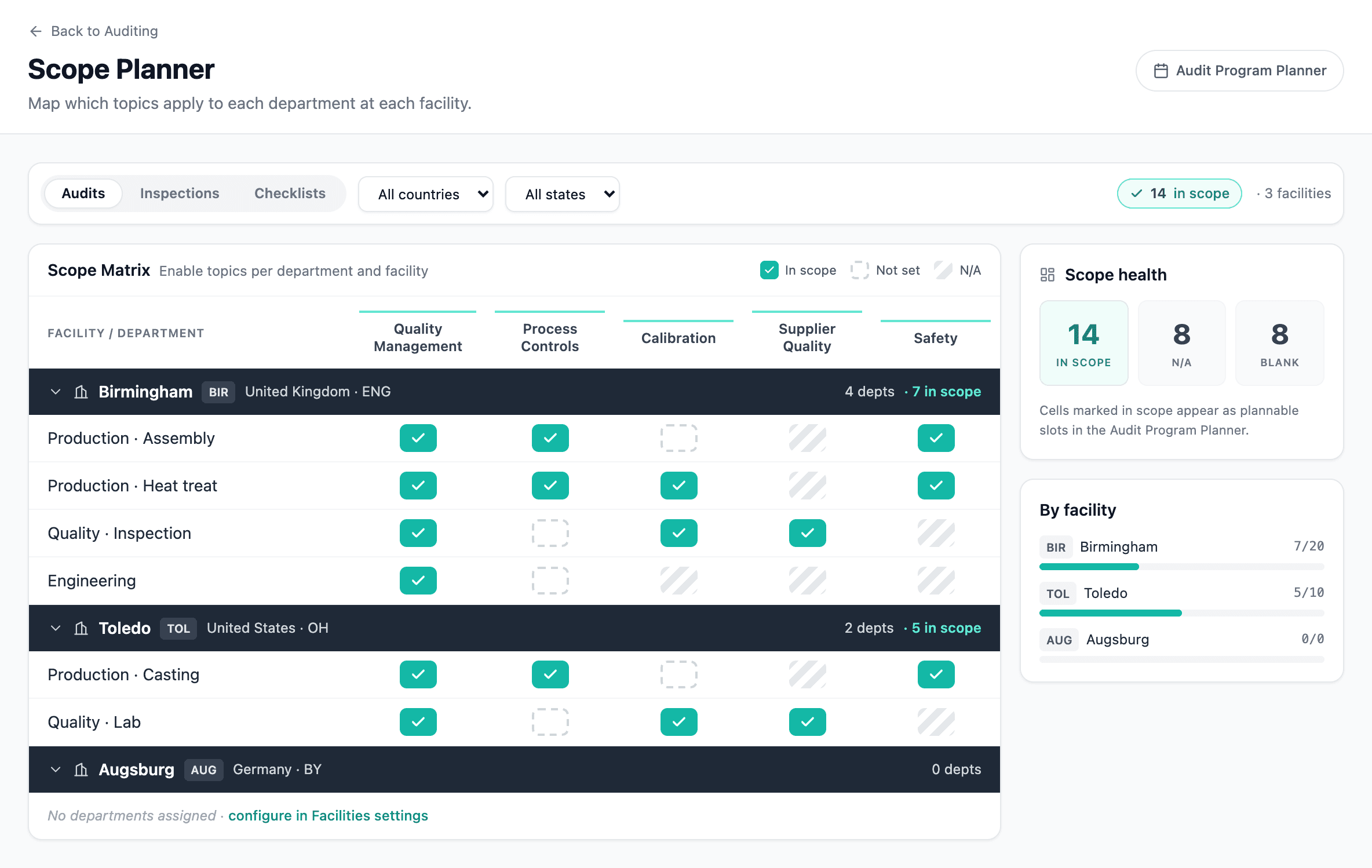
Facility column — click Departments to confirm which departments exist there.
Topic × department cells — tick where the topic applies. The N/A indicator appears automatically where a topic has been declared not applicable on the topic itself.
Filters — assessment type, country, state. Useful when one region's program is being scoped without the rest of the org cluttering the view.
The flow here:
- For each facility, click Departments to confirm which departments exist on-site (Production, Quality, Maintenance, Engineering, Stores, …).
- For each department, tick the topics that apply.
- Repeat for the next facility.
The grid is large but you set it up once — revisit it only when:
- You add a new facility.
- Department structure changes at an existing facility.
- You add a new audit topic that should be planned (rather than ad-hoc).
See Audit Planner → Scope Planner for the screen-by-screen detail.
Step 5 — Create or plan an audit
With approved documents → topics → questions → scope all in place, audits build themselves.
Two paths, both equivalent in their result:
Path A: Create an audit ad-hoc
From Sidebar → Audits → New audit:
- Pick the audit type (1st Party, Self, Supplier).
- Pick the facility and departments.
- The Question step pre-fills with every question whose topic is in scope at that facility × department combination — no manual checklist building.
- Optionally untick questions that aren't relevant to this specific audit.
- Save.
Useful for one-off or unscheduled audits. See Audits for the full audit-creation walk-through.
Path B: Plan it on the calendar
From Sidebar → Audit Planner, click any cell on the year grid (or use the calendar view) to schedule the audit. Set the planned date, lead auditor, and audit type. When you're ready to actually run it, click Create audit — the new-audit form opens pre-filled with the scope, lead, and date.
Useful for the recurring annual program — internal audits, scheduled supplier audits, regulatory surveillance audits. See Audit Planner for the full planner walkthrough.
Why the indirection?
If you're new to QFormance, the document → topic → questions → scope → audit chain feels like a lot of clicks. Why not just create an audit, pick a document, and go?
A few reasons it pays off:
| Without topics | With topics |
|---|---|
| One audit per document → either one giant audit or one document audited many times, both painful. | One document → many topics → topic-sized audits that match how teams actually work. |
| Scope is set on each audit individually. Every audit has to specify "this facility × this department". | Scope is set once in the Scope Planner. Every audit at that facility × department picks up the right topics automatically. |
| Adding a new facility means rebuilding scope on every audit. | Adding a new facility means adding one row in the Scope Planner. |
| The compliance map and audit program are independent. | Topics inherit clauses from the linked document's compliance map — audit findings carry clause context automatically. |
The flow is built so that as your library grows, audit setup gets faster, not slower.
Common patterns
One document → one topic
Small SOPs that cover a single procedure. WI-CAL-04 Calibration of Pressure Gauges → topic Pressure gauge calibration, scoped to facilities that have pressure gauges. One linked document, one topic, done.
One document → many topics
Master procedures like the Quality Manual. Quality Manual QM-001 → topics Document control, Internal communication, Training, Internal audit program, Management review, … each scoped independently. Different topics will appear in different audit types — Document control in management-system audits, Training in HR audits, etc.
Multi-facility topic
Topics that apply at every facility — Document control, for example. Tick the topic in the Scope Planner across every facility's relevant departments. Updating the linked SOP automatically updates every audit at every facility that uses it.
Topic that doesn't apply yet
You can mark a topic not plannable — it stays in the system, but won't appear in the Audit Planner grid or scope-driven new-audit forms. Useful for topics that are documented but not yet ready for the audit program (or are deliberately ad-hoc).
What to read next
- Audits — running an audit once it's set up
- Audit Planner — the calendar grid and Scope Planner
- Compliance mapping — how clause context flows from documents into audit findings
- Gap analysis → Audit coverage — finding holes in your question bank with AI assistance
- Documents — getting documents to Approved in the first place