In one sentence
An exemption is a controlled deviation from a standard requirement — scoped narrowly (a specific batch, a specific date range, specific serial numbers), risk-assessed, approved through a routed chain, and preserved in the register even after it expires.
- Scope is combinable. An exemption can be time-based and batch-scoped and product-scoped — useful for the "this product family, at these serial numbers, until next quarter" pattern.
- Approval routing is risk-based. A high-risk exemption gets more approvers; a low-risk one routes faster. Set per-org at Admin → Approval Routing → Exemption tab.
- Expired exemptions stay in the register as Approved — Expired. They can't be used as evidence for new work, but the audit trail is intact.
Creating an exemption
- Click New Exemption from the list.
- Set the requirement reference — the thing you're deviating from. A toggle lets you point at either a controlling document or a regulatory standard + clause. The document picker lists only currently-approved documents — internal SOPs and external standards alike — so you can't pin an exemption to a draft or superseded requirement. (The standard-and-clause side is covered under Regulatory standard reference below.)
- Set title, description, and exemption type.
- Set the validity dates. A time-based exemption requires a start and end date; a one-time exemption hides the date fields and is valid from the date of final approval only.
- Configure scope types (below).
- Set facility and department scope.
Scope types
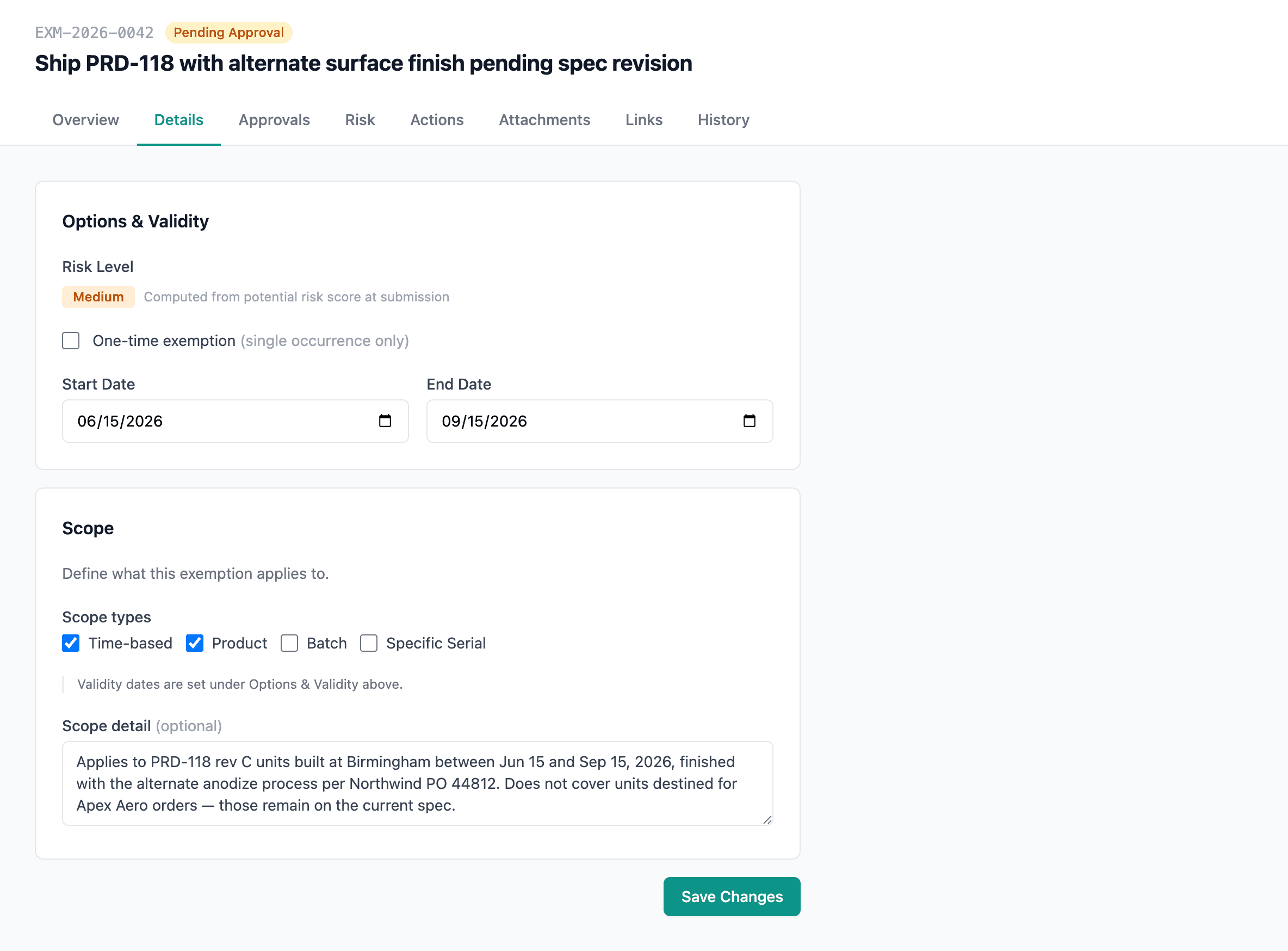
Each exemption can declare what it applies to, via checkboxes on the Details tab:
| Scope type | What it limits |
|---|---|
| Time-based | The start / end date window only |
| Product | Specific products |
| Batch | Specific batches or lot codes |
| Specific serial | Named serial numbers |
Combine as needed. A free-text Scope detail field captures the specifics — which products, which batches, which serial numbers.
Detail tabs
| Tab | What lives here |
|---|---|
| Overview | Details summary card (facility scope shown last), a Risk Assessments card (each assessment with per-risk Potential / Residual badges, up to five plus a +N more, and an Overall potential / Overall residual pair), and access status |
| Details | Core fields and scope types |
| Risk | Risk assessments on the exemption |
| Approvals | Approval chain status |
| Actions | Corrective and follow-up actions |
| Attachments | Supporting files |
| Links | Connections to other records — and a Linked Products card for tying the exemption to the parts or SKUs it covers |
| Access | Per-record access control (if you have the capability) |
| History | The unified record-history feed — see Record history |
How Risk Level works
An exemption's Risk Level — Low, Medium, High, or Critical — is computed, never typed. You don't pick it; it falls out of the risk assessments on the Risk tab.
- The worst dimension sets it. QFormance takes the highest inherent score across every dimension of every risk assessment on the exemption, and maps that single worst score through your org's risk-matrix threshold bands — the same Low / Medium / High / Critical bands configured at Admin → Risk Management. One badly-scoring dimension is enough to lift the whole exemption's level. That's deliberate: an exemption is only as safe as its riskiest facet.
- Live while you draft, frozen at submit. While the exemption is a draft, the badge recomputes as you score assessments, so it always reflects the current picture. At Submit for Approval the value is frozen and stored, so approval routing keys off a stable number. Editing scores on an already-submitted exemption doesn't reshuffle an in-flight approval; if it's rejected and you resubmit, the level recomputes then.
What the level drives:
- It selects the approver chain. Risk Level is part of the approval-routing key, so a Critical exemption can route through a longer or more senior chain than a Low one.
- High and Critical need an FMEA. A High- or Critical-level exemption can't be submitted without a linked FMEA — the deviation has to be backed by a failure-mode analysis. This requirement is skipped automatically when the FMEA module is disabled for your org.
Approval
Exemptions use the shared approval workflow with routing driven by the controlling document and the assessed risk level — up to three serial approvers, with delegation support and an emergency fast-track lane for urgent exemptions. See Approvals for the chain mechanics.
When a routing rule matches, the chain is shown, not silently applied. If a rule matches the exemption's change context and risk level, the Approvals tab displays the rule-resolved approver chain read-only, tagged "Set by approval routing rule (high risk)" — the manual approver pickers are hidden, because submitting would apply the rule anyway. The manual pickers appear only when no rule matches, which is exactly the case where choosing approvers by hand is real. See Approval routing.
If your organization has Require passkey for approvals turned on, approving an exemption prompts for a fresh passkey confirmation. The confirmation lasts 5 minutes. The approver must have at least one passkey enrolled — see Auth policy and Passkeys.
Regulatory standard reference
On the Details tab, the Regulatory standard picker points the exemption at the clause it's deviating from. Two fields:
- Standard — a dropdown of the standards your org has turned on at Admin → Regulatory Standards. Adding a new standard there makes it available everywhere the catalog is used: exemptions, the document editor's compliance-mapping picker, and the audit question bank, all reading from the same source.
- Clauses — once a standard is picked, the clause field becomes a multi-select drawn from that standard's catalog. Pick one or several; each clause is rendered as a chip with the full clause title.
If an admin later deactivates a standard that an exemption already cites, the existing reference is preserved — nothing on the exemption changes. The picker just shows the entry with a (deactivated) suffix and an amber inline note, so the next editor knows the org has moved off it. The deactivation confirm modal at Admin → Regulatory Standards lists how many active exemptions still cite the standard (alongside audit questions, gap analyses, and documents), so the admin doesn't deactivate by accident.
Print report
The Print Report button at the top-right of the exemptions list opens a print-optimized report at /exemptions/report in a new tab. The report carries the current filter state through — status, type, risk level, search — so the printed output matches exactly what you were looking at on the list.
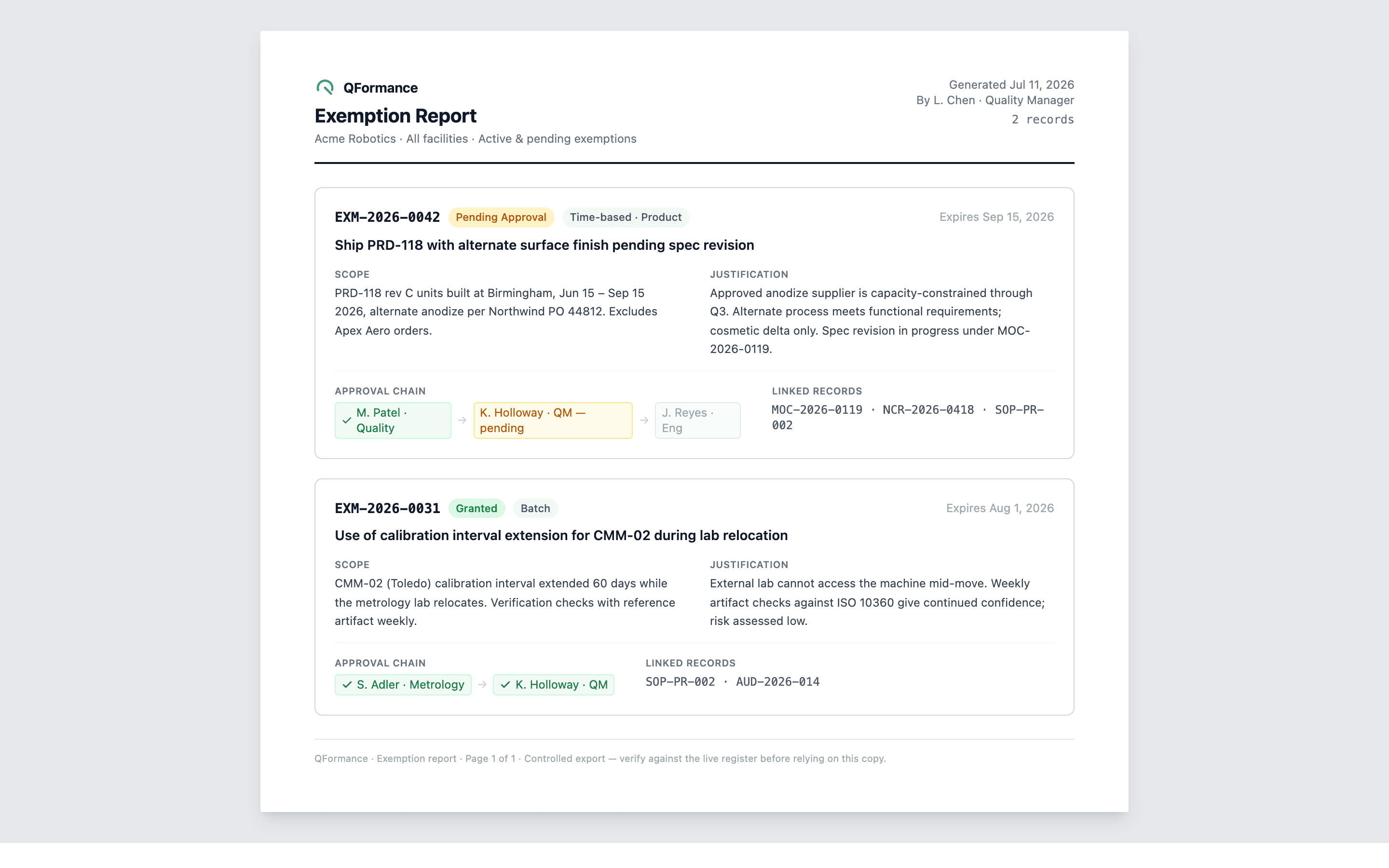
Each matching exemption renders as a card with:
- Number, status, type, and risk-level badges.
- Requirement reference — the controlling document or standard clause.
- Validity dates.
- Scope (time / product / batch / serial).
- Justification (the description).
- Approval chain with dates and approvers.
- Linked records (NCRs, risks, MOCs).
Built for print and PDF
- On-screen Print / Save PDF button at the top.
- Fixed header with the report title, the active filters that produced this set, and the generation date — repeats on every printed page.
- Fixed footer with page numbers.
- Page-break-aware layout — exemption cards never split across pages.
To produce a PDF, click Print / Save PDF and choose your browser's Save as PDF destination. Reports can be archived alongside the exemption register for audit submissions or steering-committee packs.
Expiry
Time-bound exemptions flip automatically to Approved — Expired when the end date passes. Expired exemptions:
- Can't be used as evidence for current work.
- Remain in the register, fully searchable.
- Keep their approval chain and rationale intact for audit reconstruction.
An exemption's terminal states are permanent — there is no reopen. Unlike NCRs, audits, FMEAs, and JHAs, a closed or expired exemption can't be brought back to life; a fresh deviation needs a fresh exemption. The approval decision it recorded stays fixed.
Admin: exemption settings
Exemption approval routing is configured at Admin → Approval Routing → Exemption tab (the standalone Admin → Exemption Settings page now redirects there).
If you delete an exemption
An exemption can be deleted while it's still open — Draft, Submitted, or Rejected. It lands in Trash for 90 days, where an admin with the Manage trash permission can restore it; restoring brings the scope, risk assessments, approval chain, attachments, and linked records back together. Deleting takes the Delete exemptions permission — admin by default, and grantable to any custom role or individual user.
Approved, closed, cancelled, and expired exemptions are permanent — the delete button is blocked on them. Each records an approval decision (or the lack of one) the org has to be able to reconstruct, so it stays fixed even after it expires. There's no reopen for exemptions; a fresh deviation needs a fresh exemption.
See Soft-delete — how it works.
Finding exemptions in the list
The exemptions list page has a filter for every column right in the table header — narrow by type, risk level, status, scope, and so on, all at once. A count of matching exemptions sits in a footer strip below the table, so you always know how big the set you're looking at is. (The Print Report button carries that same filter state through to the printed output.)