In one sentence
The Risk Register is the org-wide source of truth for risks and opportunities — score them once on the shared matrix, attach controls or capture plans, review on a cadence, and let MOC, JHA, FMEA, and Exemptions import them when they need a risk assessment of their own.
- Source of truth. Other modules fork from here, not the other way round.
- Risks and opportunities live together. The register tracks both — risks you mitigate, opportunities you realize.
- Imports are forks. Edits in MOC / JHA / FMEA / Exemptions don't touch the register entry.
For the matrix, control types, and import-fork rules — the foundations every risk-scoring module shares — see Risk fundamentals.
Creating a risk or opportunity
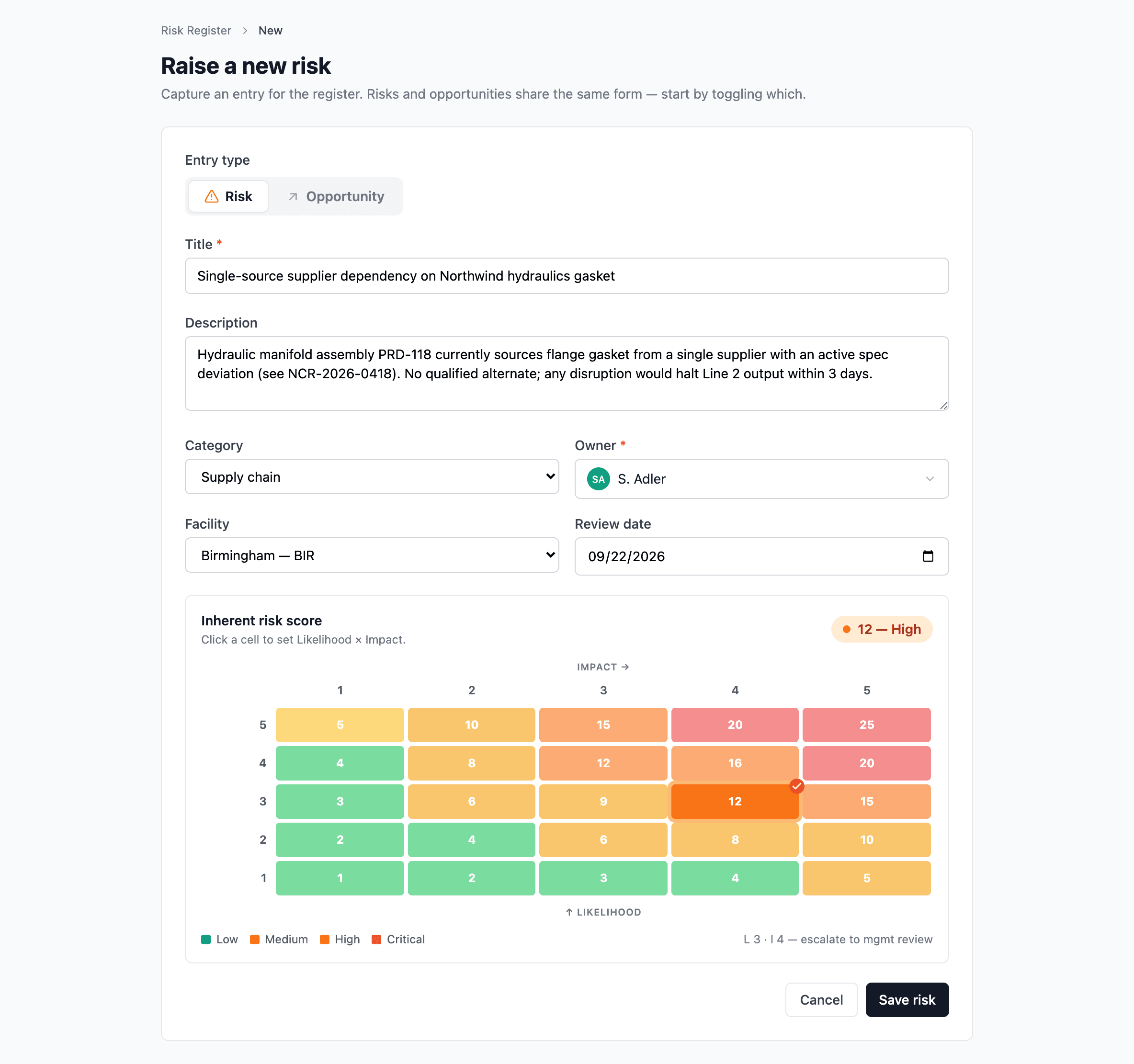
- Click New Risk from the register.
- Set title, description, and type — Risk or Opportunity.
- Select a category and assign an owner.
- Score using the matrix (Likelihood × Impact, per dimension).
- Add controls (for risks) or a Capture Plan (for opportunities).
How risks and opportunities are numbered
New records are numbered by facility and year:
RISK-{FACILITY}-{YYYY}-{NNN}for risks,OPP-{FACILITY}-{YYYY}-{NNN}for opportunities.- The sequence (
NNN) restarts per facility, per year — soRISK-HOU-2026-001andRISK-DAL-2026-001can both exist. - An org-wide record that isn't tied to a facility uses
ORGas the facility token — e.g.OPP-ORG-2026-004.
Records created before this scheme keep their existing numbers; only new records use the facility-scoped format.
Detail tabs
| Tab | What lives here |
|---|---|
| Overview | Access summary, scope, top-line score |
| Scores | Per-dimension scoring — inherent and residual |
| Controls (risks) or Capture Plan (opportunities) | How the risk is mitigated, or how the opportunity is realized |
| Reviews | Periodic review history |
| Actions | Every action linked to this risk — see below |
| Attachments | Supporting files |
| Links | Connections to other modules — including a Linked Products card for tying the risk to specific parts, SKUs, or equipment |
| Access | Per-record access control (if you have the capability) |
| History | The unified record-history feed — see Record history |
The Overview cards carry real substance, not just counts: the Controls card lists each control's description with a type chip (preventive, detective, corrective, and so on), and the Linked Items card lists every connected record as a NUMBER — Title row you can read and click through at a glance.
Capture plans (opportunities)
Opportunities don't have controls — they have a Capture Plan instead. List the steps you'll take to realize the opportunity, with owners and due dates. The actions roll up to the unified Actions register like everything else.
A capture plan is functionally similar to controls — you're describing what you'll do — but the framing matters. Controls prevent the bad thing; the capture plan secures the good one. The Risk Register is one of the few places ISO 9001 clause 6.1 (risks and opportunities) gets first-class treatment without forcing one shape onto the other.
Reviews
Periodic review intervals are set per risk category at Admin → Risk Management → Categories. A risk past its review date surfaces in the register with an overdue review badge.
Each review records:
- Who reviewed
- When
- Any changes noted
- Optional rescore
The activity log preserves the full review history — useful for the "how has this risk evolved over the year?" question at management review.
Actions on a risk
Every action linked to this risk lives on the Actions tab, regardless of how it was created. Two entry points produce the same set:
- From the Controls tab — each control card carries an Add Action affordance. Use this when an action is implementing or maintaining a specific control (refresh a calibration procedure, schedule a recurring inspection, etc.). The action is tagged with the control it came from.
- From the Actions tab itself — a New Action button at the top creates a standalone action linked to the risk but not to any specific control. Use this for risk-level follow-ups that don't sit under one control (a one-off mitigation review, a stakeholder communication, etc.).
The tab lists both kinds in one place with status, owner, and due-date columns; everything also rolls up to the unified Actions register like the rest of the system.
For risks that have been imported into another module (MOC / Exemption / FMEA / JHA), the imported fork is a separate record — actions raised against the fork appear in the parent module's Actions tab, not here. Each side of the fork has its own action list. See Risk fundamentals for the fork semantics.
Importing into other modules
Risks from the register can be imported into MOC, JHA, FMEA, and Exemptions. Imports are forks — edits in the receiving module don't change the register entry.
See Risk fundamentals for the full fork semantics and how to decide when to import vs. start fresh.
Admin: risk settings
Admin → Risk Management:
- Configure risk dimensions (add, reorder, activate / deactivate).
- Set likelihood and impact labels per dimension.
- Configure matrix size and threshold labels and colors.
- Manage risk categories with review intervals.
Removing a dimension or category that's already in use
Before you delete a risk dimension or risk category that existing risks reference, the editor shows a usage warning with counts — "7 active risks use this dimension" — and lets you proceed only after acknowledging. Existing records keep their values; the option just disappears from new pickers.
Renaming a dimension or category that's in use is locked once references exist, to prevent the cascade-rename problem on existing records. Deactivate the old one and add a new one with the desired name if you need a clean break.
Matrix Config preview. The matrix-size and threshold editor renders a live preview of the configured matrix below the form, so you can see what bands will land where before you save. If you shrink the matrix size and existing risks would fall outside the new bounds, the editor warns you with the count and asks you to confirm. The same is true for threshold changes — a band-shift preview shows how many existing risks would move between bands if the new thresholds went live.
If you delete a risk
Deleting a risk sends it to Trash for 90 days, where an admin with the Manage trash permission can restore it. Restoring brings the risk's assessment history, treatment plan, residual scoring, and cross-module links back exactly as they were.
The system blocks delete on a risk that's actively linked to open MOCs, FMEAs, or NCRs. Clear the linkage on the other side first — once nothing else points at the risk, delete is allowed.
See Soft-delete — how it works.
Finding risks in the list
The register's list page has a filter for every column right in the table header — narrow by category, score band, status, scope, and so on, all at once. A count of matching risks sits in a footer strip below the table, so you always know how big the set you're looking at is.