In one sentence
The Organization admin hub is where you set the foundations — who's in your org, where they work, which standards you're certified against, and how AI is configured. Most of it is one-and-done; the rest you revisit when the business changes.
- Facilities and departments first — they're referenced by everything else.
- Users and roles next — once people exist, you can route approvals to them.
- Regulatory standards — turn on what your org is certified against.
- AI settings, groups, delegations — set up as needed.
Where to find it
Open Admin → Organization (you'll need an admin role). The hub groups the configuration pages into a single navigation panel.
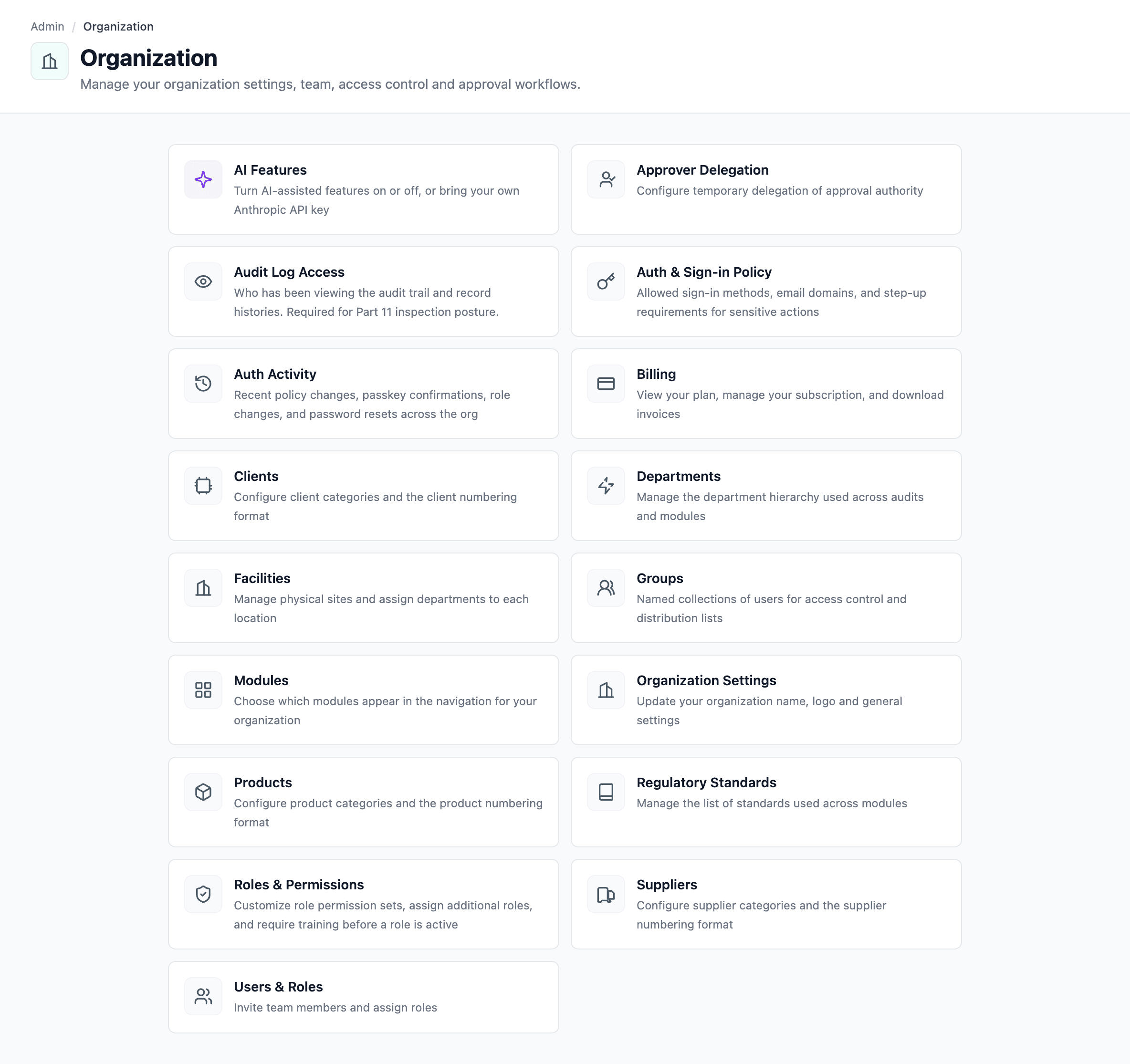
What's on each page
Organization
Admin → Organization — your top-level details.
- Organization name and contact info
- Logo (used on document headers and PDF exports)
- AI settings entry point (see AI Features & Settings)
- Groups entry point (access groups for Access Control)
Facilities
Settings → Facilities — the physical sites where work happens.
- Add facilities with name, code, address, country, state.
- Activate or deactivate without deleting.
- Facilities are referenced by every scope-aware module — see Facility & Department Scope for how that works.
Users
Admin → Users — your team.
- View every member of the organization.
- Assign base roles (Admin or Standard User) and grant additional roles for specific capabilities. See Roles & permissions.
- Inspect access-group membership.
Regulatory standards
Admin → Regulatory Standards — which standards apply to your org.
- Toggle each standard on or off.
- Active standards drive compliance mapping, audit-question tagging, and gap analysis.
- Inactive standards stay in the system but disappear from clause-tag pickers.
- Migrate Standard — when a standard is reissued (ISO 9001:2015 → 2025, AS9100 Rev D → Rev E, etc.), use the migration tool to remap every clause reference in your documents and audit questions in one pass. See Migrate a standard.
Access groups
Admin → Organization → Groups — saved lists of users referenced by access control.
Create groups for stable populations (Quality Committee, Site A Supervisors, Regulatory Reviewers) and put them on records' access lists. Updating membership in one place updates access everywhere the group is referenced.
Delegations
Admin → Delegations — temporarily route someone's approvals to a delegate.
Supports both admin-set delegations (a manager out for two weeks) and self-set delegations (a quality manager off sick). The delegate sees the same approvals queue with the original approver named in the audit trail. See Approvals.
Audit-trail surfaces under Admin → Organization
Three inspection-facing pages live alongside the configuration pages above. They're read-only — no setup required, but worth knowing about before an audit.
- Audit Log Access (
/admin/organization/audit-log-access) — every load of the audit trail or per-record history. Answers "who has been looking at the audit logs?" See Audit log access. - Document Downloads (
/admin/documents/downloads, reached via the Documents admin hub) — every external-document view, download, print preview, or AI-agent access, with the file hash served at the time. Answers "who pulled SOP-007 last quarter?" See Document downloads. - Auth Activity (
/admin/organization/auth-activity) — focused feed of policy changes, passkey step-up confirmations, role changes, and password resets. See Auth activity.
All three are gated on the Access audit admin permission, which the default Admin role has.
Permissions in practice
Role permissions layer with two other systems:
- Facility & Department Scope — where the record belongs.
- Access Control — who can see this specific record.
A user only sees a record when role permissions, facility scope, and per-record access all line up. See the layered model on Access Control.