In one sentence
The audit program builds in two passes: first you say which topics apply where (Scope Planner), then you say when each one runs (Audit Planner). Once both are set, creating any specific audit is three clicks.
- Scope Planner is a one-off setup. Per facility and department, it captures which topics are actually in play.
- Audit Planner is the running schedule. The grid you fill in week by week to plan the year.
- Cells in the planner light up in different colors so the gaps in your program are visible at a glance.
Stage 1 — Scope Planner
Open Admin → Auditing → Scope Planner and you'll see every facility down the left side, every topic across the top. The job is to tick which topics belong at which department, at each facility.
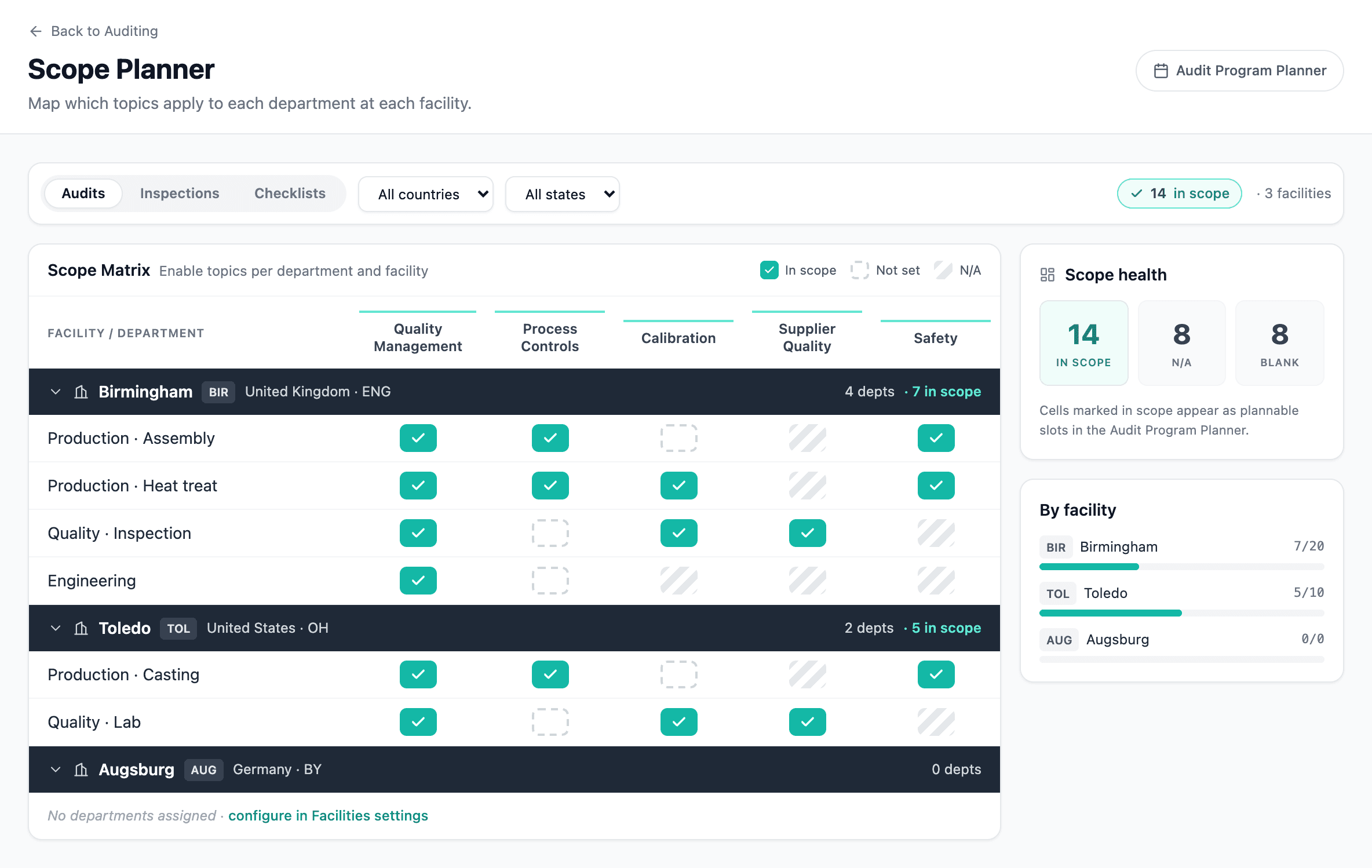
A typical session looks like this:
- Click Departments on a facility row to confirm which departments exist there. Most teams have a small set of canonical departments — Production, Quality, Maintenance, Engineering, Stores — but some sites have extras or different names.
- For each department, work through the topic columns and tick the ones that apply.
- Repeat for the next facility. The N/A indicator (a faded ✕) shows automatically where a topic has been declared not applicable for that department in metadata.
You can filter the grid by assessment type (Audit / Inspection / Checklist), by country, or by state — useful when you're working on a specific region's program without the rest of the world cluttering the view.
Topics only show up here if they're flagged plannable on the topic itself. A topic without that flag won't appear in the grid no matter how many departments need it. If something is missing, check Admin → Auditing → Topics first.
This stage is one-and-done for most orgs. Revisit it when:
- You add a new facility.
- Departments at an existing facility change.
- You add a new audit topic that needs to be planned (rather than ad-hoc).
Stage 2 — Audit Program Planner
Open Audit Planner from the sidebar. You'll see a calendar grid: facilities and departments down the left, weeks across the top. Each cell represents audit X at facility Y, in week Z.
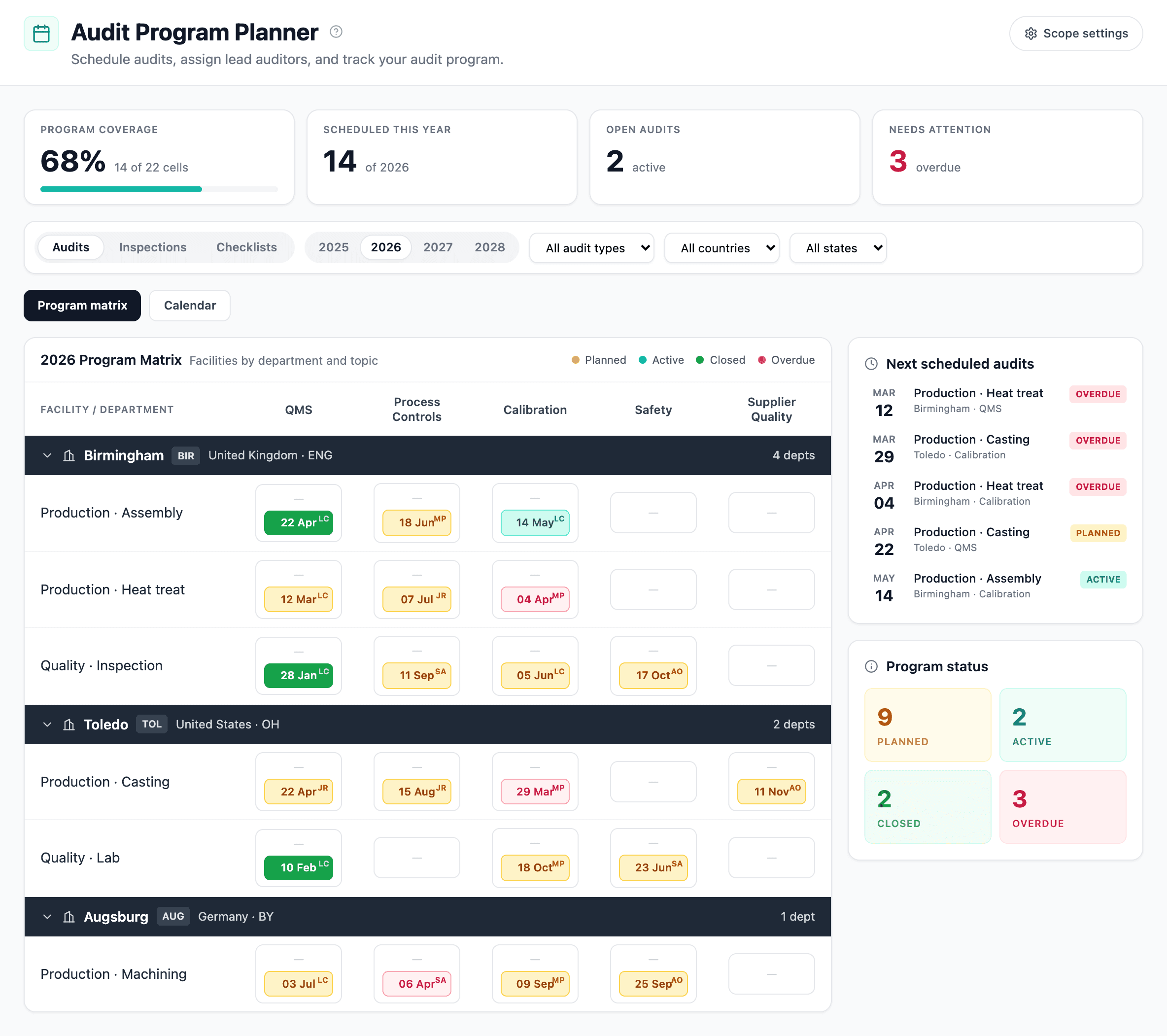
Filters. Year, country, state, assessment type, and audit type.
Cells. Click to select; bulk-schedule from the toolbar.
Year switcher. Plan ahead or look back at last year's program.
To plan an audit:
- Click a cell — or shift-click to select several at once.
- Use the toolbar to set the planned date, lead auditor, and audit type (1st Party, Self, or Supplier).
- When you're ready to actually run one of those audits, select the cells and click Create audit. The new-audit form opens pre-filled with the scope, type, lead, and date.
What the cell colors mean
| Color | Meaning |
|---|---|
| White | Not planned |
| Amber | Planned (date and lead set, audit not yet created) |
| Green | Audit created and in progress (or complete) |
| Red outline | Overdue — planned date has passed without an audit |
Each cell shows the planned date and the lead auditor's initials, so you can scan the grid for coverage gaps without opening anything.
Calendar view
If the grid isn't the right shape for how you think about the year, switch to Calendar view with the toggle in the toolbar. Same data, laid out as a month-by-month calendar — each scheduled audit appears as a card on its planned date.
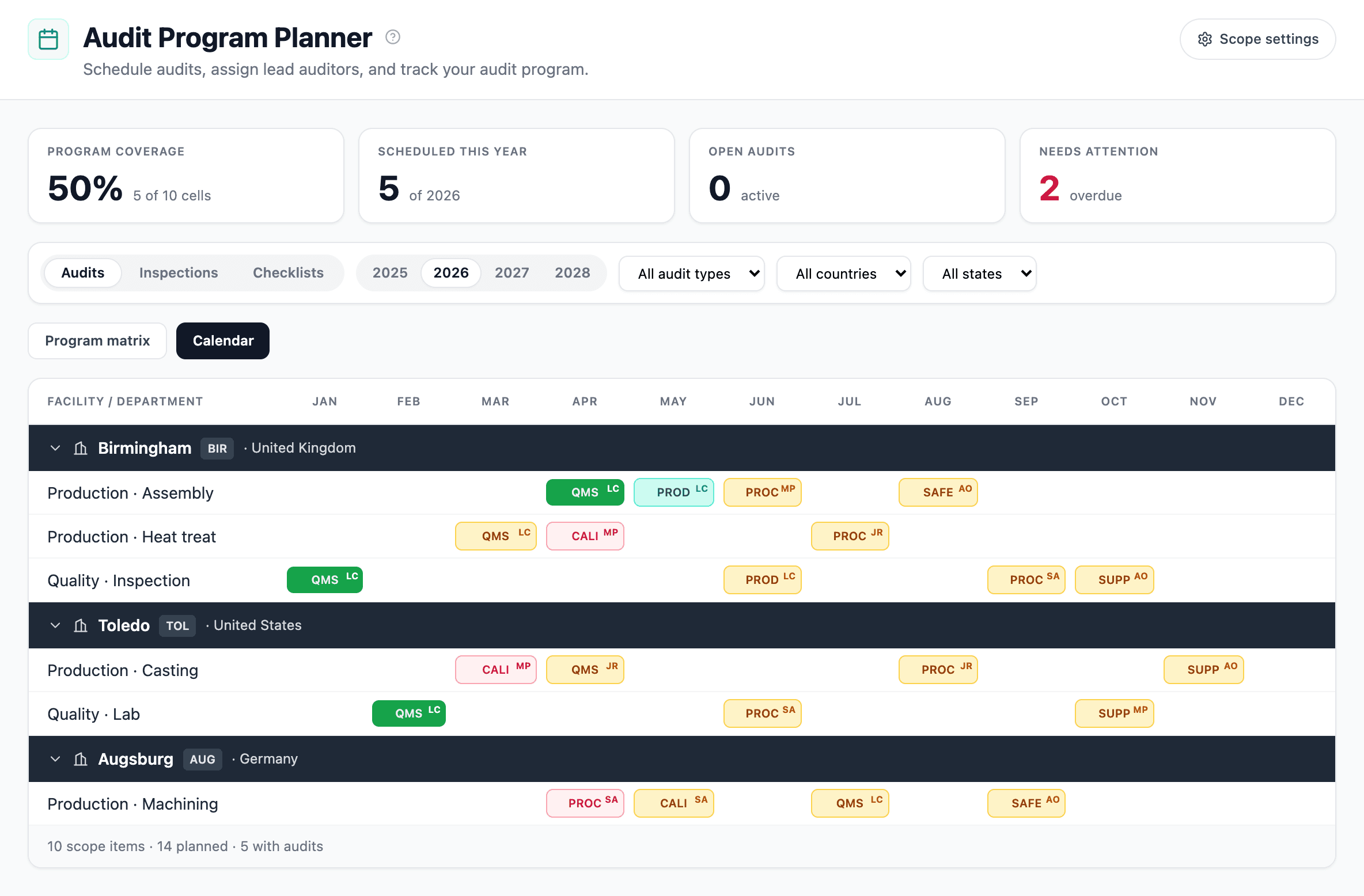
View toggle. Switch between grid and calendar without losing your filters.
Audit cards sit on their planned date. Click any card to open it.
Month navigation. Step forward / back, or jump to a date.
The calendar view honors every filter from the toolbar — year, country, state, assessment type, audit type — so you can ask "what's planned in our European facilities this quarter?" and see it laid out by week.
Drag to reschedule
Grab any card by its drag handle (visible on hover) and drop it on a different day. The planned date updates immediately; the lead auditor and audit type stay the same. Every reschedule is recorded in the activity log of the underlying audit, so the history of what was planned, then moved, then run stays defensible.
A few rules:
- You can only drag audits that aren't yet In Progress or Closed. Once an audit has started, the calendar shows it on its actual planned date but rejects drag attempts.
- Dragging onto a date in the past flags a warning ("planned for a past date — was this intentional?") but doesn't block — useful for backdating audits that ran before they were entered.
- Bulk-select multiple cards with shift-click, then drag — every selected audit shifts by the same offset.
The calendar view defaults to one month at a time. To move an audit into the next year, switch to a wider zoom (quarter or year view in the toolbar) or use the Reschedule button on the card itself, which lets you pick any date including next year's.
Going further
Filtering for big organizations
The toolbar above the grid filters by year, country, state, assessment type (audits vs inspections vs checklists), and audit type (1st Party, Self, Supplier). Combine them when you need to see, say, only this year's supplier audits in North America.
Re-using last year's plan
The year switcher carries the same scope across years — same facilities, same topics — so a new year starts with empty cells over the same structure. A common pattern is to bulk-schedule the recurring audits in January, then add ad-hoc supplier audits as the year develops.