In one sentence
In QFormance, you don't build a checklist for each audit — you set the scope, and the right questions assemble themselves. Multiple auditors then work the audit at the same time, and findings flow straight into NCRs.
- The checklist is scope-driven. Pick a facility and departments, and QFormance pulls the relevant questions from your Question Bank automatically.
- Audits are a team sport. Assign auditors to sections, watch progress per person, work simultaneously without stepping on each other.
- Findings carry their context into NCRs with one click — you don't re-enter anything.
The flow that connects an approved document to a runnable audit isn't obvious. If your team is starting fresh, read Setting up audits, end to end first — it walks the four-step Document → Topic → Scope → Audit chain you'll only have to set up once.
For the auditor's playbook — assignments, evidence uploads, prior-audit context, AI summary, raising findings — see Performing an audit.
How an audit moves through QFormance
Each step lives on its own tab inside the audit.
Creating an audit
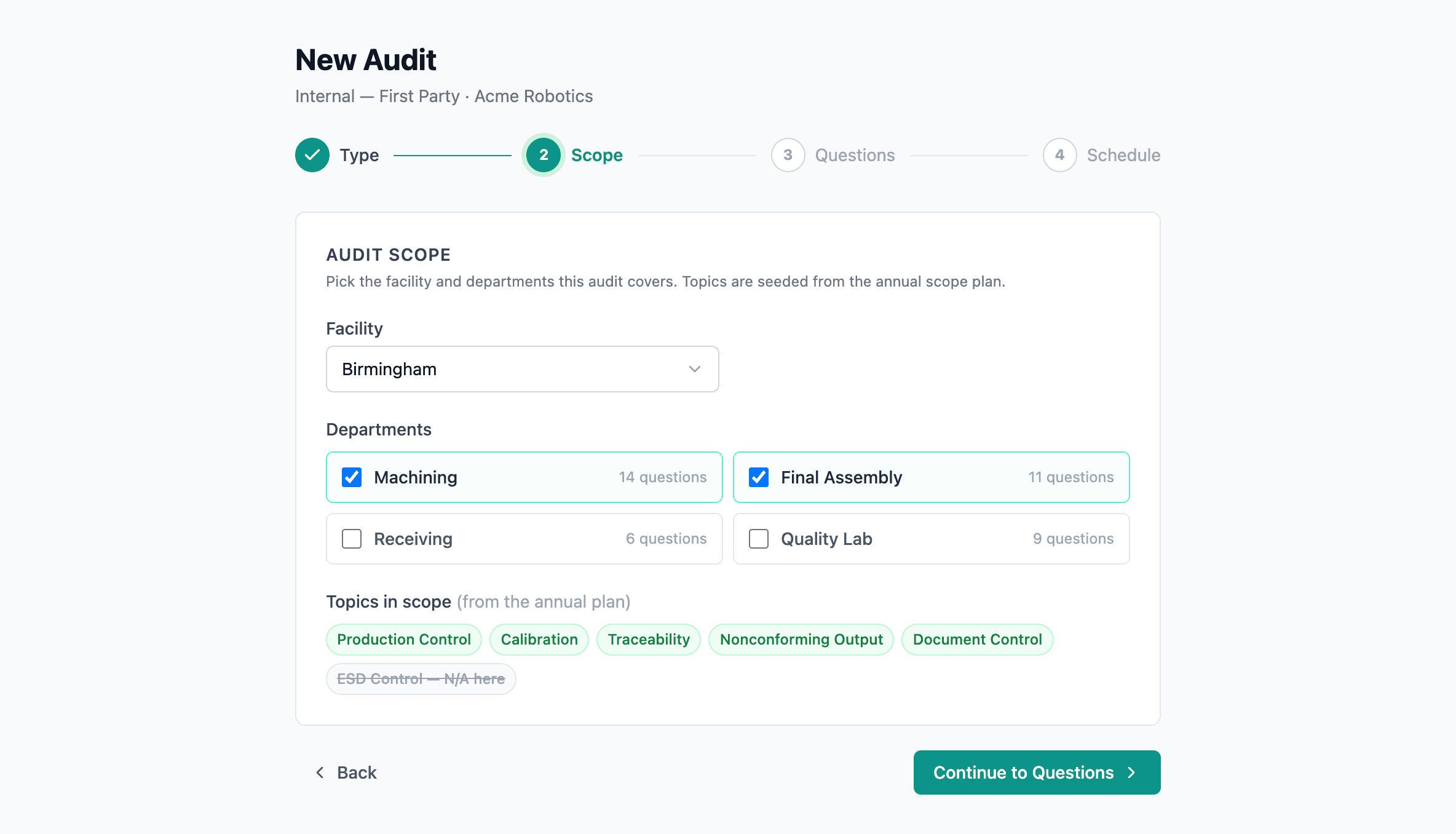
From Audits → New audit, the wizard walks you through four short steps:
- Details — title, audit type (1st Party, Self-audit, or Supplier), and planned date.
- Auditors — pick a lead auditor and add anyone else who'll work on the audit.
- Scope — choose the facility (or all facilities for an org-wide audit) and the departments to cover. Department options narrow automatically to ones that exist at your chosen facilities. Supplier audits require picking a supplier from the directory (the old free-text supplier-name box is gone); non-supplier audits can optionally link a client to scope the audit to a customer's work — e.g. a first-party audit focused on the line that runs a specific customer's product. Both pickers are searchable. The client link is a scope association, not a separate audit type. Products can also be linked from the audit's Links tab once it exists.
- Questions — the checklist is already assembled from the scope. You can filter by topic or active standard if you want to trim it.
You can change anything later from the Overview tab — adding an auditor, retitling, even shifting the planned date — until the audit is closed.
What goes into the checklist?
The Question Bank is the source. Each question knows two things: which topic it belongs to and which departments it applies to. The Scope Planner connects those — for any combination of facility + department, it knows which topics are in play. Pick a scope, and only questions that match come into the audit.
If a question shouldn't be in this audit but the scope is right, untick it on the Questions step. If it should be in every audit at this scope, add or correct the topic mapping in the Question Bank — the next audit picks up the change automatically.
Conducting the audit
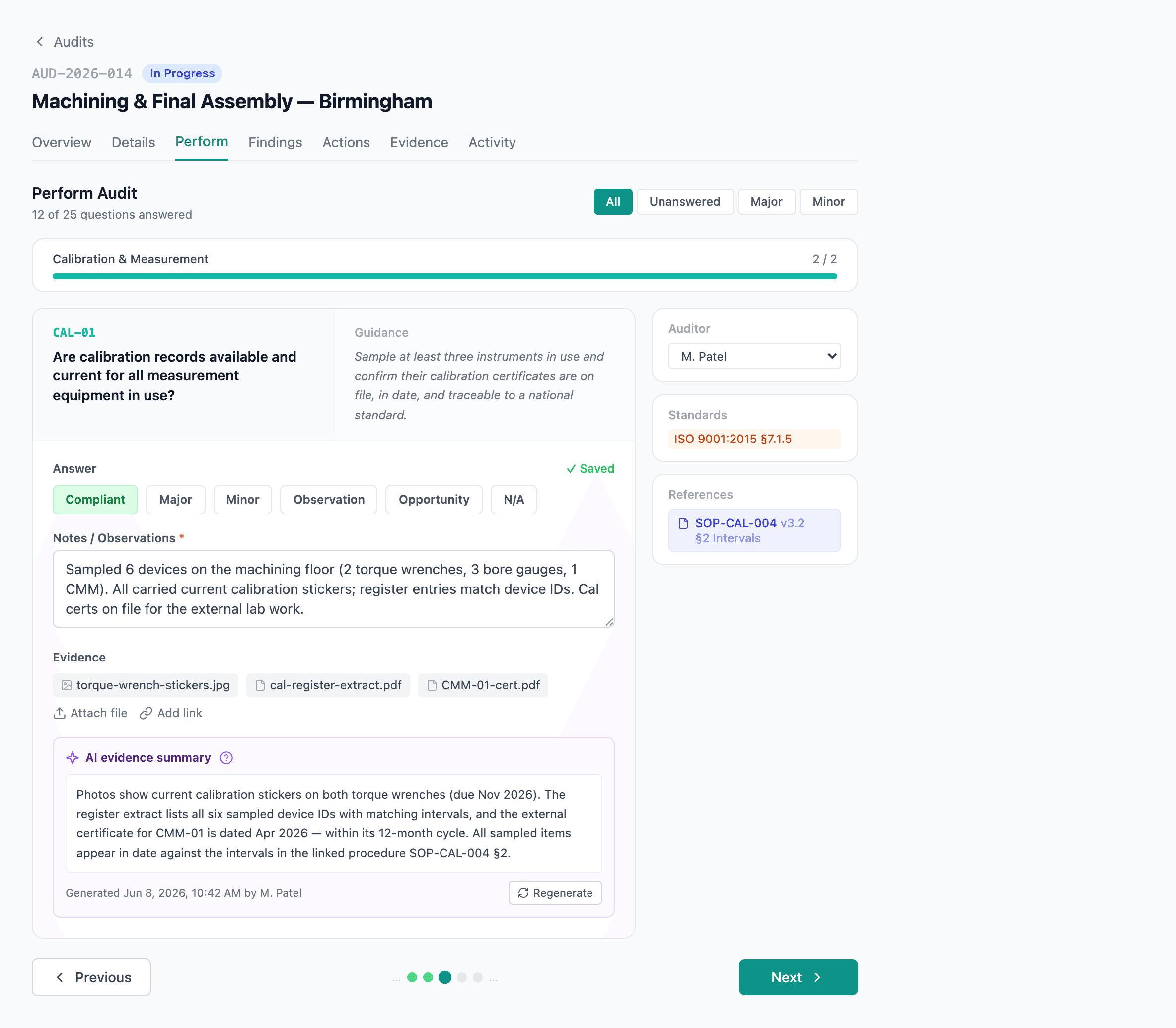
Answer the question. Conforming, Minor NC, Major NC, Observation, or N/A.
Notes and evidence. What you saw and the files to back it up.
AI evidence summary. Optional — pulls a summary from the attached files so you don't have to re-read them.
The Perform tab is where each auditor works through their assigned questions.
For each question:
- Pick an answer: Conforming, Minor NC, Major NC, Observation, or N/A.
- Add notes — what you saw, who you spoke to, what was missing.
- Attach evidence — photos, files, links to controlled documents.
- The right sidebar shows the linked document for the question, so you can read what the procedure says without leaving the page.
Multiple auditors can be in the audit at the same time. Each person works the questions they own — only the assignee, the lead auditor, or an admin can save an answer to a given question, so nobody can accidentally overwrite a colleague's work. The Overview tab shows everyone's progress in one place. See Performing an audit for the full permission rule.
Audit Assignments
Open the Audit Assignments card on Overview to see, per auditor, how many questions they own and how many are answered. Reassign a section to a different person mid-audit if someone gets pulled into other work.
AI Evidence Summary
When a question has evidence attached, a purple AI summary panel appears below your notes. Click Summarize attached evidence and QFormance reads through your files — Word, Excel, PDFs, photos — and produces a short bullet summary of what the evidence shows.
If you change the evidence or notes after the summary runs, a Regenerate button appears so you can refresh it. Same if the summary is more than a day old.
The AI summarizes what the evidence says. It does not pick Conforming or Non-Conforming for you. The point is to save you reading time, not to take the judgment call out of your hands.
A few file types are too large for the AI to read in full. When that happens, those files are flagged as Attached but not analyzed so they don't silently disappear from the picture. Open them yourself to factor them in.
This feature is on by default but can be turned off org-wide at AI settings → Audit evidence summary.
▸For developers: how the AI reads files
Word and Excel content is extracted before being sent to the model so the model sees the text. Images and PDFs are sent as-is. Files larger than the per-file cap are flagged in the panel rather than silently truncated.
Raising findings
A Major NC or Minor NC answer becomes a finding. Open the Findings tab to see them grouped by topic or by auditor, and click Create NCR on any major or minor finding.
The NCR comes pre-filled with:
- Title — pulled from the question and your answer context.
- Description — your audit notes.
- Detected date — today.
- Source — set to supplier audit or internal audit automatically based on the audit type.
You're handed straight to the NCR's Define tab to finish anything else you want to add. The NCR shows up under the audit's Links tab from then on, so the audit trail stays connected.
You can't advance an audit to Closed while there are unanswered questions or major findings without an NCR. The Status blocker modal lists what's left so you know what to clear.
Closing the audit
When you're ready, change status to Closed on the Overview. If anything is incomplete, you'll see a list of blockers. Clear them, then close — the audit becomes read-only and the activity log is preserved as the permanent record.
Reopening a closed audit
Once an audit reaches its closure stages, its details are frozen for everyone — admins included. There's no quiet editing of a completed audit. If something genuinely has to change, an Admin (or anyone whose role carries the audit-finding permission) can click Reopen: it requires a reason and returns the audit to In Progress, so the team can amend answers, evidence, or findings and then close it out again. The reopen and its reason are logged.
Going further
Question Bank
The Question Bank lives at Admin → Auditing → Question Bank. Each question has:
| Field | What it does |
|---|---|
| Topic | Links to a section of a controlled document, so the question inherits its context. |
| Departments | Which departments this question applies to. |
| Standards | Filled in automatically from the linked document's compliance map. |
| Level | L1 (Critical) or L2 (Standard), per AS9101. |
| Geography | Optional country / state filter for region-specific questions. |
Every save snapshots the question — so audits run before and after a change keep their original wording.
Filling gaps in the question bank
If you're worried the bank has thin coverage on a particular standard, the Audit coverage tab on a Gap Analysis is the place to look. It shows a clause × department matrix — green where you have both documentation and audit questions, amber where you have docs but no question, red where neither exists. Fill audit gap on an amber cell drafts proposed questions with AI, citing the document sections that already cover the requirement; you review and approve each one into the bank.
See Gap analysis → Audit coverage for the full flow.
Scope Planner
Admin → Auditing → Topics is where the topic-to-department mapping lives, plus the list of departments themselves. Most teams set this up once and only revisit it when the org structure changes.
If you delete an audit
Deleting an audit sends it to Trash for 90 days, where an admin with the Manage trash permission can restore it. Restoring brings the audit's findings, scope, schedule, attendees, and cross-module links back together.
Closed audits are permanent records — the delete button isn't available on them. A closed audit represents a documented finding cycle; the audit trail needs it to stay put. If you genuinely need to remove a closed audit, you'd reopen it first (an action that is itself logged), then delete from there.
See Soft-delete — how it works.
Related
- Setting up audits, end to end — the document → topic → scope → audit setup flow
- Performing an audit — the auditor's day-of guide
- Compliance mapping
- Non-conformances
- Audit Planner