In one sentence
The Training Hub gives every user — full users and Read & Acknowledge users alike — one page that answers three questions: What do I owe? What's coming up? What have I completed?
- Pending — controlled documents you haven't acknowledged yet at their current version. Read first.
- Courses — assigned internal courses, with badges that flag what's overdue or due soon.
- Completed — your history, newest first, with the exact version of each document or course you signed off on.
Email notifications
You'll receive an email when a document is approved with you on its distribution list, or when an internal or external course is assigned to you — directly or because you've been added to a role or group that's on the distribution list. Follow-up reminders fire on a cadence the admin set on each artifact, ending at the cadence's hard stop. See Acknowledgement & training reminders for the cadence options and the audit-trail entries.
This applies to every user with an obligation — full users and Read & Acknowledge users alike.
What's on the page
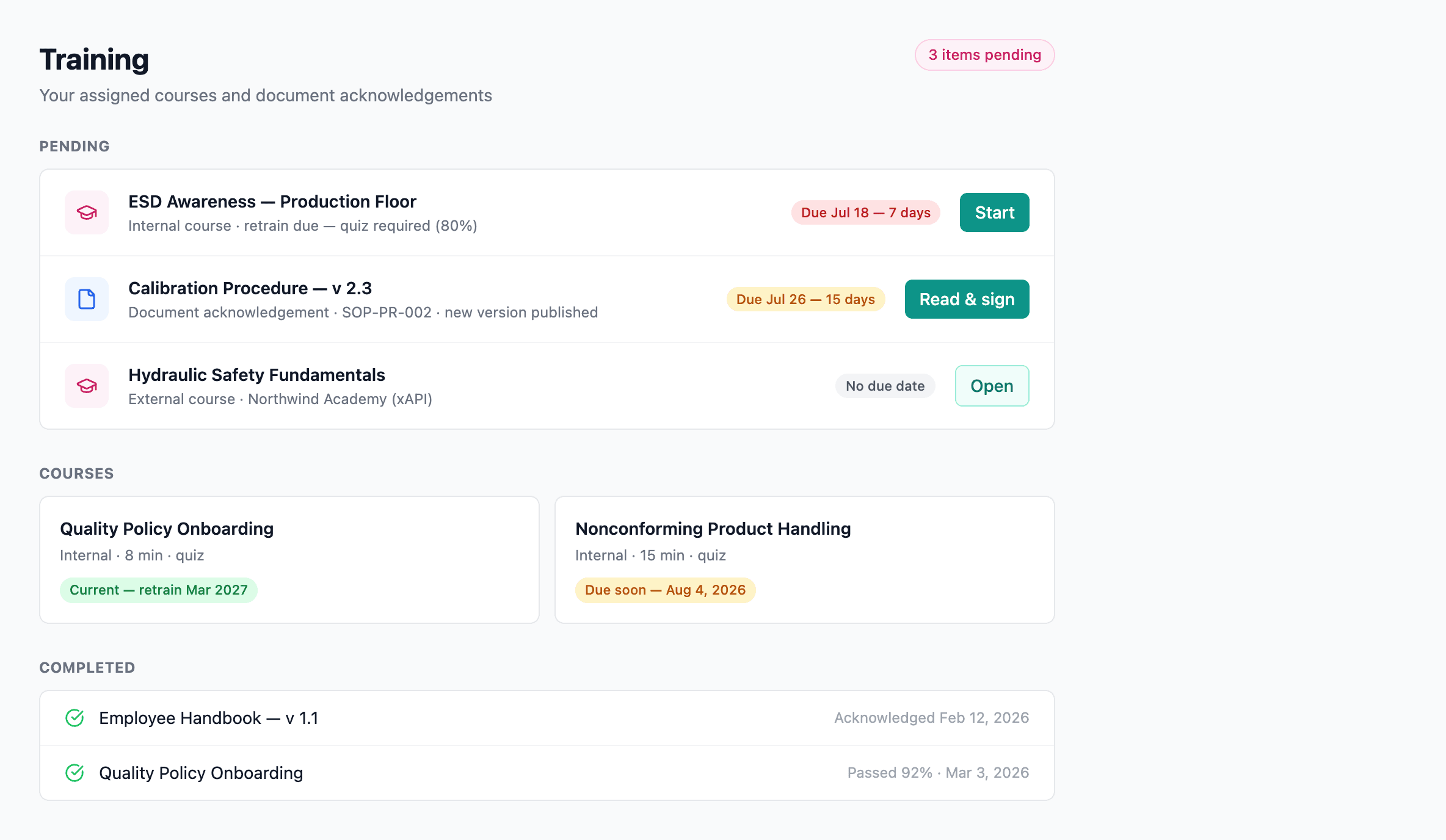
Pending. Documents you're on the distribution list for that have a new version since you last acknowledged.
Courses. Internal courses assigned to you directly or via your role.
Completed. Every signed-off acknowledgement and course, with completion date.
How items get here
There are three ways something appears in your Hub:
- Documents — you're on a distribution list and the document requires acknowledgement.
- Courses — a manager assigned a course to you by name, or to a role you hold.
- External completions — an integrated LMS pushed your completion in via xAPI. Those land in your Completed list automatically. See Training Reporting & xAPI for how that connects.
Acknowledging a document
From the Pending section, click a document to open it.
- Read (or skim — that's the team's call).
- If a quiz is attached, it opens automatically as soon as the document loads, with the passing threshold shown. Owe more than one quiz on the same document? They chain through oldest-first. You can close the prompt and come back via the Take quiz button at the bottom — but it pops again next time you open the document until you've passed.
- Click Acknowledge at the bottom.
The acknowledgement is recorded against the exact version of the document you read. If a new version ships next week, the document will reappear in your Pending list — your earlier acknowledgement still counts for that earlier version, in audit history. When a quiz version is still outstanding, a later typo-only revision won't quietly clear it: you train on the change that needed training.
Taking a course
Click a course to open the learner page.
- The course content displays inline — usually a document or a file viewer.
- If a quiz is required, the Take training quiz button shows the passing % to clear.
- Your completion status and (if configured) the retrain due date are shown at the top.
Retraining becomes available after the due date. Taking the retrain resets the clock — your previous completion stays in your Completed history with its original date.
What the course-status badges mean
| Badge | Meaning |
|---|---|
| New | Never completed |
| Overdue | Past the retrain due date |
| Due 14 May | Within 30 days of the retrain due date |
| Current | No retrain configured, or due more than 30 days away |
What gets recorded
Every acknowledgement and course completion is stored with three things:
- The exact version of the document or course you completed.
- The quiz version, if there was one, and your score.
- The timestamp.
That makes audit reconstruction simple: "show me everyone who passed the Press 4 SOP at version 3 last quarter" is a single filter.
Training that gates access
Some training items don't just sit in your history — they gate what you can do in the system. If your organization's roles are configured with training requirements, the role's permissions only apply while you have an active, non-expired record for each required item.
What that means in practice:
- An Overdue badge on a course in your Hub may also mean a role you hold is currently dormant — the related permissions won't work until you complete (or re-complete) the course.
- Completing a required course re-activates the role within seconds. There's nothing to ask an admin for.
See Roles & permissions → Training requirements on roles for the full picture from the admin side.