In one sentence
Every action in QFormance — whether it came from an NCR, audit, meeting, MOC, JHA, FMEA, or gap analysis — lands in one register, scoped to whoever it's assigned to, with the same closure flow regardless of where it was raised.
- Actions are cross-module. The Actions page rolls up every action assigned to you, grouped by which record raised it.
- Closure needs a note, not necessarily evidence. A clear written explanation of what was done is required to close. Files, URLs, and document-version links are optional supporting evidence — useful when there's something to attach, but plain text is enough on its own.
- Verification is a flag, not a separate status. Useful when you want a check on top of completed, especially when several actions verify together in one meeting.
Where actions come from
| Source module | Action types raised |
|---|---|
| NCR | Containment, corrective, preventive |
| Audits | Finding actions from audit conduct |
| Meetings | Actions captured during meetings |
| MOC | Actions related to change implementation |
| JHA | Hazard mitigation actions |
| FMEA | Process-step improvement actions |
| Gap Analysis | Compliance-gap remediation actions |
The action lives in its source module and in the unified Actions register simultaneously — change it in one place, the other reflects it.
The action lifecycle
| State | What it means |
|---|---|
| Open | Action created and assigned |
| In Progress | Work underway |
| Completed | Closure notes required before marking complete |
| Canceled | Action no longer needed |
Verified is a flag on top of Completed, not a separate status. Once completed, an action can be marked verified (timestamp recorded). Verification is optional by default and configurable per module.
Status changes and quick edits
When a reason is required
Nudging an action between Open and In Progress is routine progress — it saves without asking for anything. The transitions that actually change the record's disposition — completing, cancelling, and reopening — each capture a required reason for the audit trail.
Cancelled actions are read-only
A cancelled action is locked — nothing on it can be edited. To pick it back up, reopen it (with a reason); that returns it to an editable state so work can resume.
Assignee and due date save instantly
Changing an action's assignee or due date saves the moment you pick it — there's no separate Save button. A brief Saved ✓ flash on the field confirms it stuck.
Closure notes and evidence
To close an action, the assignee writes closure notes — a free-text explanation of what was done. That box is the only required piece. If the explanation alone is enough — "calibrated, ran the bench check, recorded in the Aug logbook" — that's a complete closure.
When there's something to attach, supporting evidence can sit alongside the note in two categories:
- Closure evidence — items directly supporting what the note describes.
- General attachments — background material that strengthens the record but isn't the proof itself.
Evidence items can be:
- Files — uploaded to the action.
- URLs — links to external systems.
- Document references — pointing to a specific version of a controlled document. The link freezes to that revision so an audit reviewer always sees what was used at the time.
Evidence is recommended when it exists. The system doesn't require it because the right answer depends on what was actually done.
Within an NCR, mandatory-evidence rules can be configured at Admin → NCR settings to require specific evidence types before the NCR closes. That gate is at the NCR level, not on its individual actions — see Non-conformances → Attachments.
Verification
Verification can optionally link a meeting — useful when a batch of actions is verified in a single review meeting and the meeting itself should count as the verification record. Open the action, click verify, pick the meeting from the link picker.
Overdue logic
An action is Overdue when all three are true:
- The due date is in the past.
- Status is not Completed or Canceled.
- The action is not yet verified.
Overdue actions surface in the sidebar badge count and at the top of the Actions page.
The Actions page
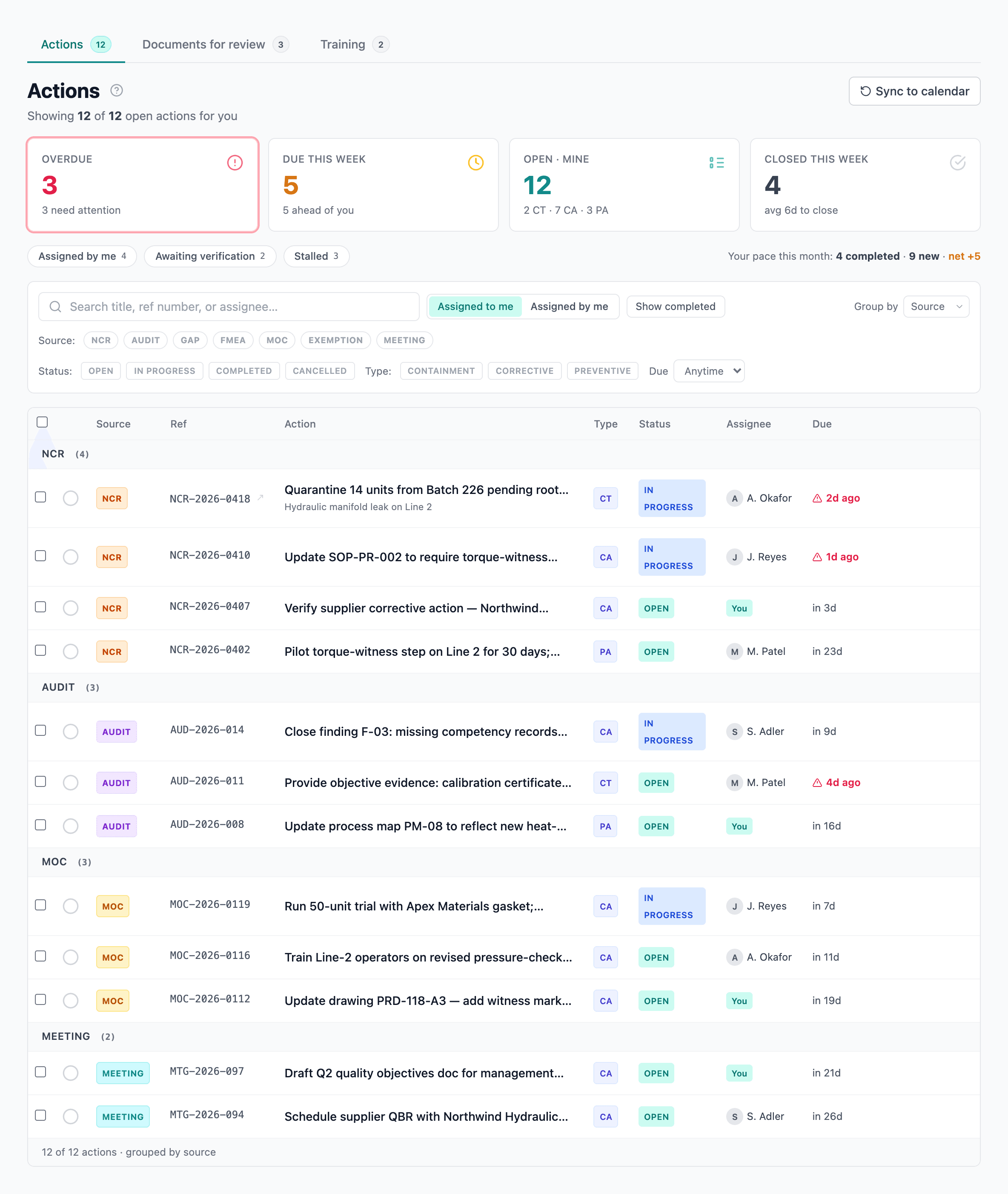
Actions are grouped by source module (NCR, Audit, MOC, etc.) so you can see everything assigned to you in one place.
Controls:
- Show completed — toggle to include completed items.
- Mine / All views (for Quality Managers and Admins) — see only your own actions or everyone's.
- Audits grouping — switch between by audit (default) and by topic.