In one sentence
AI is built into several workflows — drafting NCRs, summarizing audit evidence, generating meeting minutes, suggesting compliance mappings — and a single AI Settings page controls whether it's on, who pays for it, and which specific features are enabled.
- Master toggle is per-org. Off means every AI feature is off, everywhere — useful while you're still deciding policy.
- Bring your own key routes every AI request through your own provider account, not ours. The data flows under your contract with the provider — your data-handling agreement, your retention rules, your audit trail on the provider side.
- AI is assistive, never required. Every AI-driven UI works fine when AI is off — the button just goes away.
Where AI is used
| Feature | Module | What it does |
|---|---|---|
| Compliance mapping | Documents | Proposes compliance mappings for uncovered headings |
| Document Cleanup | Documents (Import) | Restructures pasted / imported markup while preserving the text |
| NCR Draft Assist | Non-conformances | Drafts title / description / source / severity from a one-line prompt |
| NCR Residual Risk | NCR (Root Cause tab) | Drafts a risk register entry, calibrated to your org's thresholds |
| Audit Evidence Summary | Audits (Perform) | Summarizes attached evidence on audit questions |
| Gap Analysis AI | Gap Analysis | Assesses a clause against linked context documents |
| Meeting Minutes | Meetings | Generates structured minutes and action items from notes or transcripts |
| Meeting Import | Meetings | Drafts a whole meeting record — title, agenda, minutes, attendees, actions, entity links — from pasted notes or an uploaded file, staged for review before Create |
| Meeting Transcription | Meetings | Transcribes an uploaded meeting audio recording (mp3 / m4a / wav, ≤25 MB) to text that feeds the minutes flow. Runs on OpenAI (see below) |
| Ask the Library | Documents | Library-wide Q&A — ask a natural-language question and get an answer with citations to specific document sections. Uses OpenAI for semantic search (see below) |
| Audit Question Suggestions | Audits | Proposes audit questions from a controlled document; every proposal cites a real section for the reviewer to accept or edit |
| Revision Summary | Documents | On submit-for-approval, drafts a short "what changed" summary between the last approved version and the new draft |
| Similarity Matching | NCR · Meetings · Audits · Risk · Exemptions | Surfaces related records across modules — similar NCRs, related audit findings, comparable risks, exemptions, and meetings. Uses OpenAI embeddings (see below). Toggleable per module |
See the individual module articles for how each feature surfaces in the UI.
Claude (Anthropic) does all the reasoning and writing. A few supporting jobs — semantic search embeddings and meeting-audio transcription — run on OpenAI, because Anthropic doesn't offer those models. Each vendor has its own provider section in AI Settings with its own platform-key / bring-your-own-key / disabled choice; an Anthropic key can't be used for OpenAI calls, and vice versa.
Master toggle & provider
Admin → Organization → AI Settings has the top-level controls:
| Setting | What it means |
|---|---|
| Off | Every AI feature disabled org-wide. |
| Use platform key | QFormance's provider key (covered by your platform contract; usage may be billed). |
| Bring your own key | Paste your own provider API key. AI requests go through your account — your data handling agreement, your retention controls, your audit trail with the provider. (Billing also lands on your account.) |
The key is encrypted at rest. The UI only shows the last four characters as a hint — the raw key isn't readable again after you save it. Store it in a password manager before you close the dialog.
Per-feature toggles
With the master toggle on, admins can enable / disable each feature independently:
- Document cleanup
- Compliance mapping
- NCR drafting
- NCR residual risk
- Audit evidence summary
- Gap analysis AI
- Meeting minutes
- Meeting import
- Meeting transcription
- Ask the Library
- Audit question suggestions
- Revision summary
- Similarity matching — NCR, meeting, audit finding, risk, and exemption (each toggled independently)
A disabled feature renders a clear "This feature has been turned off by your administrator" in its UI rather than a broken-looking button — so users know AI isn't being silently flaky.
Usage tracking
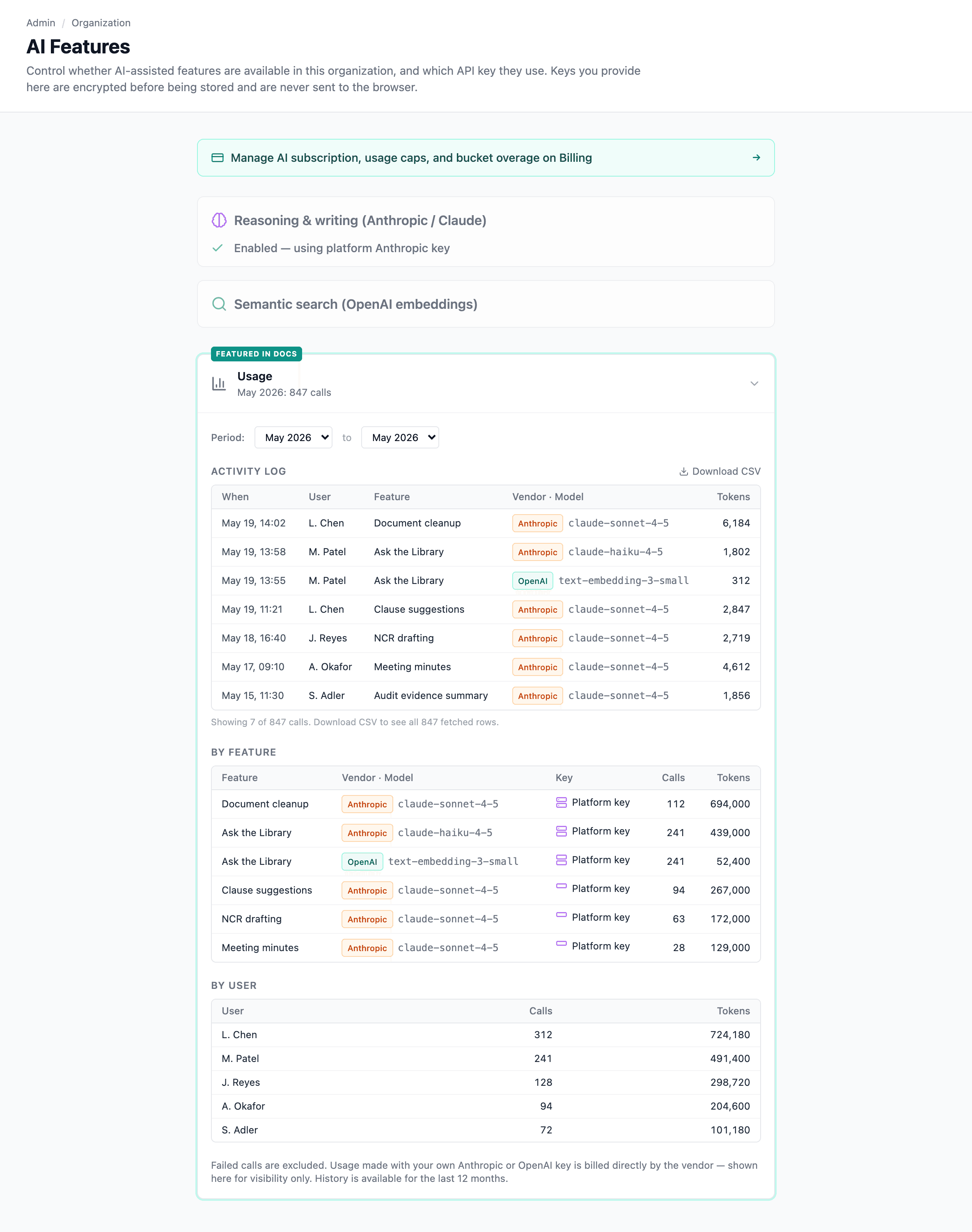
The AI Settings page shows usage metrics per feature:
- Total calls — how often the feature has been used.
- Token consumption — input and output, separately.
Useful for spotting which features are getting traction, which ones aren't being used, and where token usage is concentrated. For per-call billing detail, check your provider's own dashboard — that's the authoritative source.
Data handling
- AI calls include only the specific content needed — the question being answered, the document being analyzed, the notes being summarized.
- No cross-org data mixing. Each call is bounded to the calling org's content.
- Files (Word, Excel, audit-evidence images) are read server-side; any file that exceeds the provider's per-file limit is flagged in the UI as "attached but not analyzed", not silently truncated.
When AI is off
Every AI-dependent UI has a graceful degradation path:
- Buttons either hide or show a disabled state with explanatory text.
- The rest of the workflow works normally — AI is assistive, never required.