In one sentence
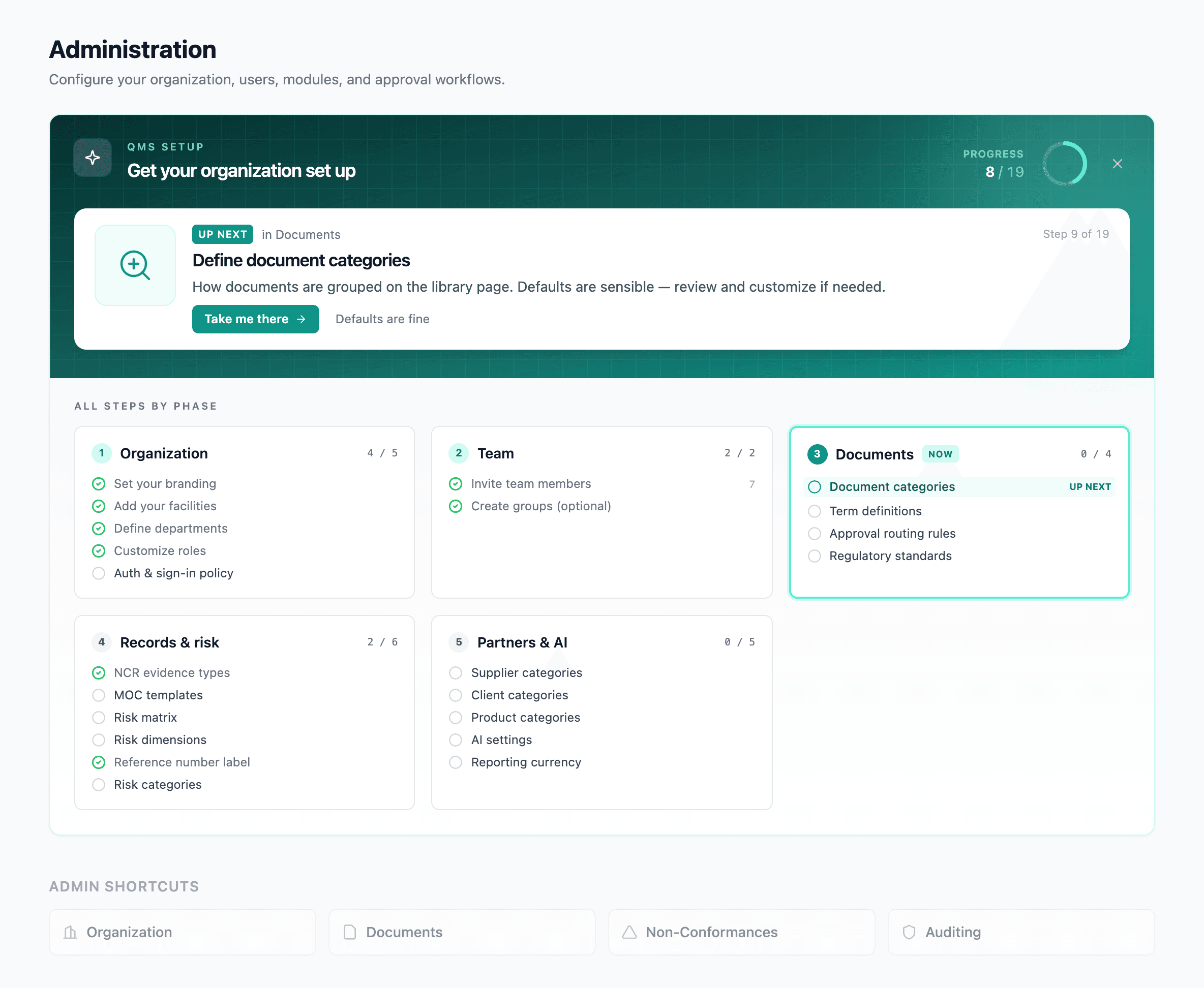
When a brand-new organization signs in, a short setup list appears on the admin home — facilities, users, document categories, risk matrix, active standards — and most of it auto-checks itself the moment you do the thing.
- The checklist is the floor, not the ceiling. It covers the foundations every other module assumes are in place.
- Items resolve in four states: Done (auto-detected), Reviewed (defaults are fine), Skipped (doesn't apply), Open.
- Dismiss the panel any time — items stay in their settings pages, and you can come back to them later.
Where it appears
The checklist sits at the top of the admin home for any organization that still has open items. Once everything is done, skipped, or reviewed, the panel collapses into a small completion summary. You can also dismiss it explicitly — see Dismissing the checklist below.
How items get checked off
Each item resolves to one of four states:
| State | What it means |
|---|---|
| Done | QFormance detected the configuration from system state — adding the thing is enough, no separate "I'm finished" click required. |
| Reviewed | Some items have sensible seeded defaults (AI settings on the platform key, default document categories). Click Defaults are fine to acknowledge you've looked. |
| Skipped | For items that don't apply to your org — single-site organizations skip facilities, role-only access models skip groups. Click Skip to mark complete without configuring. |
| Open | Anything not yet matched. The item links straight to the configuration page. |
All three completed states render as the same green ✓. The audit trail records why each item was completed; the checklist itself only tracks completion.
The items
The checklist renders in five phases. Order here matches the columns on the admin home.
Organization
- Set your branding — upload an org logo and confirm the name. The logo appears on every controlled document header and print export.
- Add your facilities — physical sites where work happens. Used to scope documents, NCRs, audits, and to drive record numbering prefixes. Single-site orgs can skip.
- Define departments — teams across your facilities, so records can be scoped to who actually owns the work.
- User roles & permissions — review the seeded roles and their permission sets; create custom roles for specialized access. See Roles & permissions.
- Auth & sign-in policy — which sign-in methods and email domains members may use, and whether sensitive actions need a fresh credential confirmation. See Auth & sign-in policy.
- Support verification details — a callback number and a support PIN. If someone here is locked out of multi-factor authentication and contacts QFormance, this is what we check before touching their account. See Account recovery.
Team
- Invite team members — anything more than the founding admin counts as done.
- Create groups (optional) — saved lists of users for restricting visibility on sensitive documents. Skip if your access model is just roles. See Access Control.
Documents
- Document categories — how documents are grouped on the library page. Defaults are seeded — review and customize if your structure differs.
- Build your definitions library — key terms, acronyms and abbreviations used across your QMS, linked inline from documents and records.
- Approval routing rules — pre-fill reviewer and approver on new documents (and the chain on MOCs, JHAs, FMEAs) based on category, class, facility, or risk. Skip if you'd rather set them per-record.
- Active standards — which ISO standards your org is certified against. Drives compliance mapping, audit topics, and gap analysis. Anything other than the seeded default counts as customized.
Records & risk
- NCR mandatory evidence — what evidence is required to close an NCR (failure report, client confirmation, etc.). Defaults are seeded.
- MOC templates — starting points by change type that pre-fill new MOCs with the artifacts they require. Four are seeded.
- Risk matrix — matrix size, likelihood and impact labels, and the thresholds that band scores into Low / Medium / High / Critical. Used across NCR, MOC, FMEA, and the risk register.
- Risk dimensions — the dimensions risks are scored against (Safety, Quality, Financial, Environmental, …). Each scores independently and the worst rolls up.
- Risk categories — the tags used to group risks for reporting, each with a color used on the register.
- Reference number label — customize the per-record external reference label (e.g. Job Number, VIN, Lot Number). Skip if you don't track external references.
Partners & AI
- Supplier categories / Client categories / Product catalog — how each directory is grouped and filtered. Seeded with defaults; skip to categorize later.
- AI settings — choose Managed AI or bring your own key. Affects the document agent, AI summaries, and other AI-powered features. See AI Features & Settings.
- Reporting currency — the currency used for monetary fields such as NCR loss. Defaults to USD.
Auto-detection rules
Most items watch for any configuration in the relevant area — adding a single facility, group, or document category counts as done. A few items use richer rules:
- Invite team members — counts active profiles; needs more than one.
- AI settings — done once you switch to your own provider key; staying on the platform key requires the explicit "Defaults are fine" acknowledgement.
- Reference number label — done when the label is changed from the seeded default.
- Active standards — done when the active list differs from the seeded default.
- Support verification details — done once a callback number or a support PIN is on file. A number we can ring is the load-bearing half; the PIN is a bonus. This item has no Skip — you can mark it We'll rely on other checks, but only deliberately, because the cost of ignoring it lands on the day someone is locked out and there's nothing to check a caller against.
Dismissing the checklist
A top-level dismiss action removes the panel from the admin home for everyone in the organization. Dismissal is per-org, not per-user. Items continue to live in their normal settings pages, so you can come back to them at any time.
The system never auto-dismisses. The panel just collapses when complete.
What happens after
Once the checklist is complete or dismissed:
- The admin home reverts to the standard dashboard.
- Every item is still reachable via Admin → Organization or its specific settings page.