In one sentence
A controlled document in QFormance moves through Draft → Under Review → Approved → (eventually) Obsolete, gathers a permanent revision history along the way, and exports as a PDF that always carries the formal header your auditors are expecting.
- Documents are classified by two independent dimensions: a Category (SOP, Policy, Procedure...) and a Document Class (HSE, Safety & Quality, Operations...). Both are admin-configurable.
- Every approval bumps the version and writes a permanent revision record. The revision history is part of the document forever.
- Marking a document Obsolete checks for incoming references first — so you don't accidentally orphan other procedures.
This article covers the register, metadata, and lifecycle. For deeper topics:
- Document editor — formatting, slash commands, TOC, components, mapping
- Document approvals & versions — approval chains, delegations, version history, diffs
- Revision markers — the margin markers that flag what changed in a revision
- Smart views — saved register filters, shared org-wide or personal
- External documents — third-party / regulatory document register
- Document training & acknowledgements — distribution lists and quizzes
- AI in documents — compliance mapping and import cleanup
- Admin: Documents — categories, classes, approval routing, templates, components
Document types
Documents are classified along two dimensions, both configurable in Admin → Documents → Categories & Classes:
- Category — the document type: SOP, Policy, Procedure, Work Instruction, Form, etc.
- Document Class — the organizational function: HSE, Safety & Quality, Operations, etc.
Together they drive number generation, approval routing, and the register's filtering options.
Creating a document
Click New Document from the register.
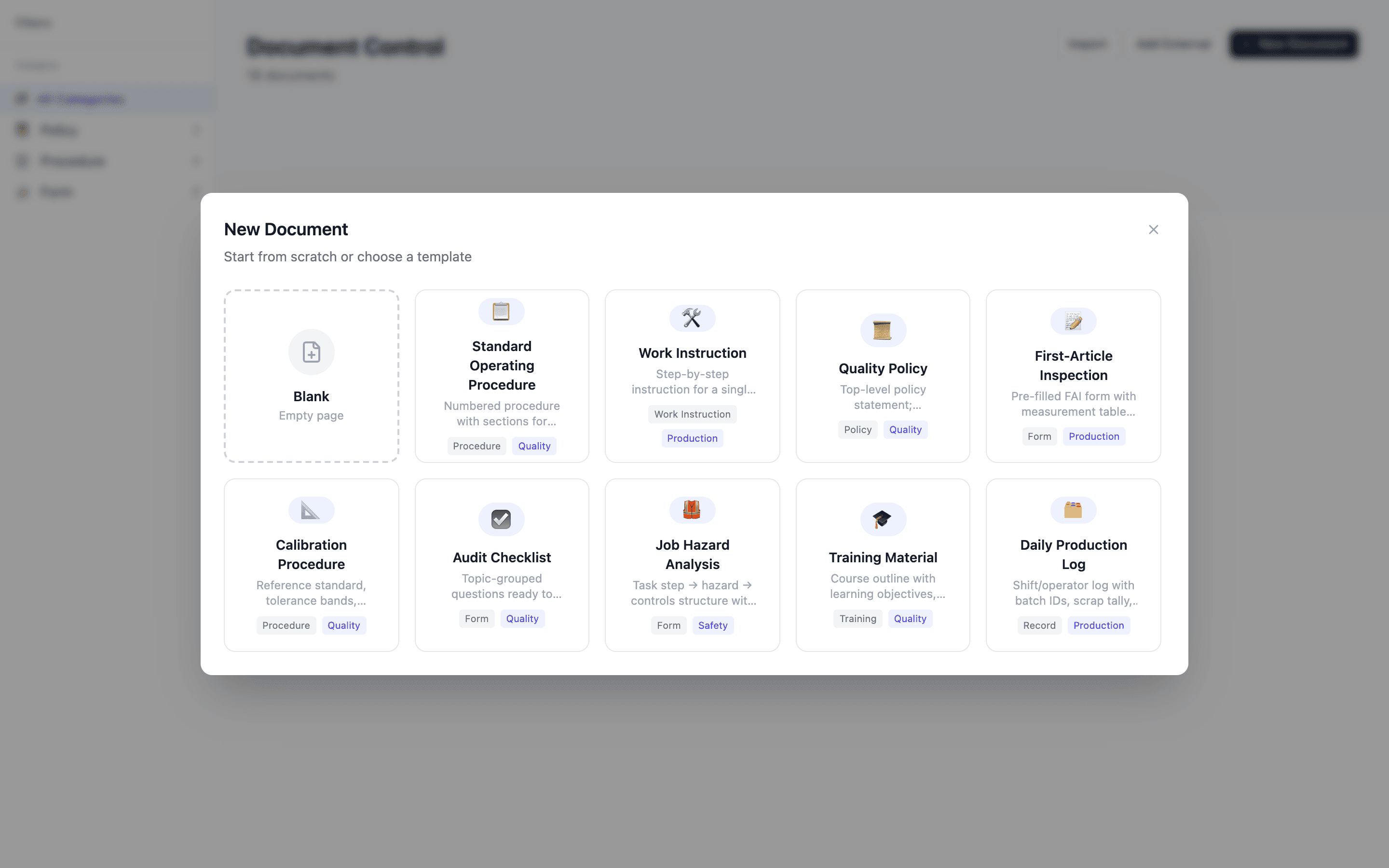
The flow:
- Pick a category and document class.
- Optionally start from a template (templates pre-fill category, class, and initial content — configured in Admin → Documents → Templates).
- Or start by importing an existing file — Word, PDF, or pasted HTML. AI cleanup is available to restructure messy imports while preserving the text.
On the edit page, fill in:
- Title and document number (number is locked after first save)
- Version (defaults to 1.0)
- Owner, Reviewer, Approver
- Review frequency — drives the Next Review Date
- Facility and Department scope (see Facility & Department Scope)
- Requires Acknowledgement toggle (see Document training)
- Linked supplier or linked client — optional searchable pickers; pick at most one (the schema enforces mutual exclusivity)
- Linked products — optional searchable picker; a document can reference any number of products from the catalog
- Body content via the rich-text editor (see Document editor)
The document header
Every document renders a formal header at the top of both the on-screen view and the PDF / print export:
- Organization logo (from Admin → Organization) or org name fallback
- Document number, title, status badge
- Version, category
- Owner / Reviewer / Approver names in a 3-column grid
- Revision History table — Rev | Date | Author | Description
The revision history table shows the five most recent entries by default, with an expand control to reveal older ones. If a revision has no author-written notes, the system fills a default based on revision type (Major revision, Minor revision, Spelling / grammar correction).
You don't maintain the header — it stays accurate as the document evolves.
The document register
The register is the default landing page for Documents.
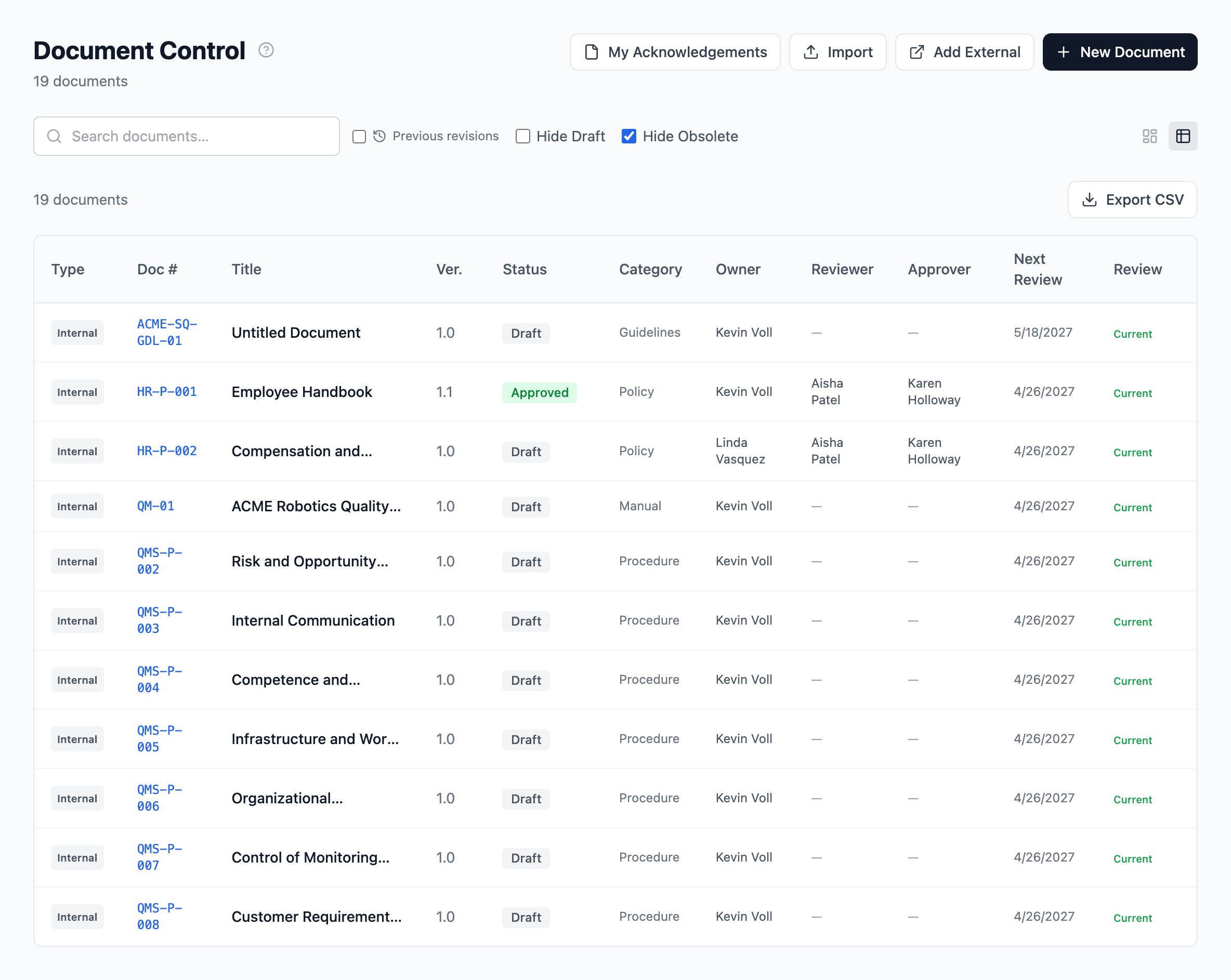
It supports:
- Smart views — a left rail of saved filter presets shown as folders, split into Shared (org-wide) and My Views (personal). One click re-applies a whole filter combination. See Smart views.
- Card view and Register view toggle
- Search by title, number, or content
- Class filter in the sidebar
- Type filter in the sidebar — All / Internal / External. External docs (regulations, supplier specs, customer documents) live alongside your internal SOPs in the same register; the Type column on each row carries an Internal or External pill so you can tell them apart at a glance. See External documents for the external-doc lifecycle.
- Status filters — Draft, Under Review, Approved, Obsolete
- Category badges whose counts respect the active filters — a category showing "Policies (4)" clicks through to exactly those four, never an empty list, because the count is built from the already-filtered set.
- Clear all filters — one control that resets category, class, department, type, search, and hidden statuses at once, and deselects the active smart view.
- Review-status badges — Overdue and Due Soon surface on rows whose next review date is past or approaching
- Facility badges — show which facility or facilities a document is scoped to
- Hierarchy display — parent documents visually nest their children
Hierarchy, supersedes, and obsolete
Documents can express two kinds of relationships:
- Parent / child — hierarchical containment (a manual containing sub-procedures). Editable from the document sidebar. Children can symlink under multiple parents — useful for shared procedures referenced across categories.
- Supersedes / superseded-by — one document replaces another. Both sides are visible on the sidebar with clickable links.
When you mark a document Obsolete, the system checks for any other documents that link to it by heading or title. If there are incoming references, you get a warning before the transition completes — fix the references first, then complete the obsolete.
Linking to suppliers, clients, and products
A document can carry up to three optional cross-module links, set on the create / edit form and visible in the document's sidebar:
- One supplier or one client — pick at most one. Use it for a customer-specific quality clause, a supplier-provided spec, a procedure that governs a single vendor relationship. The link surfaces on the supplier's or client's Documents tab so anyone reading their profile finds the relevant procedures without searching.
- Any number of products — many-to-many. A single SOP can govern several parts; a single part can be governed by several SOPs. Each linked product appears in the document's sidebar with an unlink control; the document appears on the product's Documents tab and Overview card. Linking is locked while the document is in Obsolete state.
Linking is supported for both internal and external documents. The behavior is identical — the supplier / client / product links live on the document regardless of which body type it carries.
Document lifecycle
Every document moves through these states:
| State | What it means |
|---|---|
| Draft | Editable by owner and reviewer; not visible outside the edit flow. |
| Under Review | Locked while approvers step through the chain. |
| Approved | Published; a version snapshot is recorded. |
| Obsolete | Retired from the active library, kept for audit trail. |
Transitions
- Draft → Under Review via Submit for Approval.
- Under Review → Draft via return-to-draft (reviewer or approver, with reason).
- Under Review → Rejected → Draft via formal rejection, with required reason.
- Under Review → Approved on final-step approval (version bumped).
- Approved → Draft by creating a new revision from the approved doc.
- Approved → Obsolete, with broken-link detection.
Version snapshots are written only on approval. See Document approvals & versions for the mechanics.
Importing documents
Documents → Import accepts pasted HTML or uploaded files (Word, PDF text extraction). Optional AI cleanup restructures messy markup into clean HTML while preserving the original text verbatim. Each imported entry becomes a draft document you finish and submit.
Exporting
- PDF / Word export (per-document) — renders with the formal header including logo.
- Print view — page breaks, footers, and an Uncontrolled When Printed notice.
- Register export — export the entire document register as CSV or Excel.
- Evidence links — pin a link to a specific version for audit trails. The linked URL always resolves to that frozen revision, even after the document changes.
Review dates
The Next Review Date is calculated from Review Frequency (monthly, quarterly, semi-annual, annual). The sidebar shows a color-coded health indicator:
- Green — Current
- Amber — Due Soon
- Red — Overdue
Overdue documents also surface in the register and in sidebar badges.
If you delete a document
Internal documents don't have a blanket delete — you discard a draft, and what that does depends on the document's history. (The author can always discard their own draft; the Discard any draft permission lets admins discard anyone's.)
- Never approved — a brand-new draft is removed entirely and sent to Trash for 90 days, where an admin with the Manage trash permission can restore it, along with its version history, cross-module links, and acknowledgements.
- A draft revision of an already-approved document — the draft edits are thrown away and the document reverts to its last approved version. You're discarding the draft, not the document, so nothing goes to Trash. A document that has ever been approved keeps that approved history permanently.
External documents can be deleted even when approved (unlike internal docs): a Delete button moves the record to Trash, restorable for 90 days. See External documents.
See Soft-delete — how it works for the broader pattern.