In one sentence
The Suppliers module is the place every other module reaches when it needs to say "this came from vendor X" — one record per supplier, sequential numbers per facility, and a profile that pulls in everywhere that supplier shows up across the rest of QFormance.
- A supplier is an org-level record, but it gets a per-facility sequential number (e.g.
SUP-001) the moment you add it to a facility. The same vendor at two facilities has two numbers. - The ASL number is optional — the code a facility knows this supplier by on its Approved Supplier List. Anyone who can edit the supplier can set it.
- The supplier profile pulls in every product, document, NCR, MOC, audit, and risk linked to that supplier — each on its own tab that only appears once there's something to show. Cross-module links accumulate automatically; you never have to search.
Creating a supplier
From Sidebar → Suppliers, click New supplier. The form captures:
- Name — the legal or commercial name. Required.
- Category — admin-managed list (see Categories below).
- Status — Active, Inactive, Pending, or Blocked. New suppliers default to Pending until QA approves them.
- Contact name — your main point of contact at the supplier. Optional, and surfaced as its own Contact column in the directory so you can see at a glance who to call.
- Contact info — website, email, phone, address. All optional.
- Notes — free-text context, audit history references, anything you want surfaced on the profile.
- Critical supplier (optional) — tick this to flag the vendor as critical to your operation. Ticking it reveals a required criticality reason picker (Single Sourced, Long Lead Time, Financial Instability Risk, …). See Critical suppliers below.
Submit and you land on the supplier's profile. The supplier exists at the organization level — at this point it has no facility number yet.
Adding a supplier to a facility
A supplier doesn't get a number until you add it to a facility. From the supplier's profile, the Facilities section has an Add facility button.
When you add a facility:
- A sequential number is assigned —
SUP-001,SUP-002, etc. The next number comes from the facility's running counter, so each facility has its own series. - You can set a per-facility status and risk level independently of the org-level status.
- If you have permission, you can record an ASL number (see below).
Adding the same supplier to two facilities gives you two numbers — Vendor X may be SUP-014 at Birmingham and SUP-007 at Toledo. The numbers reflect when each site started using them, not anything global.
Legible URLs
Supplier profile pages have readable URLs derived from the name — e.g. /suppliers/precision-castings-inc rather than a long ID. The slug refreshes automatically if the supplier is renamed. Older ID-based links still resolve.
ASL numbers
The ASL (Approved Supplier List) number is an optional field on the per-facility supplier record — the code that facility knows the supplier by.
It is editable by anyone with suppliers.edit, like every other field on the
record. If ASL maintenance should be restricted to a small QA group, restrict
who can edit suppliers: a user who can rename a supplier, change its category
and attach it to facilities is not meaningfully constrained by being unable to
type its ASL code.
Admins can change the prefix (default SUP) at Admin → Suppliers. The change only affects new numbers — every existing record keeps the prefix it was issued under. If you switch from SUP to VEN, your directory will look like a mix of SUP-014 and VEN-001 until the old records age out.
Categories
Categories are an org-level, admin-managed list. From Admin → Suppliers anyone with the Edit org settings permission can:
- Add, rename, or delete a category.
- Re-order them — the order is the order they appear in pickers and lists.
Default categories are seeded for new orgs (Materials, Services, Calibration, Subcontract — typical QMS divisions) but you can replace them with whatever your team thinks in.
Critical suppliers
A supplier can be flagged Critical to mark that a disruption from them would hurt — single-sourced parts, long lead times, financial-stability concerns, and so on. The flag is deliberately paired with a reason, so "critical" always carries the why.
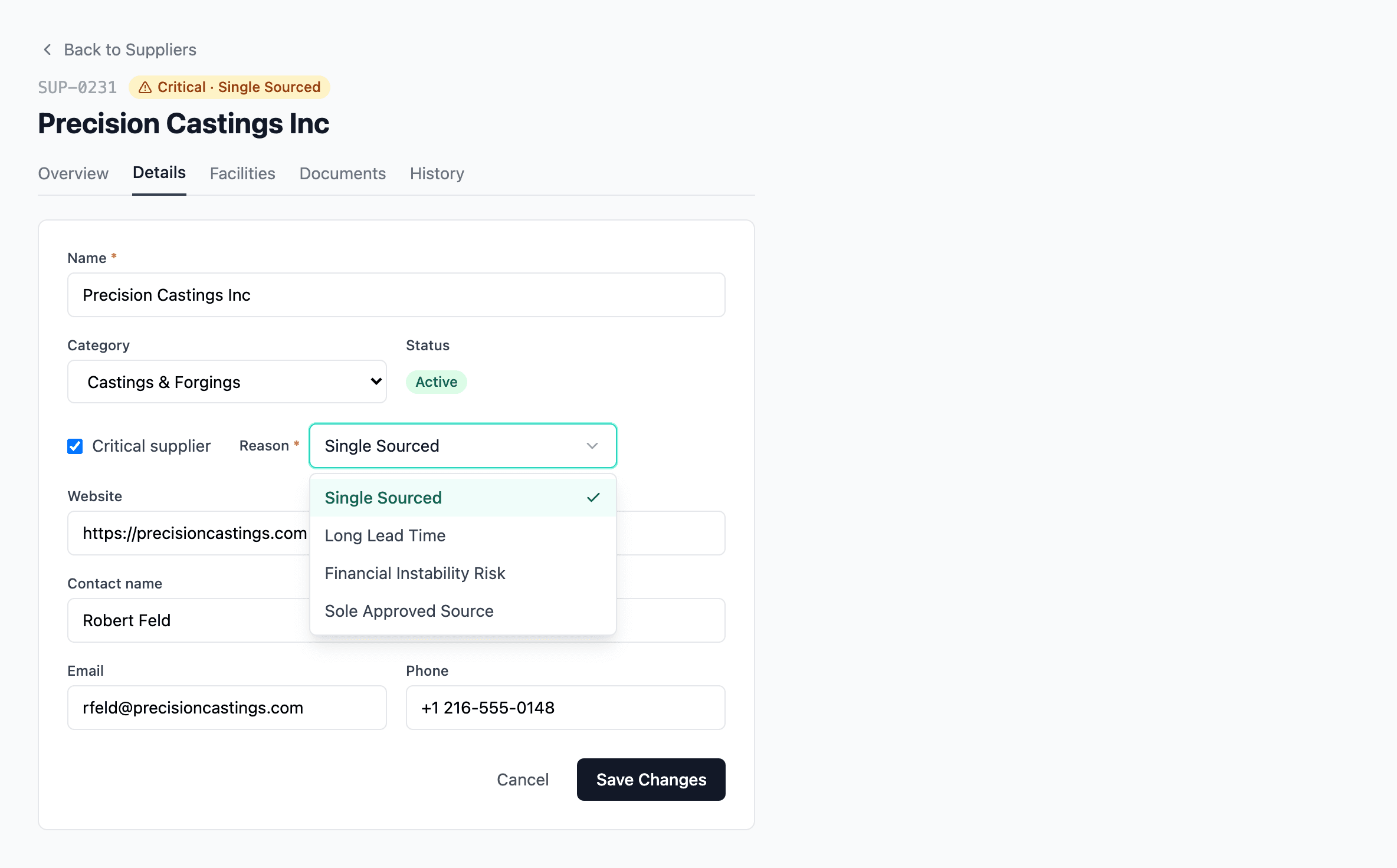
- The reason comes from an org-managed list. QFormance seeds eleven to start: Total Spend, Historic Poor Quality, Historic Poor Delivery, Single Sourced, Sole Source (No Alternate Available), Limited Capacity, Long Lead Time, Financial Instability Risk, Geographic / Geopolitical Risk, Regulatory or Compliance Impact, and Proprietary Process or Tooling. Admins add, rename, or retire reasons at Admin → Organization → Suppliers.
- Where it shows. A Critical supplier checkbox with an inline reason picker sits on both the New Supplier form and the Details tab. Once flagged, an amber Critical · pill appears on the supplier's detail header and on its register row, and the register's Critical filter narrows to All suppliers, Critical only, or Non-critical.
- Every change is reasoned and logged. Flagging or unflagging a supplier requires a typed reason — captured in an inline confirm before it saves — and is written to the audit trail as a Criticality changed event with the before/after value. An inspector can see exactly when a vendor became (or stopped being) critical, and why.
The supplier profile
The profile is laid out in two columns:
| Column | What's there |
|---|---|
| Left — main detail | Contact info, notes, the Facilities list with each facility's number, status, ASL (if visible), and risk level |
| Right — activity | Counts of Products, Documents, NCRs, MOCs, Audits, and Risks linked to this supplier, with a one-click link to the underlying tab |
The activity counts are the killer feature. When a procurement manager asks "how often have we raised NCRs against this vendor in the last year?" it's one click — no spreadsheet, no manual tag-and-search.
The Overview leads with a Details summary card — status, category, critical status, the linked-record counts, and who created the supplier and when — with an Edit → shortcut that jumps straight to the Details tab.
Scorecard-style review on linked records
The NCRs, MOCs, and Audits tabs each carry an Actions column showing the open / closed corrective-action counts for that record. So you don't have to drill into every NCR to see whether anything is still outstanding — you scan the column, spot the rows with open actions, and triage from the supplier profile. Actions never link directly to a supplier; they always flow through a parent record (NCR / MOC / audit / meeting), and this column rolls them up to the supplier so they're visible without leaving the profile.
Facility ↔ whole-organization scope toggle
Most of the profile is scoped to your active facility by default — the linked NCRs, MOCs, audits, and documents are filtered to that site. A scope toggle in the header (sitting to the left of the Mark inactive button) flips between this facility and whole organization so you can widen the view to see the supplier's activity across every site at once.
The Risks tab, and empty tabs stay hidden
The profile carries a Risks tab listing every risk-register entry that references this supplier, with a count badge and its own Overview card — so a vendor-driven risk is visible from the supplier the same way its NCRs are. All of the profile's reverse-view tabs — Products, Documents, NCRs, Audits, MOCs, Risks — only appear when they hold something. A brand-new supplier with no linked records shows just the core tabs, and each one lights up as links accrue, so you're never clicking into an empty tab to check.
Cross-module linking
Every record-creating module that might involve a vendor has an optional Supplier picker on the create form:
| Module | What linking does |
|---|---|
| NCR | Marks the NCR as supplier-related; appears on the supplier profile activity feed |
| Audit | Required on the Supplier audit type — the searchable picker reads from this directory (the old free-text supplier-name box is gone) |
| MOC | When a change is driven by a supplier change |
| Exemption | When a concession applies to vendor-supplied material |
| FMEA | Process FMEAs that involve a supplied component |
| Risk | Vendor-related risk register entries |
| Meeting | When the meeting concerns a supplier |
| JHA | When subcontracted work is performed by a supplier — see JHA → Supplier link |
| Document | When a document is supplier-specific (qualification reports, agreements) |
The picker is always optional — you don't have to attach a supplier — but when you do, the link is bidirectional: the supplier profile shows the record, and the record shows the supplier.
Product-driven supplier narrowing on create
When you're creating an NCR, MOC, FMEA, Exemption, Risk, or Meeting and you pick one or more products first, the Supplier picker on the same form narrows to those products' suppliers — including the suppliers attached to every component in their BOM, full depth. When the narrowed list collapses to a single supplier, the form auto-selects it. Picking a supplier first works in the reverse direction — the product list narrows to that supplier's products. Each picker carries a Show all escape so you can step outside the narrowed set if you genuinely need to. On documents, the Linked Supplier picker in the detail sidebar follows the same narrowing rules and is editable in place.
The Documents tab
The supplier profile has a dedicated Documents tab listing every controlled document linked to that supplier — internal and external alike. Two buttons at the top create a fresh document pre-linked to this supplier:
- New Internal Document — opens the standard new-document form with Linked supplier pre-filled.
- New External Document — same idea, but for the external-document form.
Either path drops you back on the supplier's Documents tab once the new doc lands, with the link already in place.
The supplier audit type
Alongside Internal first-party and Internal self, audits have a Supplier type. Picking it surfaces the Supplier picker as a required field — searchable, sourced from the directory you maintain here. The old free-text supplier-name box is gone, so every supplier audit ties back to a real directory record. Findings raised from a supplier audit pre-fill the source as Supplier audit on any resulting NCR.
See Audits → Supplier audits for how the rest of the audit flow handles supplier scope.
Status
Suppliers carry a status field with four values:
| Status | When you'd use it |
|---|---|
| Active | Approved and currently used |
| Pending | New supplier under qualification — appears in pickers but flagged |
| Inactive | No longer used; kept for history |
| Blocked | Disqualified — the system warns when anyone tries to attach to a new record |
Inactive and Blocked records still appear in the directory and on past records they're linked to — nothing is hidden. The list page filters default to Active, but switching the filter shows everything.
Finding a supplier in the directory
The directory has a filter for every column right in the table header — search by supplier name, narrow by category, facility, status, contact name, or criticality (All suppliers / Critical only / Non-critical), all at once. A count of matching suppliers sits in a footer strip below the table, so you always know how big the set you're looking at is.
Permissions
| Permission | What it lets you do |
|---|---|
suppliers.create | Create a new supplier |
suppliers.edit | Edit supplier details, manage facility memberships, and set ASL numbers |
suppliers.delete | Delete a supplier (admins only by default) |
These are configured per-role at Admin → Roles & permissions — see Roles & permissions for the broader model.
Admin
Admin lives at Admin → Organization → Suppliers and covers:
- Categories — add, rename, reorder, delete.
- Number prefix — default
SUP. Affects only new numbers issued after the change. - Criticality reasons — the org-managed list behind the Critical-supplier flag: add, rename, activate / deactivate, delete. Eleven ship seeded.
Deactivating a supplier — not trash
Suppliers don't go to the Trash bin the way other regulated records do. Their toggle is Active / Inactive.
Flip a supplier to Inactive when you stop doing business with them. The record:
- Stays on the Suppliers list with an Inactive badge.
- Drops out of new picker dropdowns (NCR source-supplier, MOC linked supplier, etc.).
- Keeps every existing cross-module link intact — past NCRs against the supplier still resolve correctly.
- Can be reactivated by flipping the toggle from the detail page.
The terminology overlap with deletion is historical — the user-facing concept is "inactive since," not "in trash." If you can't find a supplier in /trash, that's expected; check the Suppliers list with Show inactive turned on.
Related
- Clients — the sister module for customers
- Audits — supplier audit type
- Non-conformances — supplier-source NCRs
- Roles & permissions