In one sentence
This is the playbook for the day you actually run the audit — open it, work through your assigned questions, attach what you saw, and let findings flow into NCRs without re-typing anything.
- Only the assignee, lead auditor, or an admin can answer a question. Other team members can read every question and its evidence, but the answer chips are disabled for them.
- Prior audit answers surface as you go. If this question was asked at the same scope before, you can see how it was answered without leaving the page.
- A Major or Minor NC is half an NCR already. One click pre-fills an NCR with the question, your notes, and the evidence — you never re-key.
For the setup that makes audits possible (documents → topics → questions → scope), see Setting up audits, end to end. For scheduling the year, see Audit Planner.
Opening the audit
Audits assigned to you appear in three places:
- Audits → My audits filter on the list page — only audits where you're a member of the team.
- The planned date card on the home dashboard during the week leading up to the audit.
- An emailed link from the lead auditor when the audit is created.
Click in. You'll land on Overview, which is the cockpit for the audit.
Overview — what to look at first
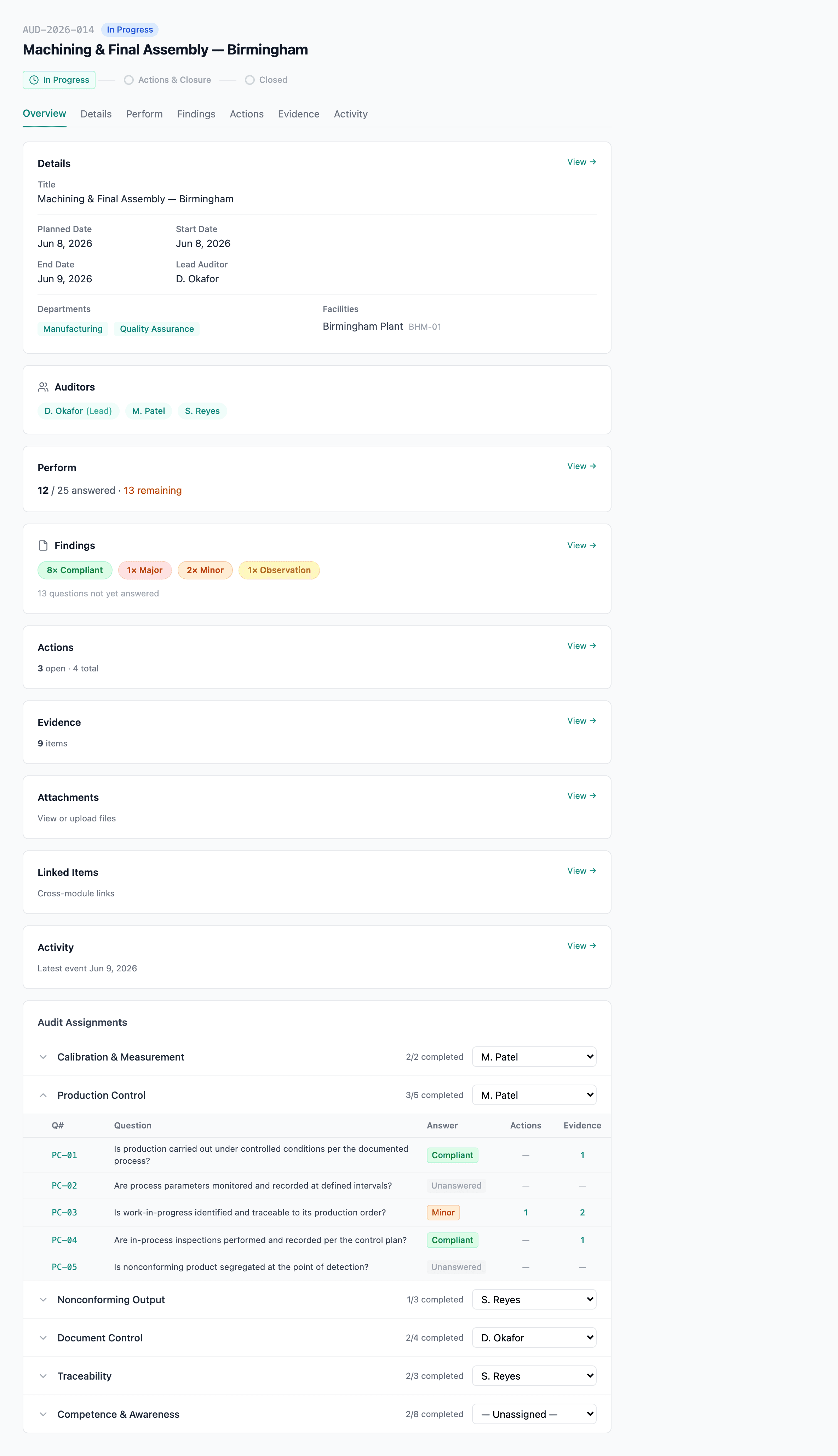
Status & dates. Draft → In Progress → Closed. Lead auditor and planned date are editable until close.
Progress bar. % of questions answered across the whole audit.
Audit Assignments. Per-auditor section count and progress. Click an auditor to jump to their slice of the Perform tab.
Blockers. Anything stopping closure — unanswered questions, Major NCs without NCRs.
The Overview is the only place that shows the audit as a whole. Once you start working questions you'll mostly live on the Perform tab.
Assigning auditors
Audits are normally assigned by the lead auditor at creation, but team membership can change at any time before close.
From the new-audit wizard
Step 2 of the wizard picks the lead auditor (one person, defaults to the creator) and additional auditors (any number). Lead is the only mandatory role — solo audits are fine.
Mid-audit reassignment
From Overview, click Edit team on the Audit Assignments card. You can:
- Add an auditor — they show up in the team and can be given questions.
- Remove an auditor — only allowed if they don't own any unanswered questions. Reassign their work first.
- Change the lead — the previous lead becomes a regular auditor; they keep their assigned questions unless reassigned.
Every team change writes to the audit's activity log so the question "why is Sam in this audit?" always has an answer.
Assigning questions to auditors
Assignment isn't advisory — only the assignee, the lead auditor, or an admin can answer a question. Everyone else on the team can open the question, read the notes, see the evidence, and leave it at that; the answer chips and the Save button are disabled. Unassigned questions can only be answered by the lead auditor or an admin until someone is assigned.
To split the work, open the Perform tab and use the Assign action on a question or a multi-select. Common patterns:
- By topic — production lead takes process questions; quality lead takes documentation.
- By department — one auditor per area of the facility.
- By critical level — senior auditor takes L1 (Critical) questions, junior takes L2.
Reassign at any time by re-running Assign on the questions in question. Reassignment is logged in Activity, so the audit trail captures who owned a question when it was answered.
If the assignee is on leave or out of contact, don't wait — reassign the question to someone who's available, or have the lead answer it directly. Leaving questions assigned to an absent auditor will block closure.
The Perform tab
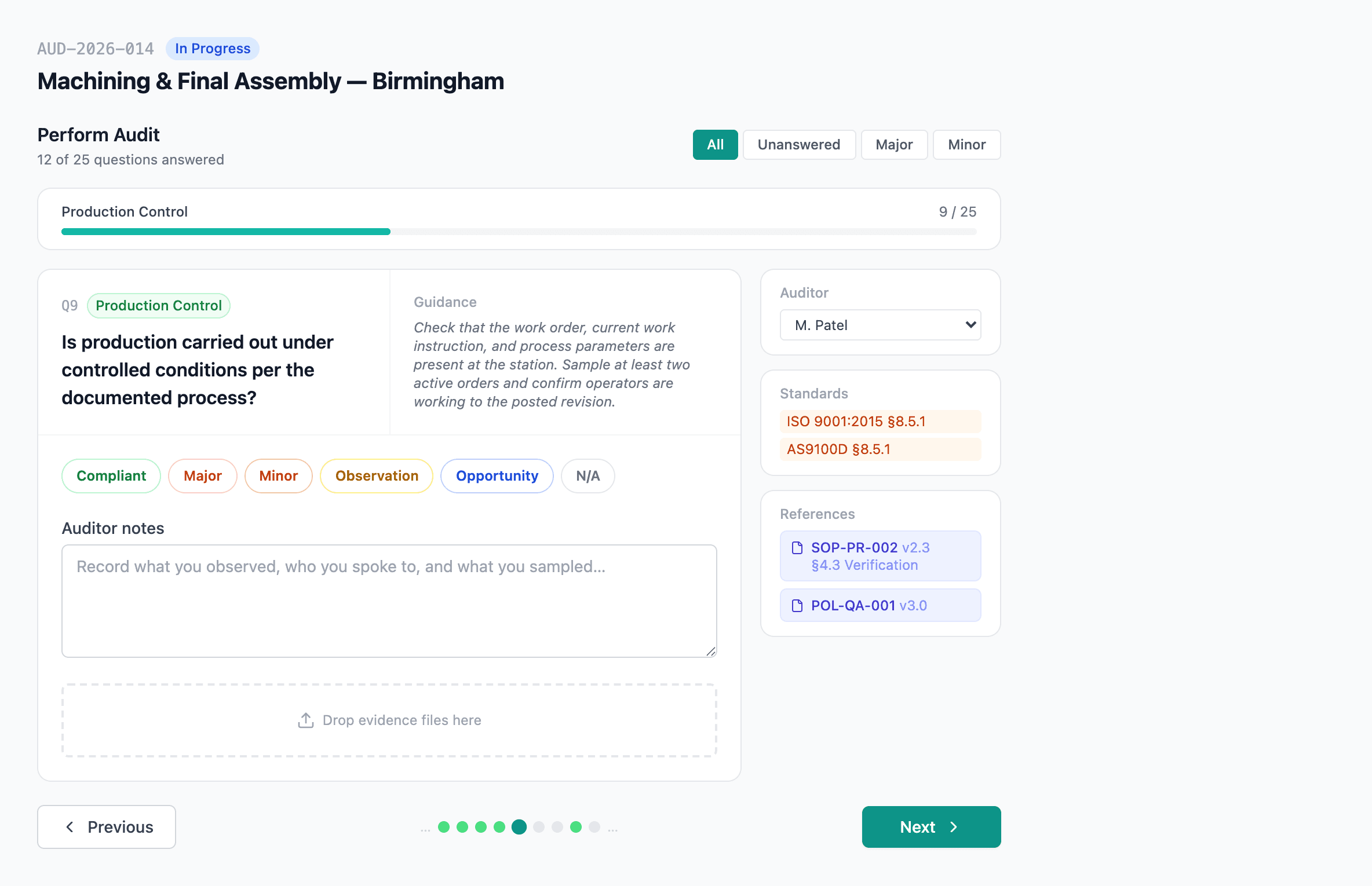
Filters. Topic, department, status, answer, assigned auditor. Combine to find your slice.
Question list. Each row shows current answer (or Unanswered), notes preview, and assignee initials.
Question detail. Opens to the right when you click a row.
The Perform tab lists every question in the audit. The filter bar narrows it to your slice — most auditors run with My questions + Unanswered while they work, then switch off the filters at the end to scan the audit as a whole.
Multi-auditor parallel work
Two auditors working different questions at the same time is the normal case — assignment-based permissions make this safe. The assignee owns the answer; nobody else on the team can save over it. The lead auditor and admins keep override rights for the cases the assignee can't cover (out sick, off-shift, judgment call needed) — both also bypass the lock.
If two people with rights on the same question (e.g., the assignee and the lead) save concurrently, the most recent save wins and the prior values stay in the question's Activity history.
Answering a question
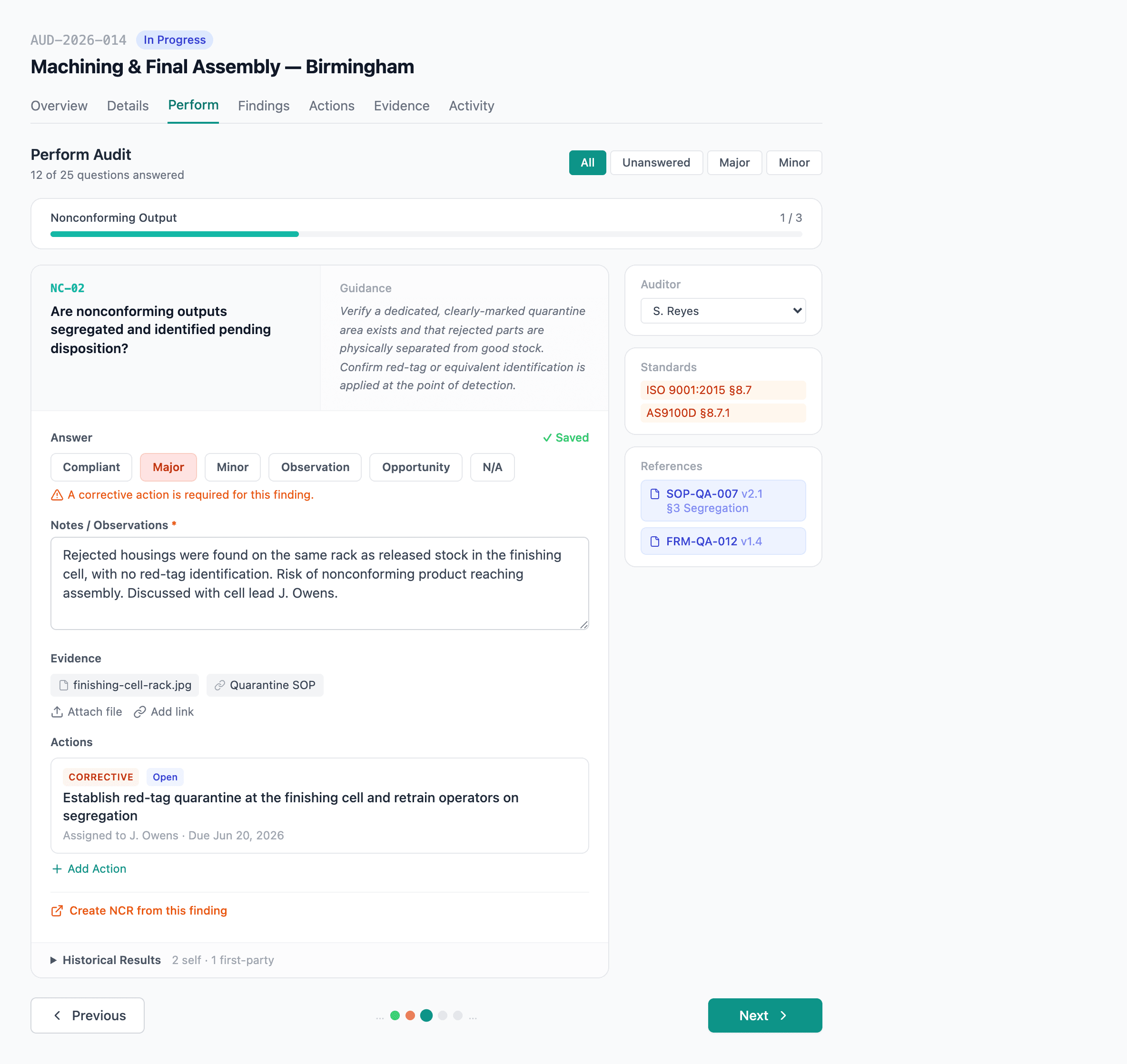
Answer chips. Conforming · Minor NC · Major NC · Observation · N/A.
Notes. What you saw, who you spoke to, what was missing.
Evidence. Files, photos, and links to controlled documents.
Linked document. The procedure the question is auditing against, scrolled to the relevant section.
The five answer types
| Answer | When to use it |
|---|---|
| Conforming | Procedure is followed and evidence backs it up. |
| Minor NC | A gap or deviation that doesn't compromise outcomes — becomes a finding, raises an NCR. |
| Major NC | A failure that does compromise outcomes — becomes a finding, raises an NCR. |
| Observation | A useful note that isn't a non-conformance — improvement opportunity, recurring issue to watch. |
| N/A | The question genuinely doesn't apply at this scope. Requires a note explaining why. |
Pick the chip, write the notes, attach evidence, save. The status badge on the question row updates immediately so the rest of the team sees your progress.
Notes
Plain text with line breaks. Cite the procedure section, the operator's name, and what specifically was different. The notes become the NCR description if the answer is Minor or Major NC, so the more specific you are, the less rework later.
Linked document sidebar
Every question is bound to a section of a controlled document (set up in the Question Bank). The sidebar on the right of the detail panel shows that section inline — no need to switch tabs to check what the SOP actually says. The linked document is the version that was active when the audit was created, not the current version, so a re-issue mid-audit doesn't move the goalposts.
Uploading evidence
Drag files onto the evidence area, click to browse, or — on mobile — tap Take photo to capture directly.
What you can attach
| Type | Notes |
|---|---|
| Photos | JPG / PNG / HEIC. iOS HEIC is auto-converted. |
| Documents | PDF, Word, Excel, plain text. |
| Links to controlled documents | Pick from your QFormance documents — the link captures the version. |
| External links | URLs to internal wikis, supplier portals, etc. |
There's a 50 MB per-file cap and a 500 MB total cap per question. If you're attaching a video, link it from cloud storage instead — videos rarely belong inline.
Mobile photo capture
On a phone or tablet, the evidence area shows a Take photo button. The OS camera opens, you snap, and the file lands attached with a timestamp and (if you've granted permission) GPS coordinates in the file metadata. Saved to the audit immediately — no separate upload step.
The Perform tab needs network. If you lose connectivity mid-question, your answer is held in the browser tab and pushed when the connection is back — but only as long as you don't close the tab. For audits in dead zones, write notes locally and transcribe when you're back online.
Prior audit context
When the same question has been asked at the same scope (facility + department) in a prior audit, a Previous audits chip appears next to the answer area. Click to expand a panel showing:
- The last three audits that asked this question at this scope.
- Each prior answer, the auditor, the date, and the notes.
- Any NCRs that were raised from the question — with status.
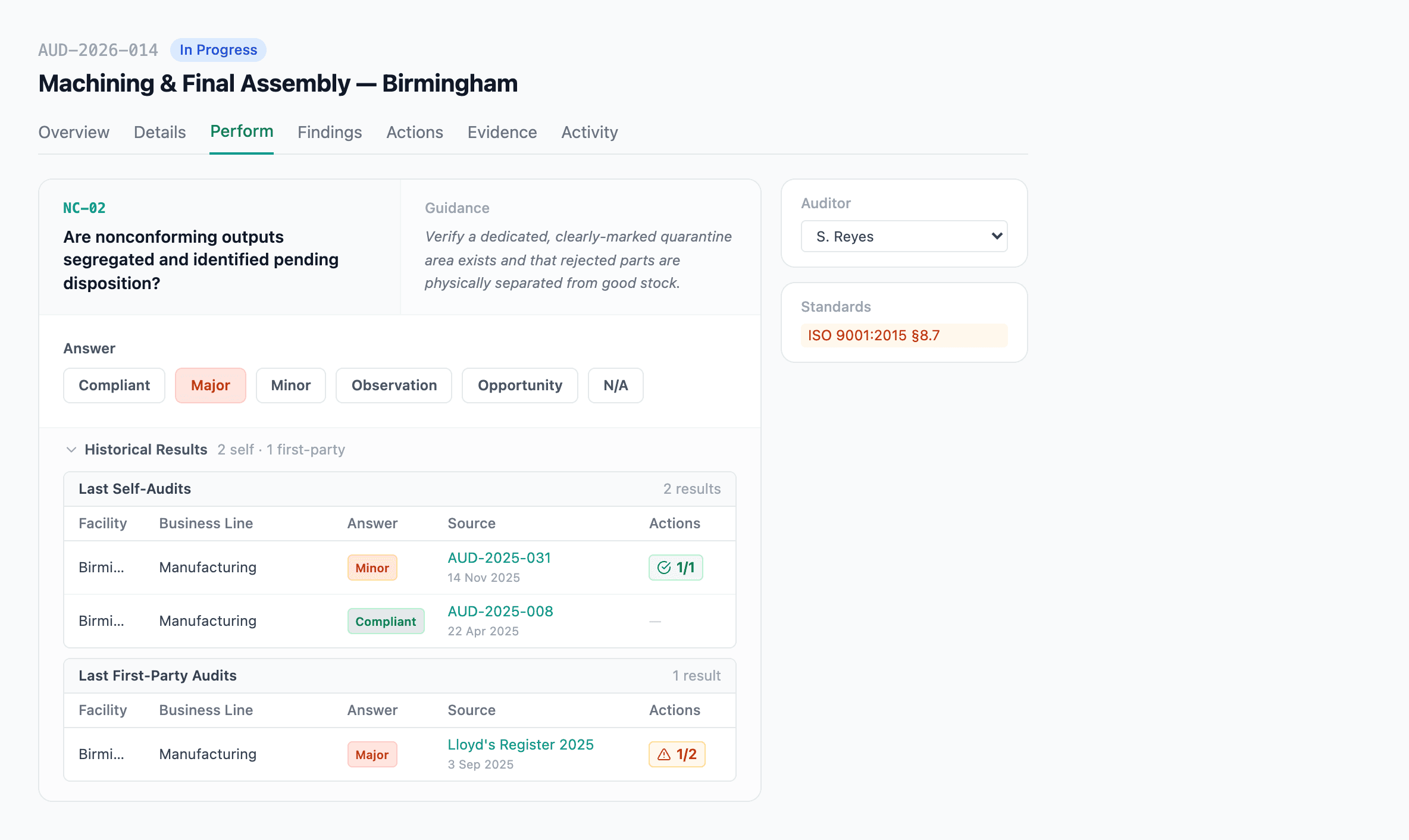
This is invaluable for repeat audits. "Last quarter's auditor flagged this as Minor NC for missing batch numbers — let me check whether that NCR closed and whether the gap is still there." The whole loop fits on one screen.
The panel is read-only. If you want to act on a prior NCR (reopen, link, comment), click through to it.
AI evidence summary
When evidence is attached, a violet Summarize attached evidence button appears below your notes.
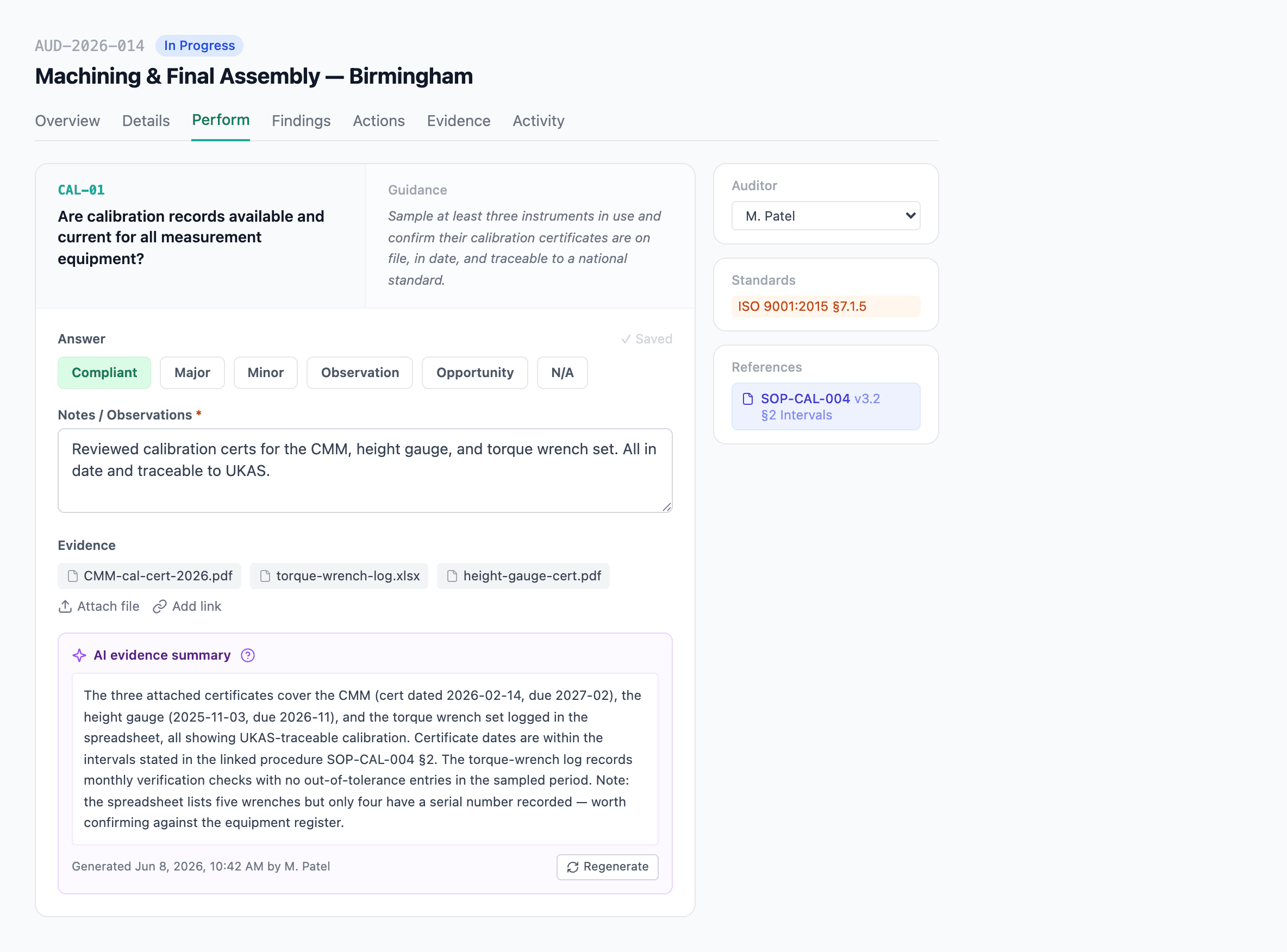
Click it and AI reads the attached files — Word, Excel, PDFs, photos — and produces a short bullet summary of what they show. The intent is to save you reading time on a 40-page maintenance log, not to replace the auditor's judgment.
A few rules:
- The summary regenerates with a button click if you change evidence or notes.
- Summaries older than a day show a Refresh prompt.
- Files larger than the per-file AI cap are flagged as Attached but not analyzed — open them yourself.
The summary tells you what the evidence says. It does not pick Conforming or Non-Conforming for you. The point is to save reading time, not to take judgment off the auditor.
This feature is on by default. Turn it off org-wide at AI settings → Audit evidence summary. See AI Features & Settings for the broader AI toggles.
Raising findings
Any Minor NC or Major NC answer becomes a finding on the audit's Findings tab. You don't have to wait until the end of the audit to convert findings into NCRs — many lead auditors do it as they go, while context is fresh.
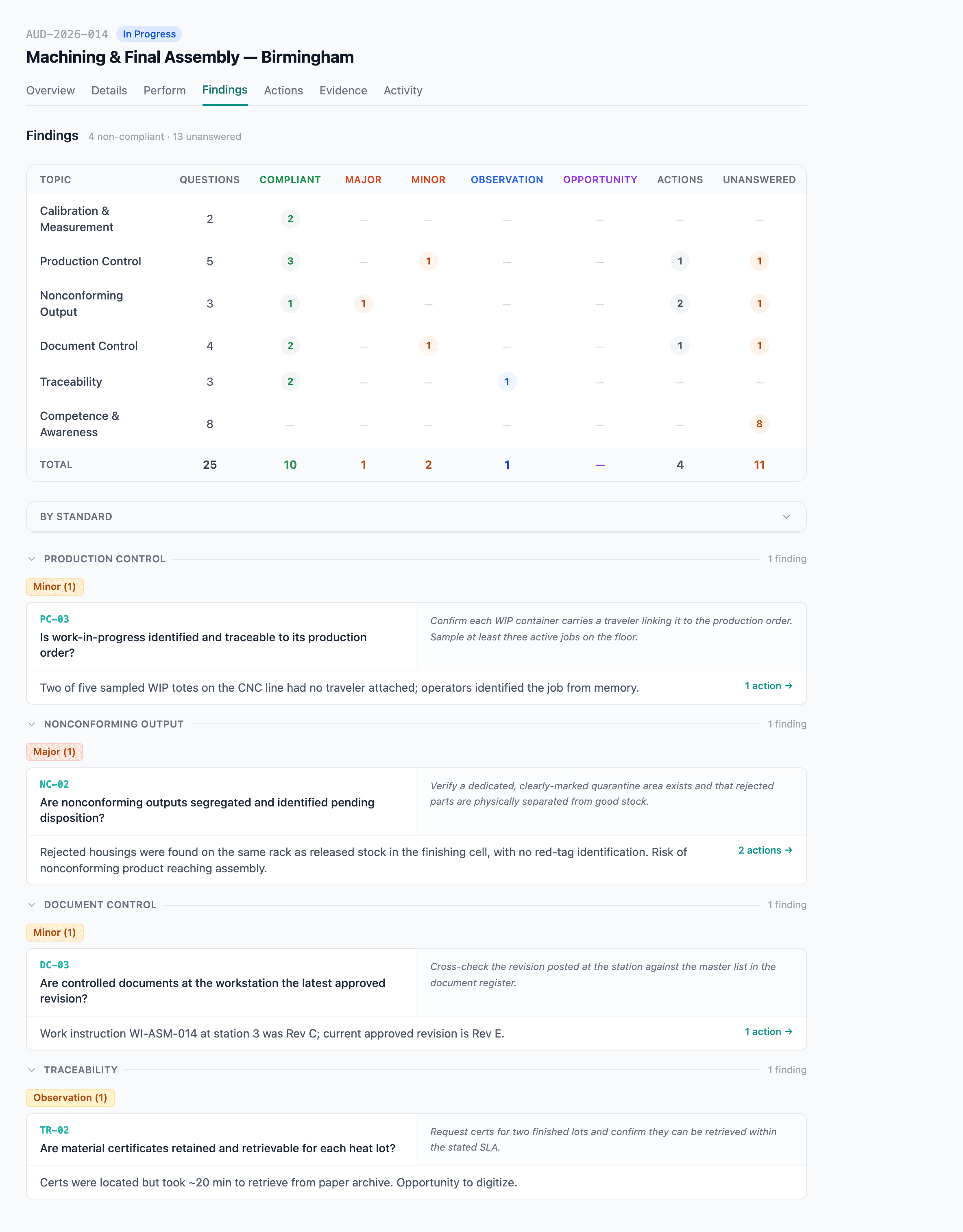
Create NCR
Click Create NCR on any finding. The new NCR is pre-filled with:
| Field | From |
|---|---|
| Title | The question and your answer |
| Description | Your audit notes |
| Detected date | Today |
| Source | Internal audit or Supplier audit (set by audit type) |
| Severity | Major NC → Major; Minor NC → Minor (editable) |
| Evidence | The files you attached on the question come along automatically |
You're handed straight to the NCR's Define tab to finish anything else. The audit's Links tab shows every NCR raised from it, so the audit trail stays joined-up. See Non-conformances for what happens next.
Bulk-creating NCRs
If you have a stack of findings to convert at the end, multi-select them on the Findings tab and click Create NCRs. One NCR per finding, all pre-filled — review them in the NCR list afterward.
Audit status
Audits move through three states:
| Status | Meaning |
|---|---|
| Draft | Wizard incomplete or audit not yet started. Editable in every direction. |
| In Progress | Auditors are working. The default state once the wizard is done. |
| Closed | Read-only. Activity log preserved. |
Status advances on Overview. Going from Draft to In Progress is automatic when the first answer is saved — you don't have to flip it manually.
Closing the audit
When you're done, change status to Closed on Overview. If anything is incomplete you'll see a Closure blockers modal listing what's left:
- Unanswered questions, by topic.
- Major NCs without an NCR.
- Mandatory evidence not attached.
- Auditors with assigned questions still unanswered.
Clear the blockers, hit Close audit, and the record locks. From here it's read-only — searchable, exportable, and citable in audit history. Activity log preserves who answered what, when, and what evidence they attached.
Once an audit closes, only an admin can reopen it, and the reopen is itself logged in Activity. If you're not sure you have everything, advance to In Progress and finish properly — there's no penalty for taking the extra day.
Keyboard and quality-of-life
A few patterns that pay off:
- Tab through answer chips with the keyboard — Conforming / Minor / Major / Observation / N/A bind to 1-5.
- Save and next with
⌘ + Enter(Mac) orCtrl + Enter(Windows) jumps to the next unanswered question in your filter. - Filter chips are sticky — close the tab and come back, your view is preserved per audit.
- My questions filter is your friend — most auditors live on it for the duration of the audit.
Going further
Working solo
For 1st-party audits done by a single auditor, skip the Assign step entirely. As the lead auditor on a one-person team, you can answer every question — assignment only matters when work is being divided. Use the Topic filter to walk the audit one section at a time.
Lead auditor's role during conduct
The lead auditor's day is mostly:
- Watch the Audit Assignments card on Overview — nudge anyone who's behind.
- Convert findings to NCRs as they come in — context is freshest right after the question is answered.
- Review N/A answers — auditors sometimes mark something N/A that should have been Observation.
- Cover questions whose assignee is unavailable — the lead's override rights mean a single absentee never blocks the audit.
- Verify all blockers are clear before closing.
The lead doesn't have to answer every question themselves; the value is in coordination, not coverage.
If you delete an in-flight audit
An audit that's still in progress can be deleted from its detail page; it lands in Trash for 90 days and can be restored in full. Closed audits are permanent — they can't be deleted from the system. If a closed audit was created in error, an admin would reopen it (a logged action) then delete from there.
See Soft-delete — how it works.
Related
- Audits — the module overview
- Setting up audits, end to end
- Audit Planner
- Non-conformances
- AI Features & Settings