In one sentence
Multi-factor authentication (MFA) means a signed-in session has to prove how you signed in and a code from your authenticator app — so a stolen password alone, or an SSO login alone, isn't enough to reach your organization's data.
- Your sign-in method, plus TOTP. You sign in however your org allows — password, passkey, or SSO — and then enter a code from your authenticator app. The authenticator app is the second factor for everyone; a passkey is a way of signing IN, not a second factor.
- SSO doesn't satisfy MFA on its own. Signing in with Google or Microsoft gets you past the first step; you still enter an authenticator code.
- Set up your authenticator app in your Profile. Both it and your passkeys live under Profile → Security — but only the authenticator app satisfies MFA.
Which factor combinations work
A valid session pairs two different factors. Common combinations:
| Primary factor (how you logged in) | Second factor |
|---|---|
| Password | Authenticator app (TOTP) |
| Password | Passkey |
| Passkey (passwordless) | Authenticator app (TOTP) |
| Passkey (passwordless) | SSO |
Because SSO only gets you past the first step, an SSO sign-in still routes you to set up your authenticator app before you reach the dashboard. The same is true of a passwordless passkey login: a passkey signs you in, and the code from your authenticator app is what completes MFA.
Setting up an authenticator app (TOTP)
An authenticator app generates a rolling 6-digit code that serves as your second factor. It works with Google Authenticator, 1Password, Authy, or any RFC 6238 TOTP app.
- Open your Profile and find the Security · Authenticator app card.
- Click Set up authenticator app.
- In your authenticator app, choose "enter a setup key" and paste the setup key shown — or, on the same device, open the
otpauth://link. Your account is your email; the issuer is QFormance. - Enter the current 6-digit code the app shows and click Verify & enable.
- Save your recovery codes. A panel of one-time codes appears — this is the only time they're shown. Each looks like
A4KP-7X2M-QR9T-3WHF. Copy them somewhere safe.
The one-time recovery codes are displayed a single time at setup. If you don't save them, you can mint a fresh set later with Regenerate recovery codes on the same card — but regenerating invalidates the previous set.
Once enabled, the card shows how many unused recovery codes remain, plus buttons to Regenerate recovery codes or Remove the authenticator.
Using a passkey or security key to sign in
A passkey is a passwordless way to sign in. It is not a second factor — after a passkey login you still enter a code from your authenticator app. Passkeys work with platform authenticators (Touch ID, Face ID, Windows Hello) and with roaming security keys — YubiKey, Titan, or any FIDO2 key.
- Set up passkeys under Profile → Security · Passkeys (see Passkeys for the full walk-through).
- A hardware security key must have a PIN set — QFormance requires user verification, so a key without a PIN won't enroll.
An earlier version let a passkey count as the second factor, which meant the system had to decide whether two credentials were meaningfully different — and it kept getting that wrong. A security key re-presented at the challenge could satisfy both halves with one device.
A 6-digit code is a different KIND of thing from every way of signing in, so nothing has to make that judgement. One rule, no exceptions: however you get past the first step, the code comes second.
The sign-in challenge
When you sign in and your session hasn't yet presented an authenticator code, QFormance routes you to the second-factor challenge before the dashboard loads:
- Enter your authenticator code — the current 6-digit code from your app.
- Use a recovery code — click Use a recovery code instead and enter one of your saved one-time codes.
A 6-digit code is spent the moment it's accepted. If you're asked to verify again while your app is still showing the same code, that code will be refused — wait for the app to roll over to the next one.
You'll see the ordinary "That code didn't match" message rather than anything about reuse. That's on purpose: an error that distinguished "already used" from "wrong" would confirm to someone who had shoulder-surfed a code that they'd found a real one.
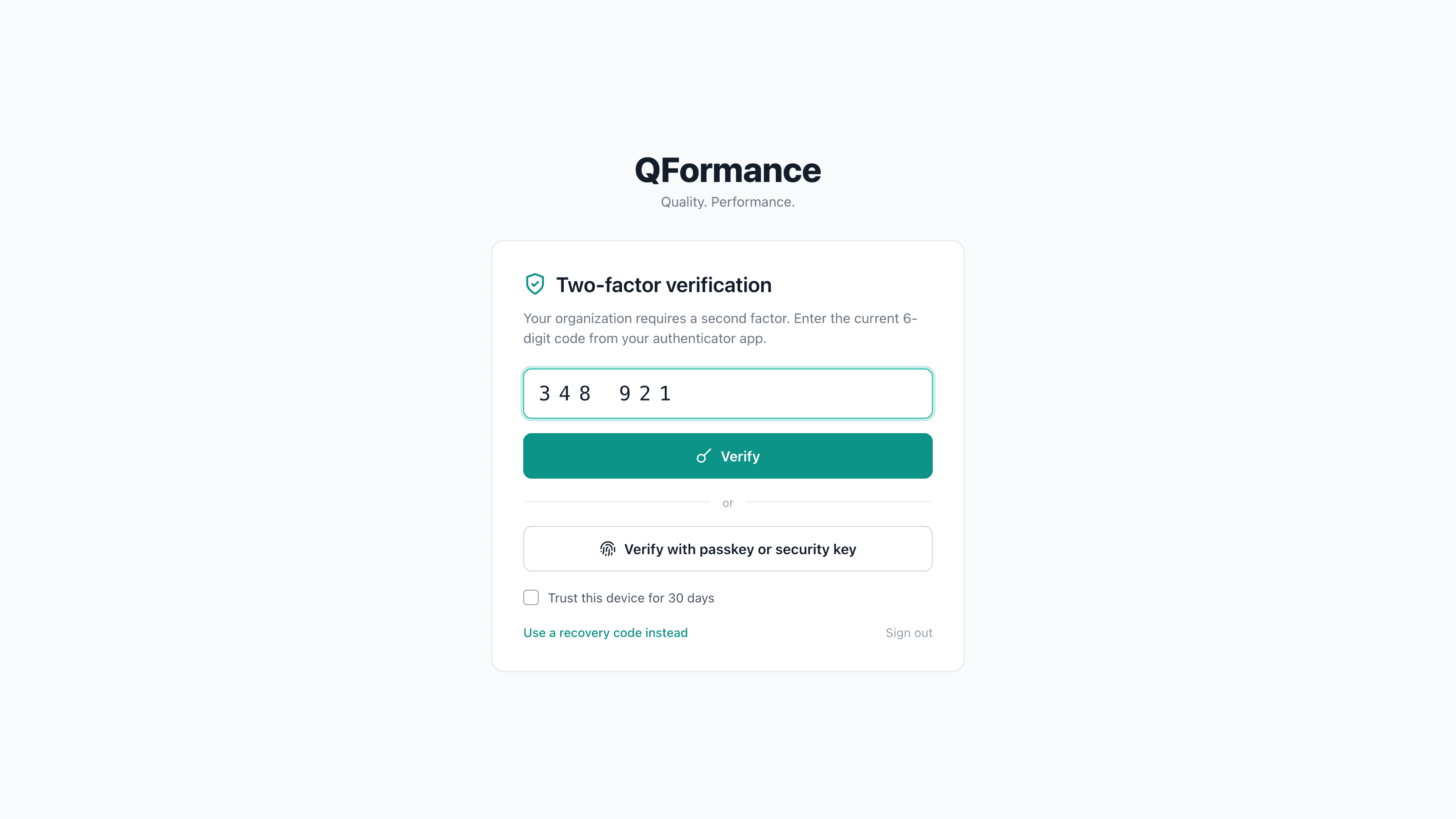
Trust this device for 30 days
The challenge offers a Trust this device for 30 days checkbox. Tick it and, for the next 30 days on that browser, sign-ins on the device skip the second-factor prompt (you still enter your primary factor). Leave it unchecked on shared or public machines.
Trusting a device survives signing out — deliberately. That's what makes the hourly idle sign-out below tolerable: you come back, enter your password or passkey, and you're in, without hunting for your phone every time.
To revoke it, use Profile → Security → Forget trusted devices. That clears the trust on every browser at once, so the next sign-in anywhere asks for a second factor again. Your enrolled factors are untouched — this only forgets the devices. Use it if a laptop goes missing.
If you have no second factor yet
New members — and anyone stranded by a policy change or an admin reset — are sent to a Set up multi-factor authentication page instead of the challenge.
Before you can enroll your first second factor, that page asks you to confirm you control the email address on your account: click Email me a confirmation link, then open the link in the same browser. It works once and expires. A stolen password on its own doesn't come with the mailbox, so this is what stops someone else planting their own authenticator on your account.
Once confirmed, enroll an authenticator app, a passkey, or a security key — whichever your organization allows — and continue to the dashboard.
How long a session lasts
Three separate clocks. They answer different questions, and most people only ever notice the first.
| Clock | Length | What happens at the end |
|---|---|---|
| Inactivity | 60 minutes | Signed out completely, back to the login page |
| Second-factor window | 12 hours | Your second factor is asked for again at the next sign-in |
| Trusted device | 30 days | That browser stops skipping the second-factor prompt |
The 60-minute idle sign-out
Leave QFormance untouched for an hour and you're signed out — not locked, signed out. The window slides: any real interaction resets it, so someone working continuously is never interrupted, however long the day runs.
At 55 minutes a warning appears with a countdown and a Stay signed in button. Click it and the hour starts over. Ignore it and the last five minutes run out, at which point the tab returns you to the login page.
Signing back in needs your primary factor — password or passkey. If you ticked Trust this device within the last 30 days, that's the whole ceremony: no authenticator code, no reaching for your phone.
So the idle timeout protects an unattended screen, and the 30-day trust keeps the cost of that protection down to a few seconds. The two settings are designed as a pair, not as separate features.
One deliberate subtlety: pages your browser quietly pre-loads in the background don't count as activity. If they did, a dashboard left open on a wall display would keep renewing its own session and the timeout would never fire at all.
You can't remove your last second factor
While MFA is required, the Remove control on your authenticator app is disabled — it is what satisfies MFA, so deleting it would leave you unable to sign in at all. No authenticator isn't a state the product will let you tidy your way into, because it's the state an attacker holding your password wants you in.
Add another authenticator first — a second passkey, a hardware security key, or an authenticator app — and the original becomes removable.
The rule is about the transition, not the count: if you already have no usable factor (say you abandoned an authenticator setup half-way, or your org stopped accepting the factor type you'd enrolled), you can still clear the leftover so you can enroll properly.
Recovery if you lose a factor
You manage your own factors from Profile → Security — but only while you can still sign in. So the escape hatch when your authenticator is gone is a recovery code, not the Profile page.
| Situation | What to do |
|---|---|
| Lost your phone / authenticator app, but still have recovery codes | Enter a recovery code at the sign-in challenge to get in — then set the authenticator up again from your Profile. |
| Lost your phone | Use one of your one-time recovery codes at the challenge. A passkey signs you in but does not get you past it. |
| Running low on codes (while you can still sign in) | Regenerate a fresh set from Profile → Security · Authenticator app before you run out. |
| Locked out — every factor gone, no recovery codes left | You can’t self-recover. Ask an org admin to reset your MFA from Admin → Users. See Account recovery. |
Recovery codes each work once. Save them somewhere safe the moment you enroll, keep a couple in reserve, and regenerate before you run out — they’re what gets you back in when nothing else can.
Recovery codes are minted when you enable the authenticator app (TOTP), which everyone sets up — so you always have a set. Keep them somewhere reachable WITHOUT your phone; that is the situation they exist for. Lose both and it takes an administrator reset.
What an admin reset does
A reset clears your second factors and signs you out of every device, including browsers you'd marked Trust this device for 30 days. Your password is unchanged. At your next sign-in you confirm your email address via a link we send you, then enroll a new second factor.
Nobody can do this quietly: you and every admin in your organization are emailed, and the email carries a link to cancel the reset that works without signing in. Account recovery walks through the whole ladder — including what happens when the only admin is the one locked out, and how to tell a genuine QFormance verification call from someone impersonating one.
For admins
MFA is enforced org-wide. Which sign-in methods your members may use, which second factors are accepted, and which email domains are allowed are all set at Admin → Organization → Auth & Sign-in Policy — and the save flow warns you before a change would lock other members out. See Auth & sign-in policy.
Two admin jobs follow from that:
- Record your support verification details on the same page — a callback number and a support PIN. They're what QFormance checks before touching anyone's account, and they only help if they were recorded before the lockout.
- Reset a locked-out member from Admin → Users. It's a distinct permission from general user management, so you can delegate recovery to a help-desk person without handing over org settings. See Account recovery.